CLIOTHE ART IS EVERYDAY

Every screen of a purchasing ERP, end to end.

Clio is a quantity-only purchasing ERP for a laminates importer. It exists to answer one question every morning — what should we reorder, and when — by holding each SKU's runway against a 45–75 day lead time from China. There is no money anywhere in it: not a price, not a total, not a currency symbol.

A complete tour of the shipping product, captured from the live demo in Clio's glass design language. Switch theme and device above any screen.

28screens
112captures
6chapters
2880×1800desktop @2x
1170×2532phone @3x
41months of data
Showing
1440 × 900 · captured at 2×

The decision

Clio exists to answer one question every morning — what should we reorder, and when. These are the screens that answer it.

4 screens
01

Dashboard

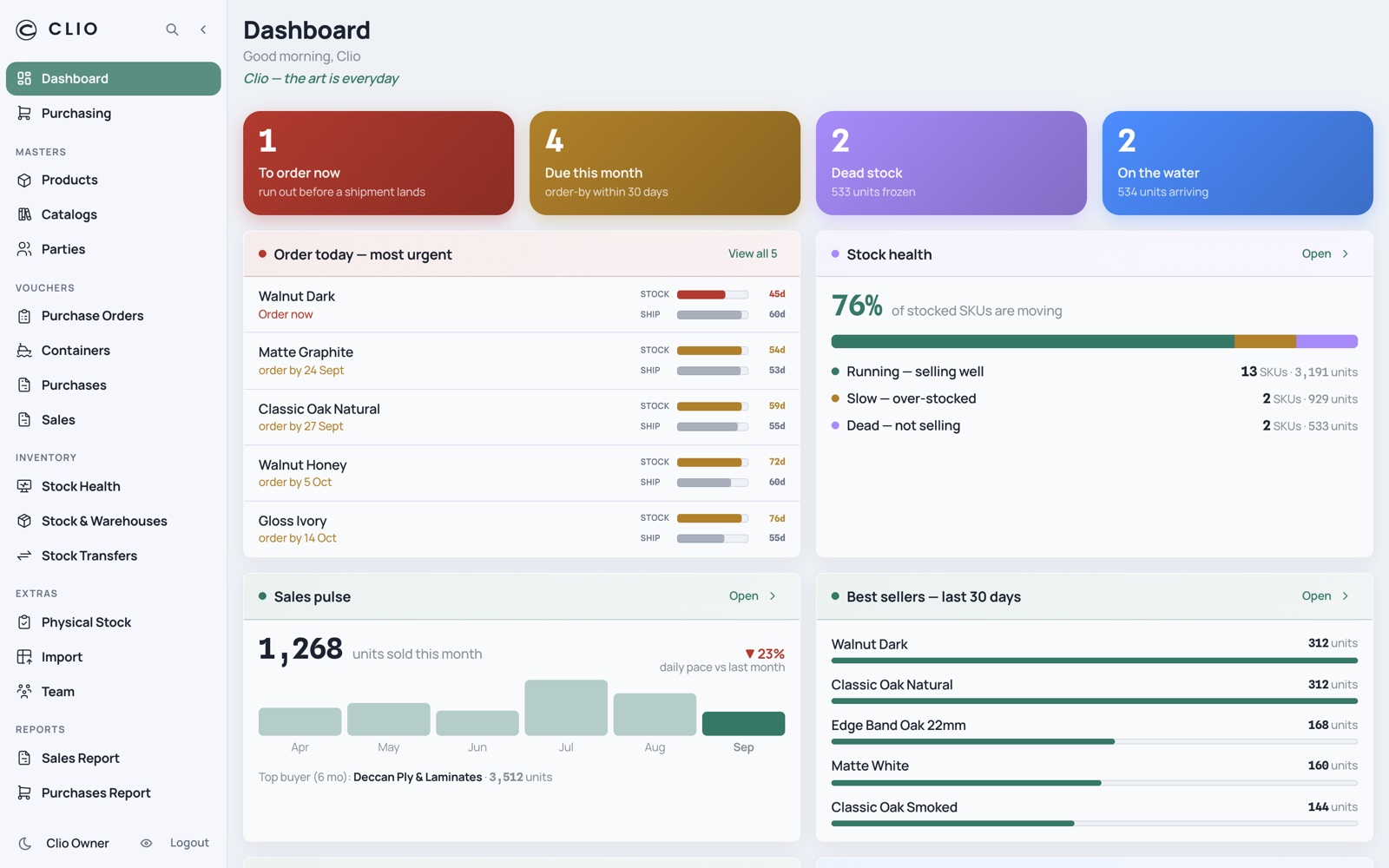
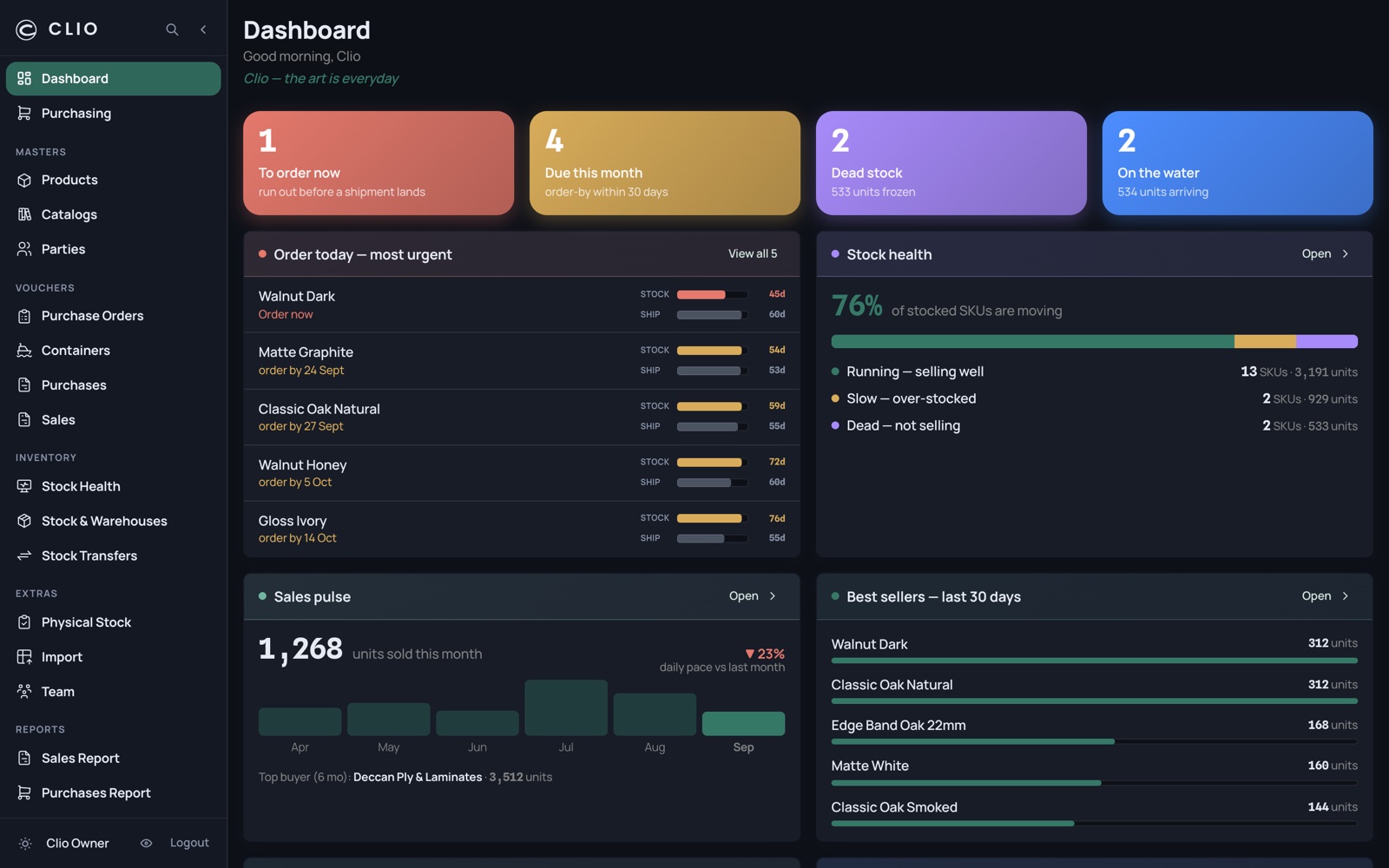
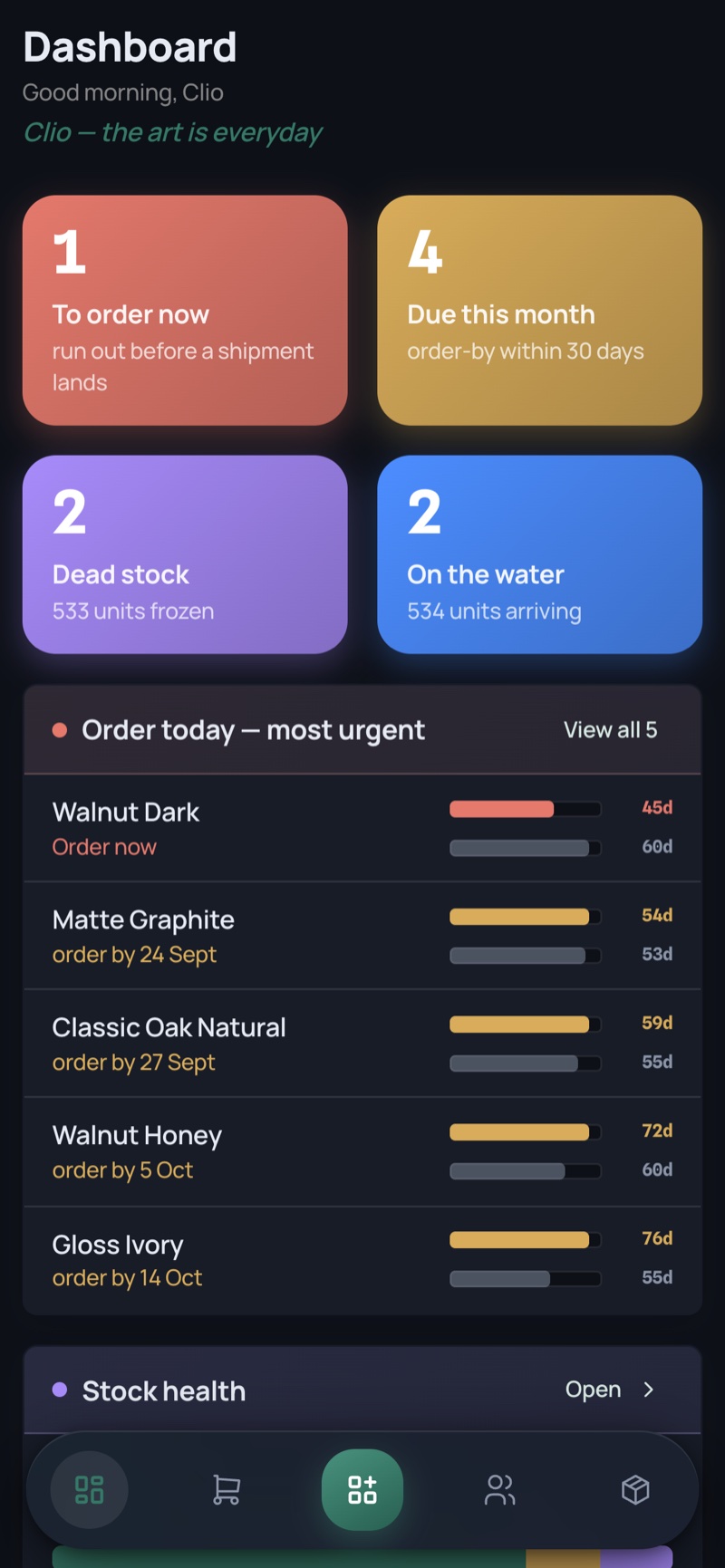
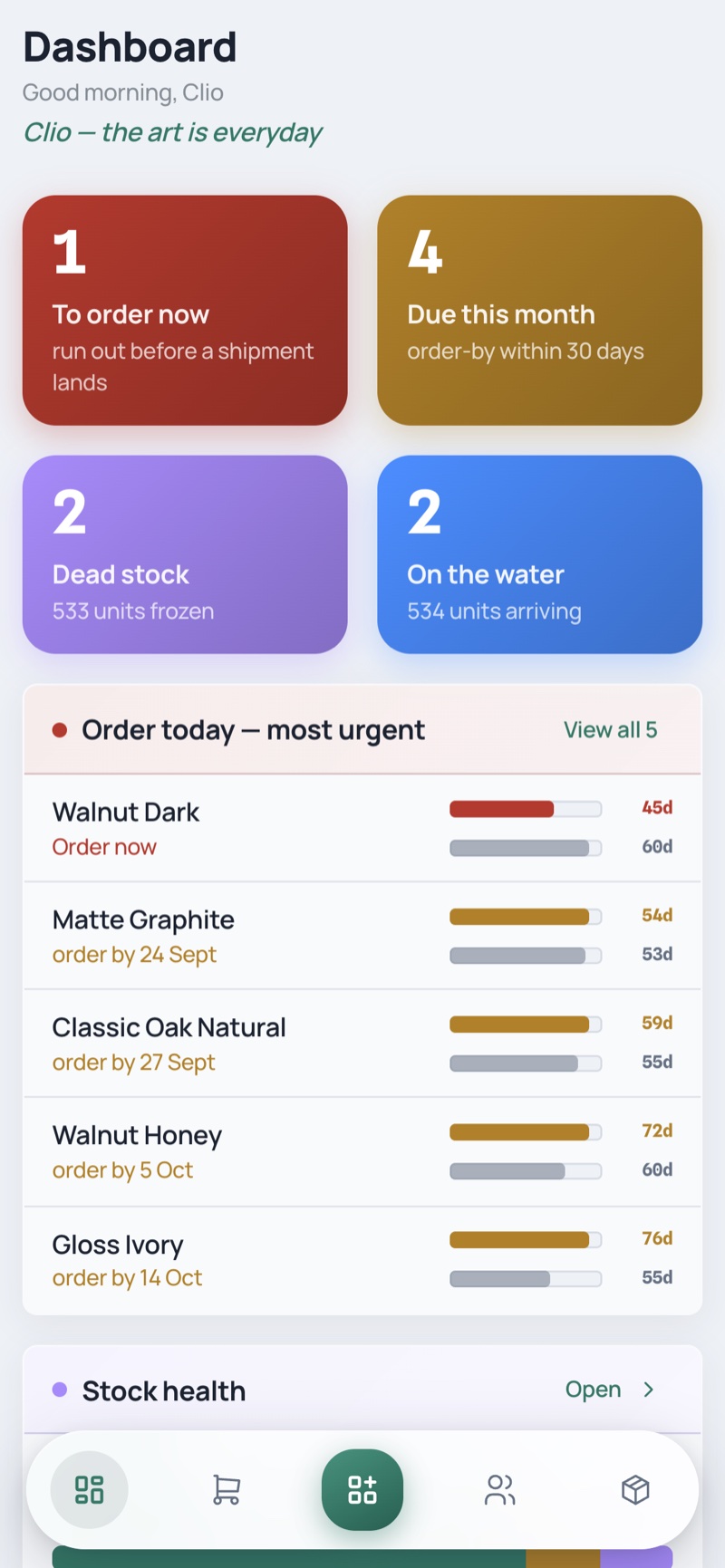
The morning briefing: how many SKUs need ordering today, what capital is frozen, what is at sea, and whether sales are pacing.

Dashboard — desktop, light Dashboard — desktop, dark
Dashboard — phone, light Dashboard — phone, dark
  • Four counts lead — to order now, due this month, dead stock, on the water
  • Order-today panel ranks the six most urgent SKUs, each with a runway-vs-lead bar and its order-by date
  • Stock health states one sentence over a running/slow/dead composition bar
  • Lead-time pressure prints the thesis: you hold ~X days of stock but need Y days to reorder from China
02

Purchasing

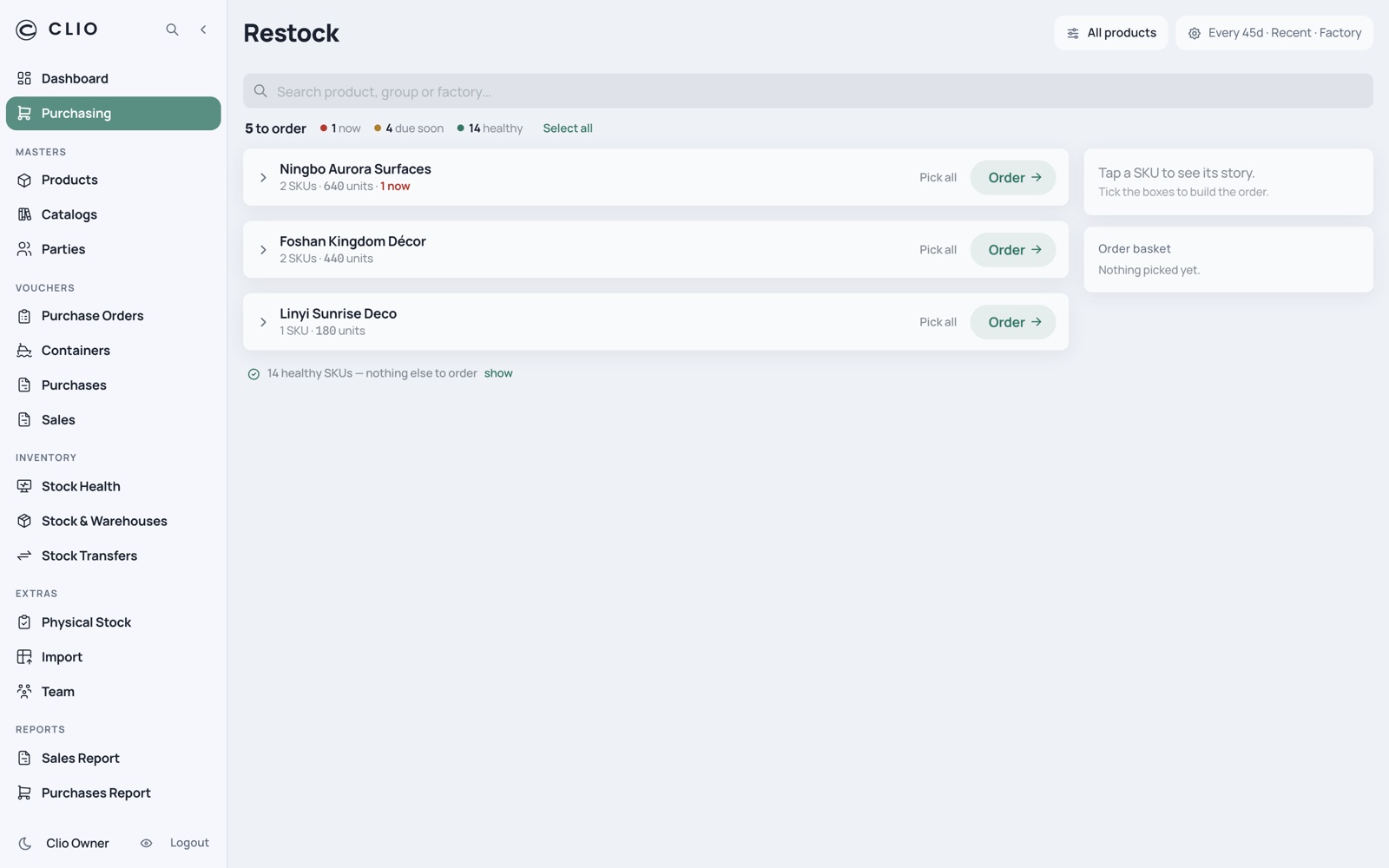
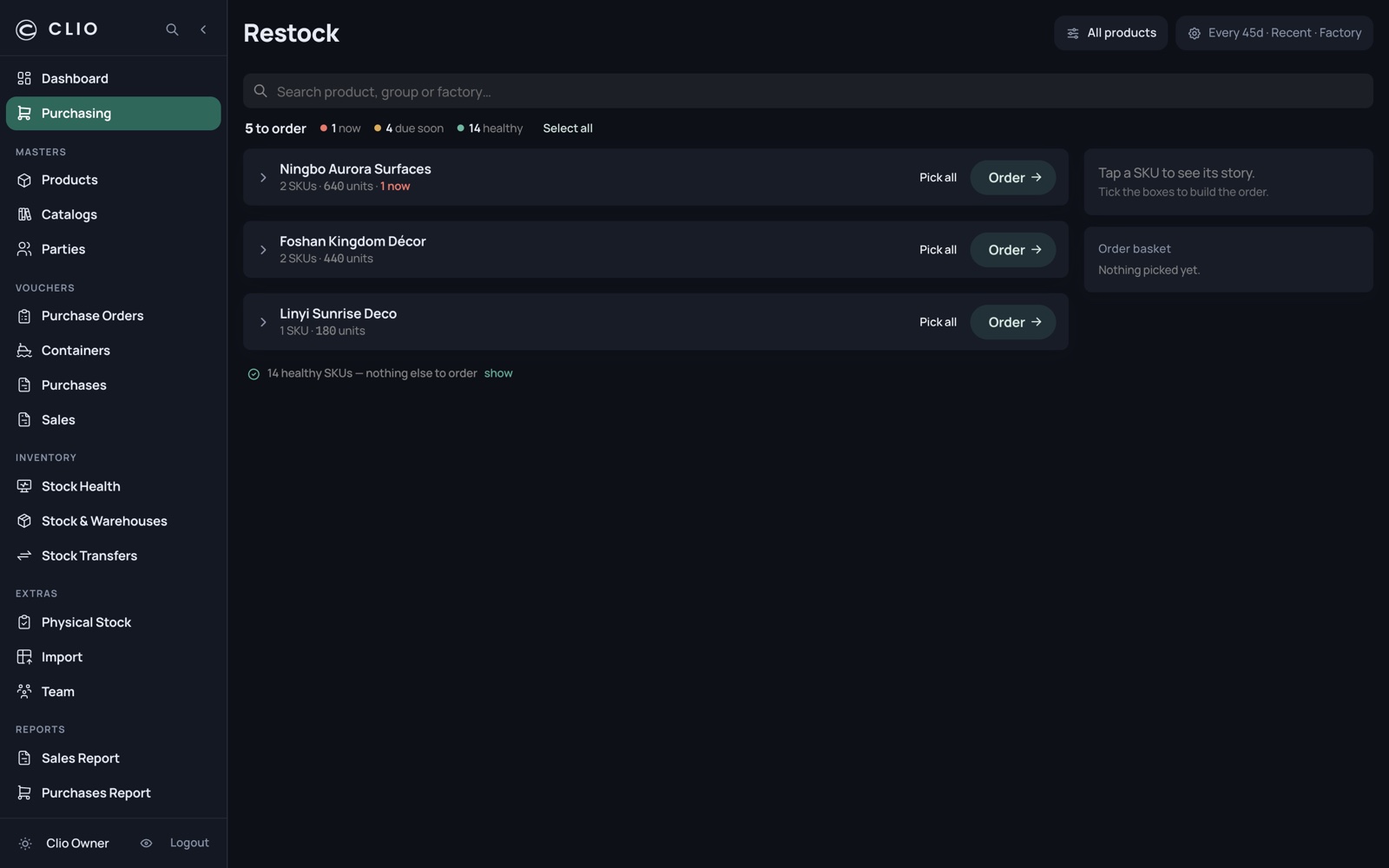
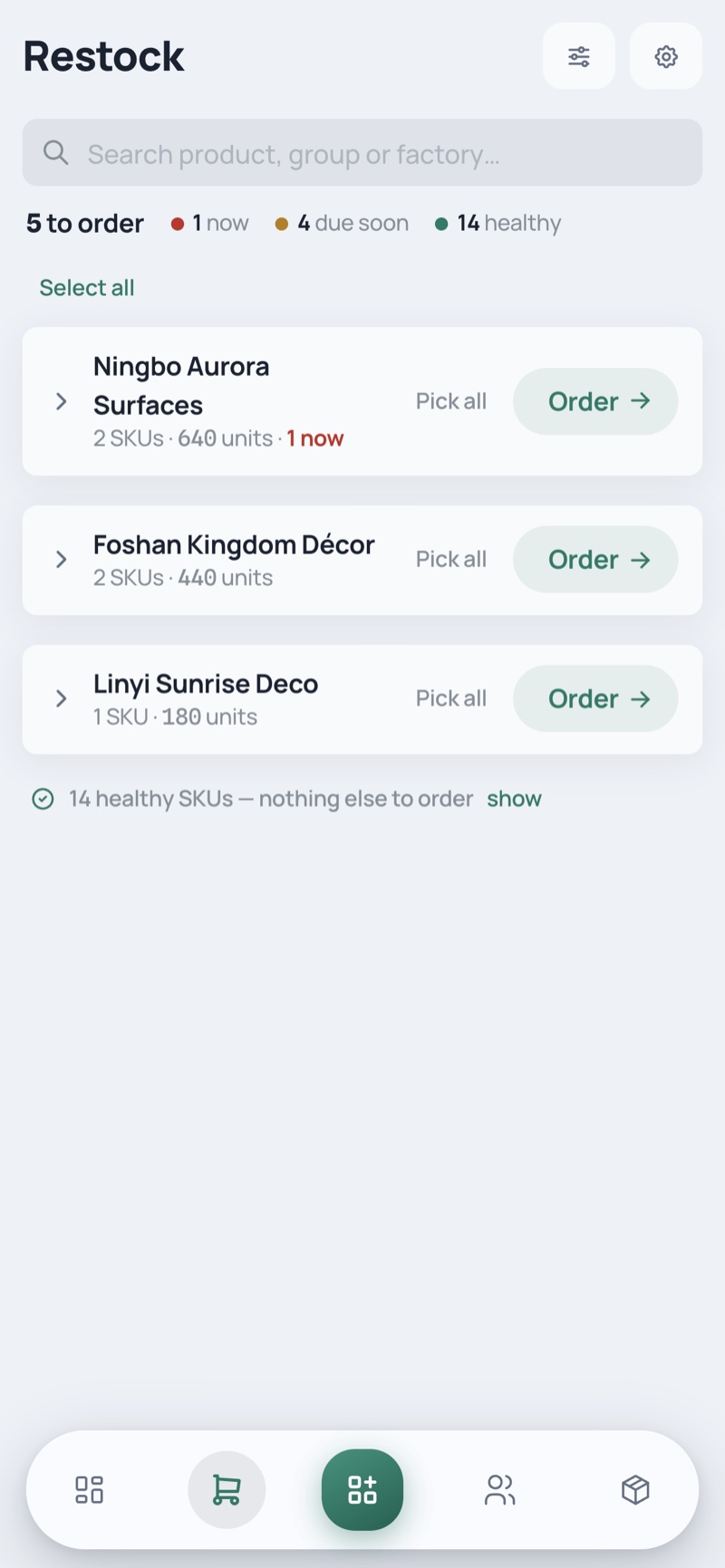
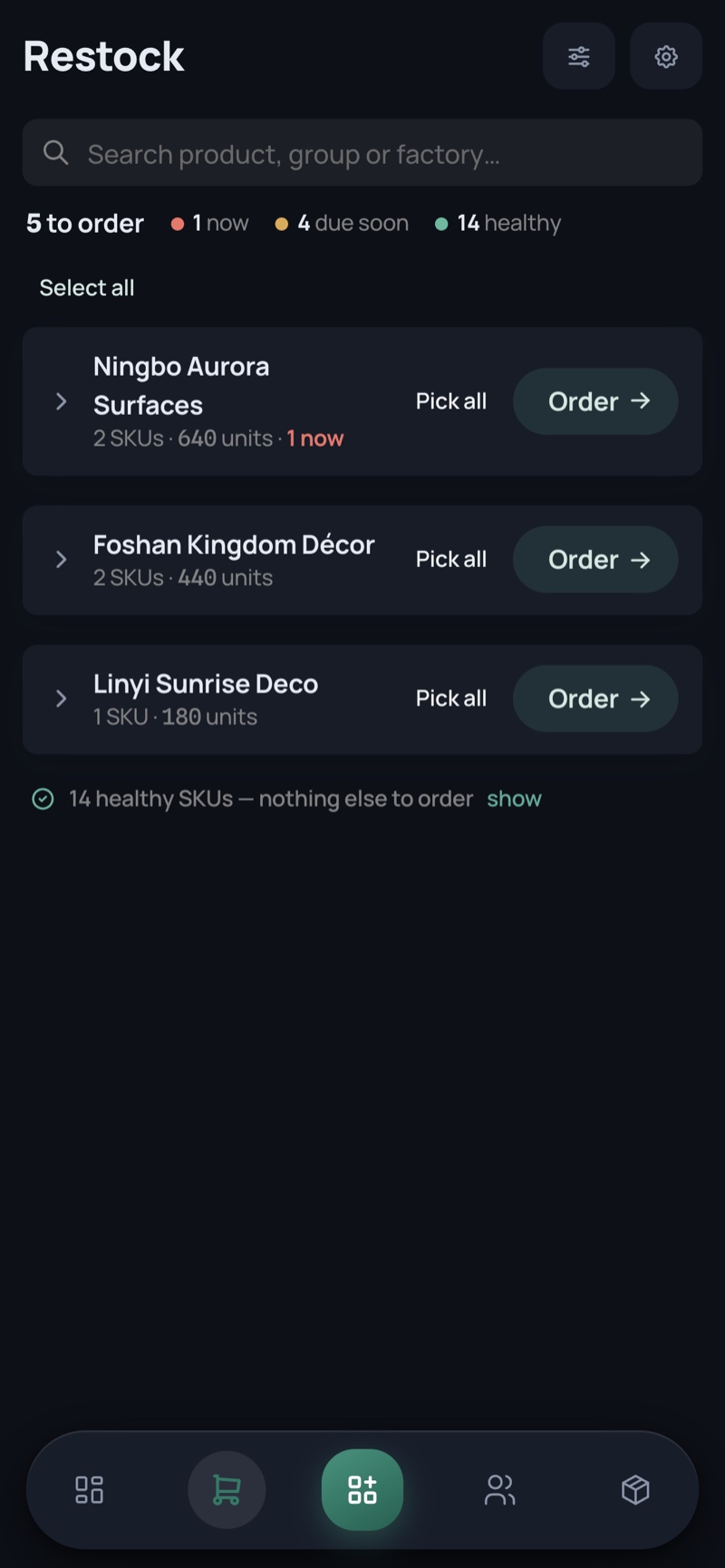
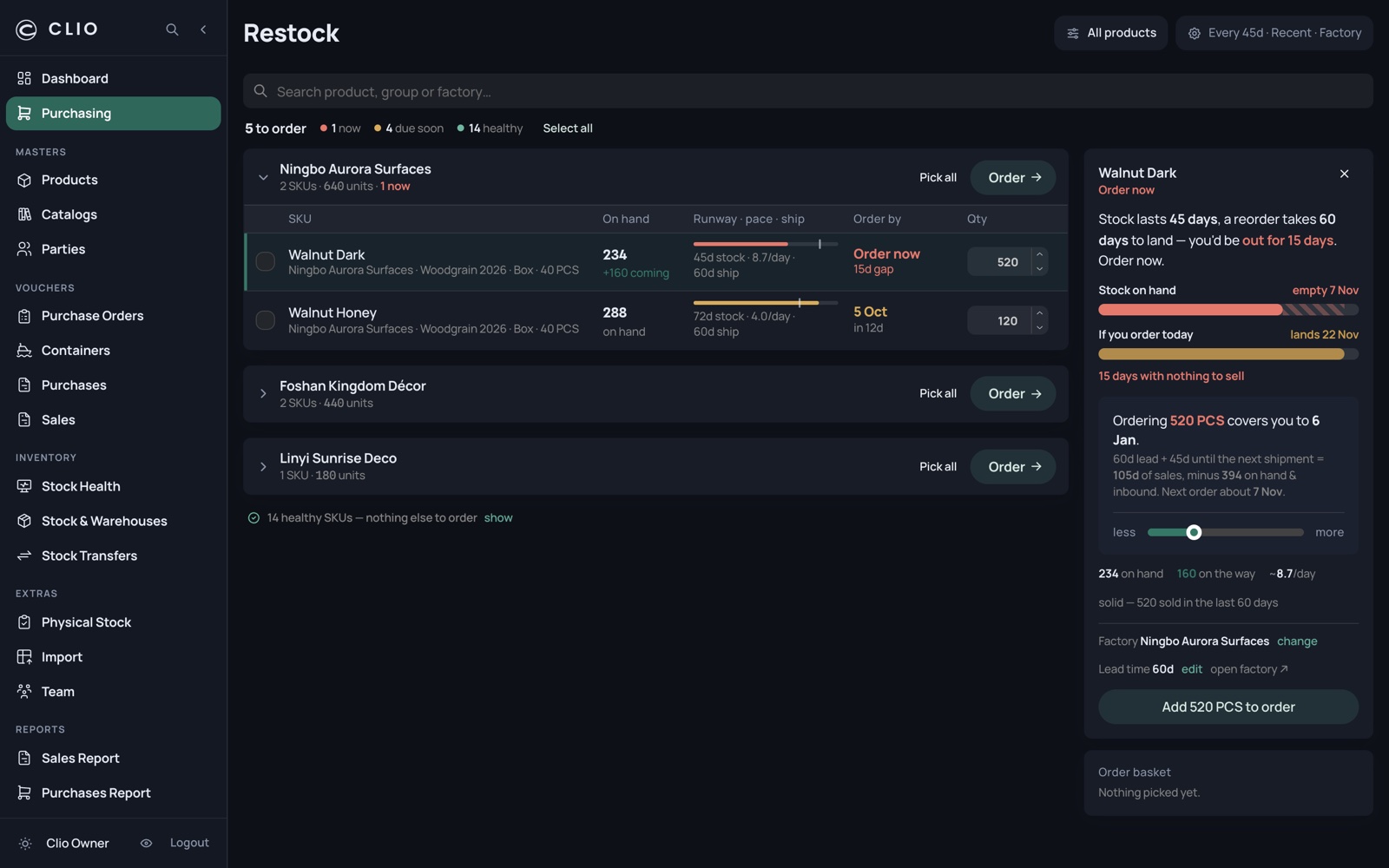
The order desk. Decide, factory by factory, what goes on a container this week so nothing runs dry before the next one lands.

Purchasing — desktop, light Purchasing — desktop, dark
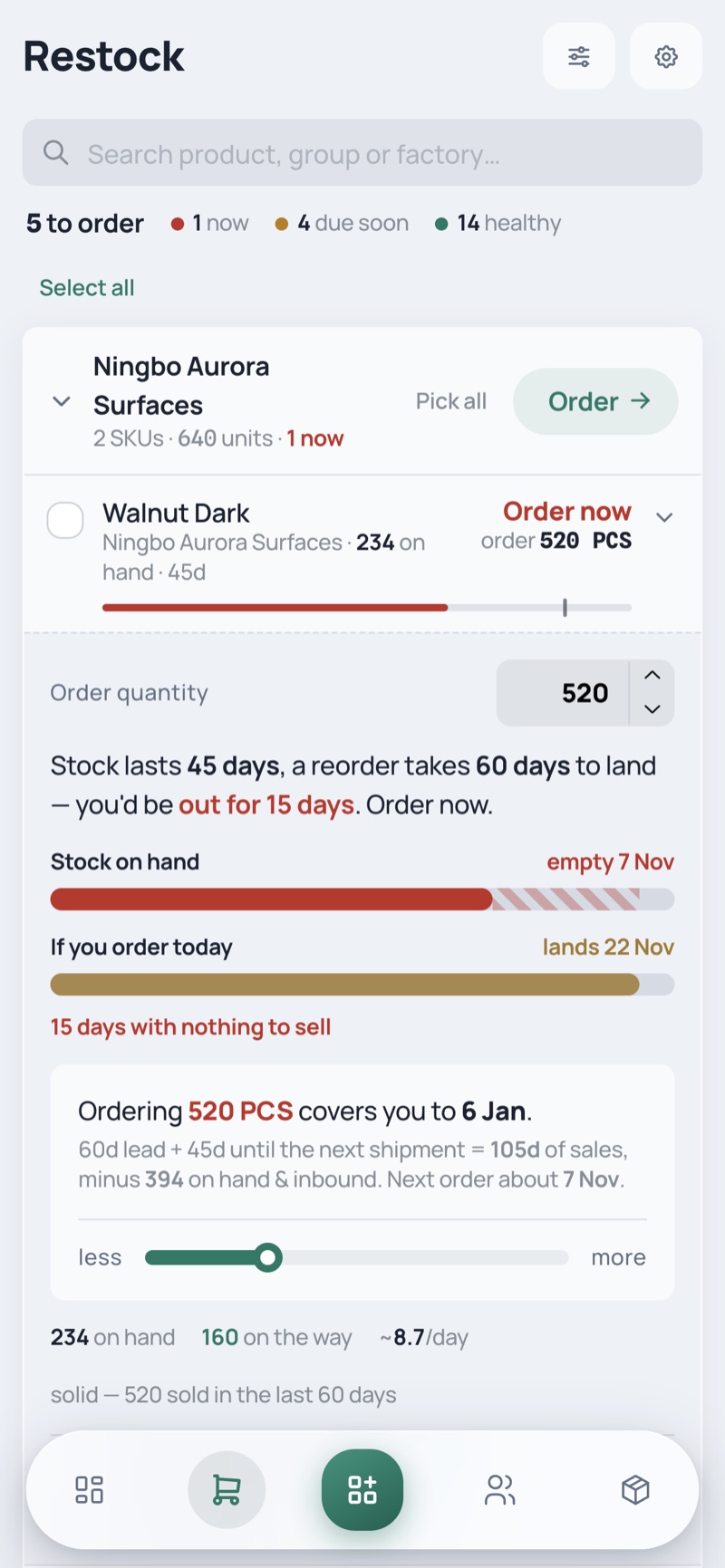
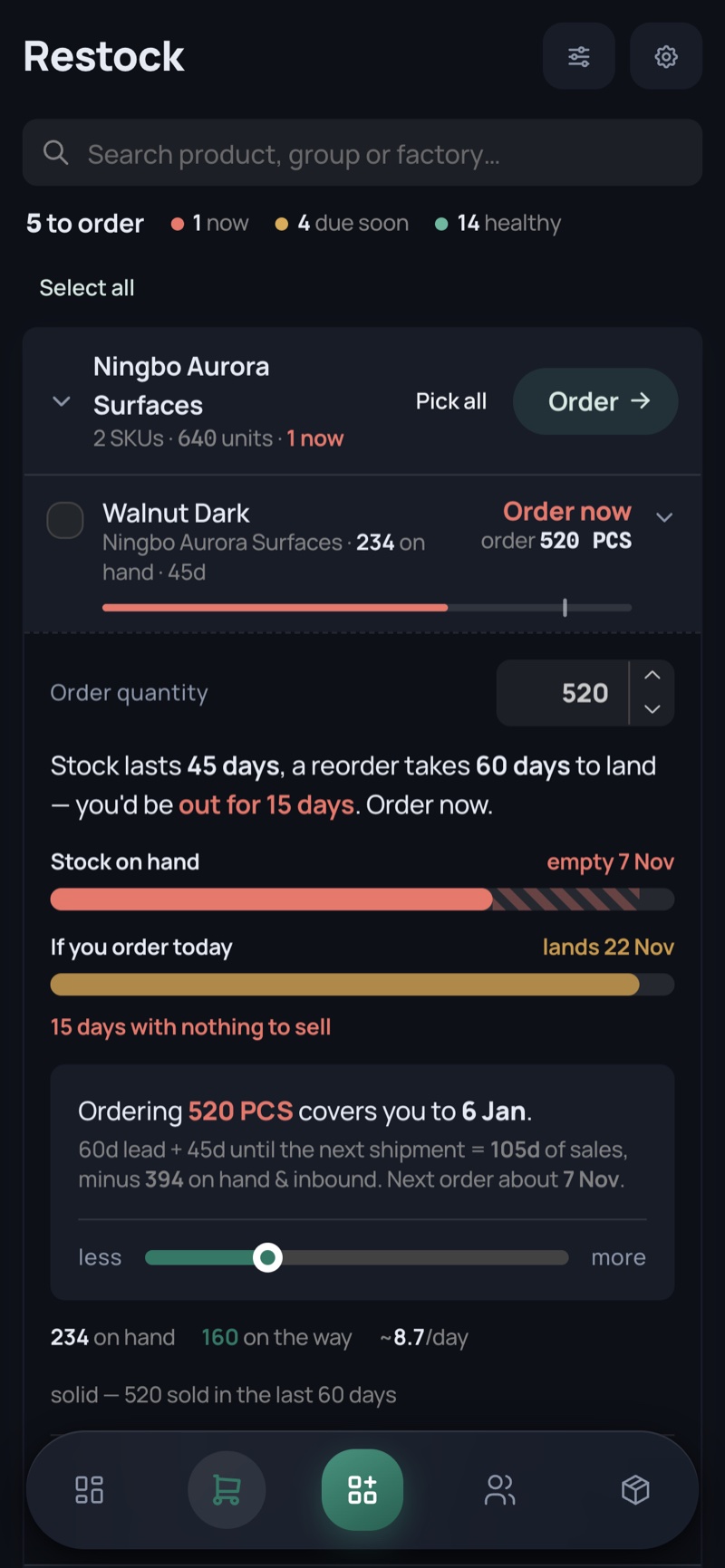
Purchasing — phone, light Purchasing — phone, dark
  • position = on hand + inbound; runout = position ÷ daily pace; order-by = runout − lead time
  • Honest buckets: now, soon, healthy — plus “No sales” and “Set lead time” rather than a fake number
  • Factory sections start collapsed; the headers are the summary you scan first
  • Ticked rows collect into an order basket
03

A SKU’s story

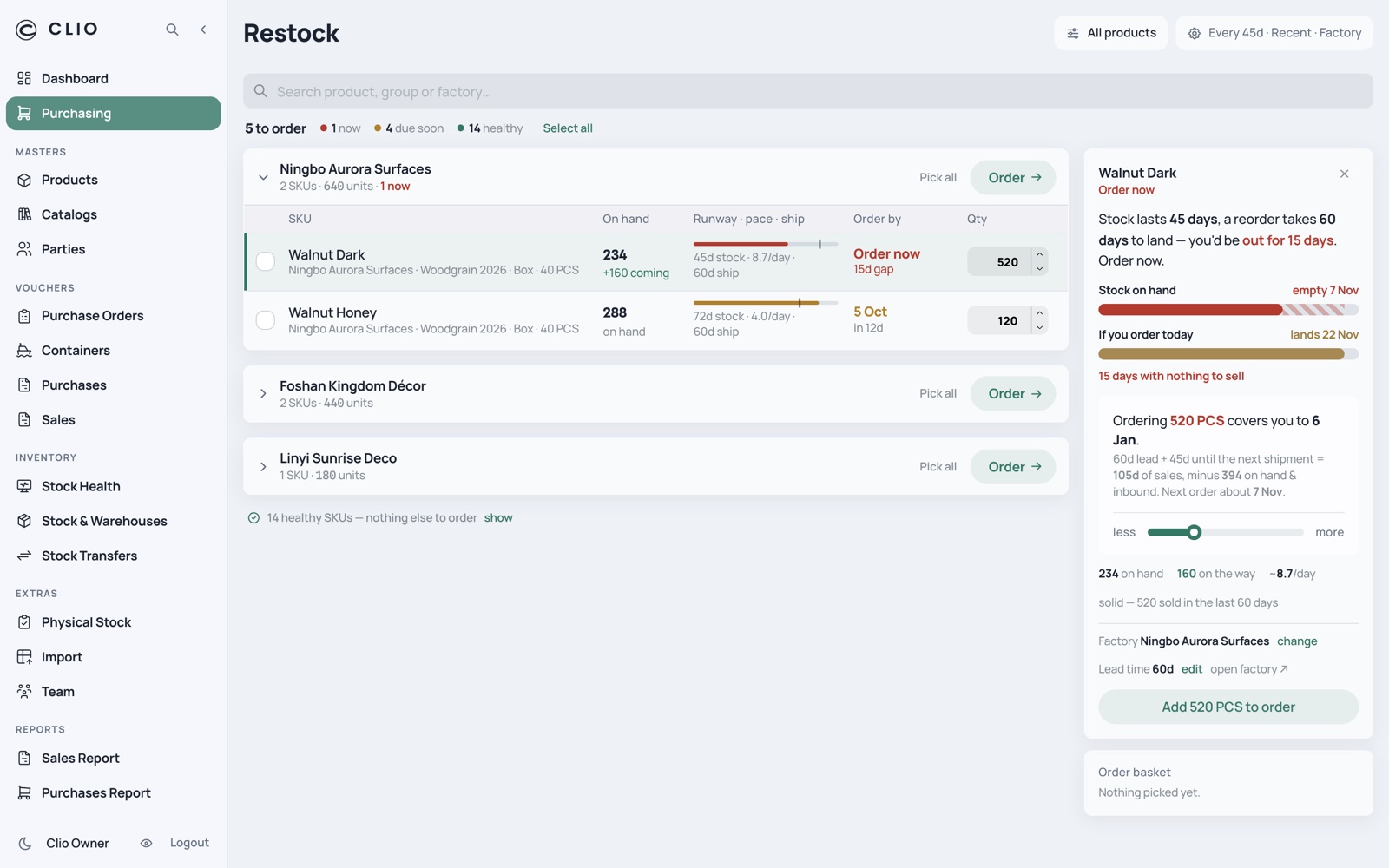
Why this SKU is on the list, in a sentence — then the arithmetic behind it.

A SKU’s story — desktop, light A SKU’s story — desktop, dark
A SKU’s story — phone, light A SKU’s story — phone, dark
  • “Stock lasts 25 days, a reorder takes 55 days to land — you’d be out for 30 days”
  • A timeline with the shortfall hatched and the landing date marked
  • A cover box with a quantity slider: what ordering N covers you to, and when the next order falls due
  • Inline fixes for the two things that block planning — pick the factory, set its lead time
04

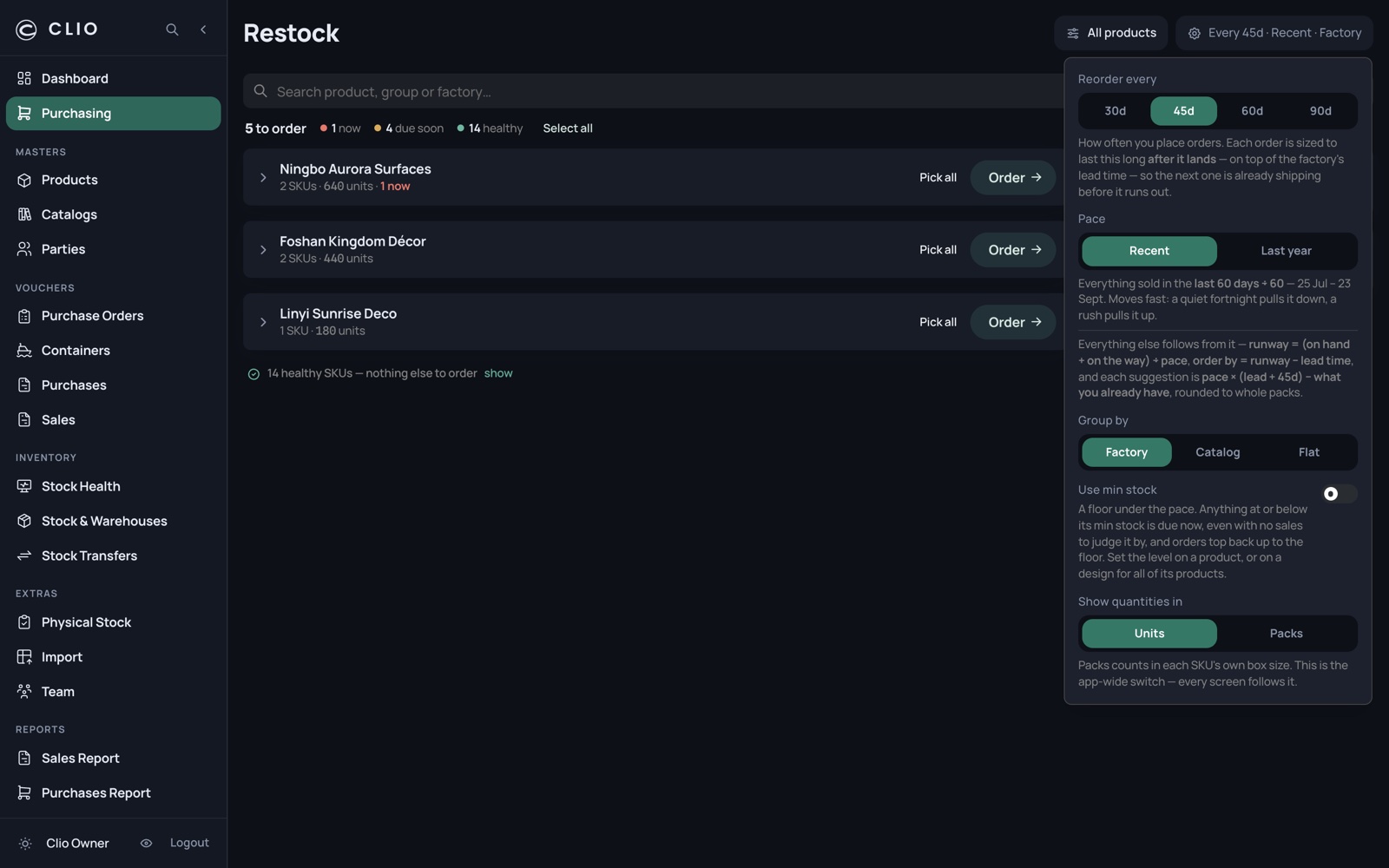
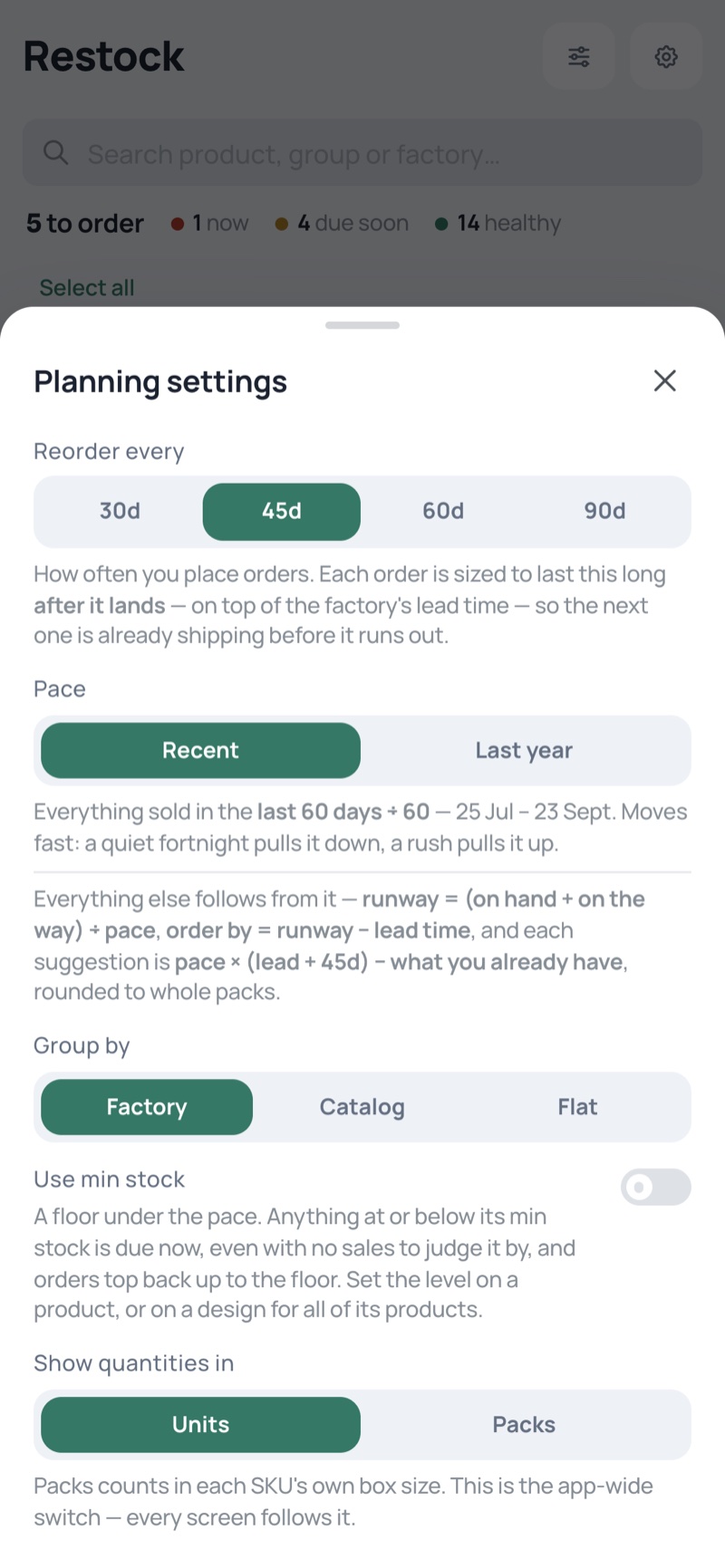
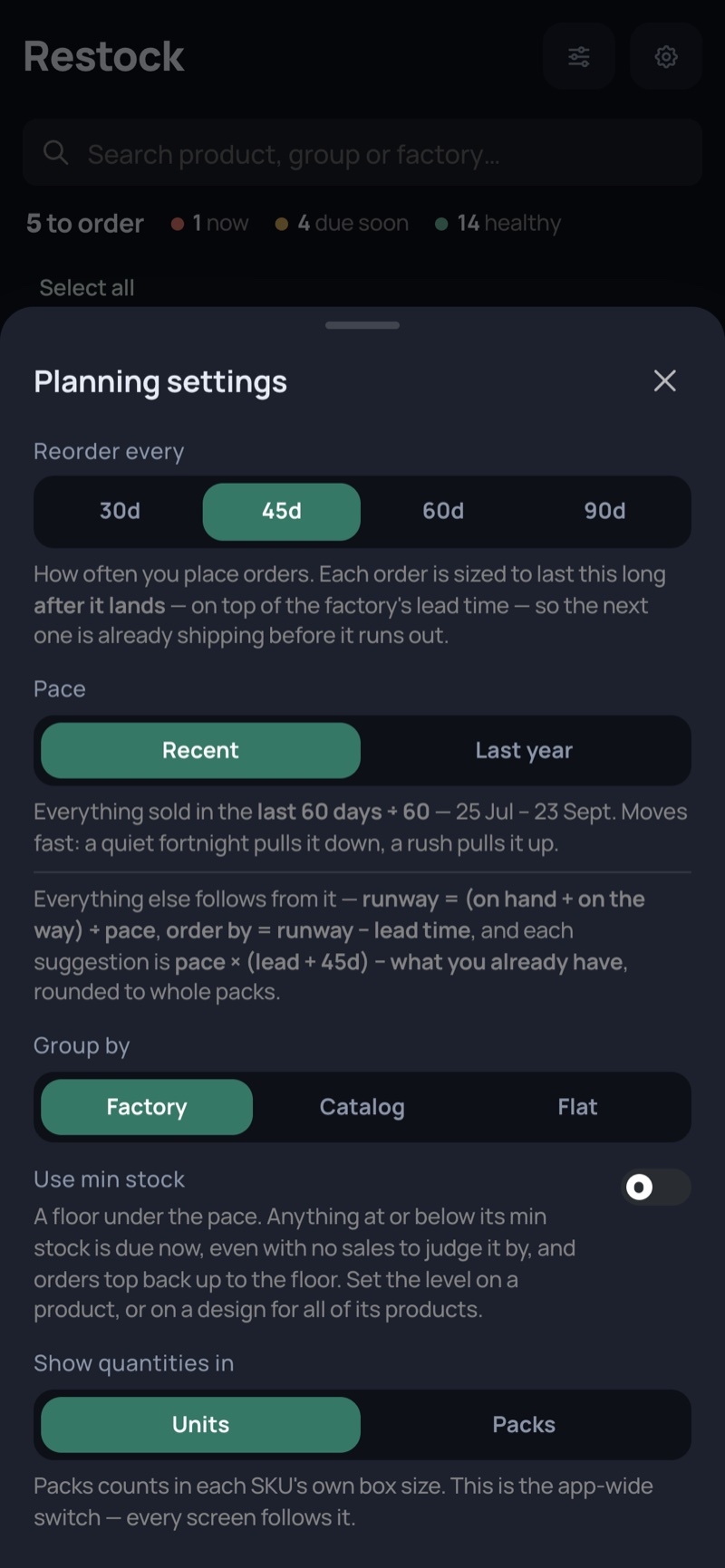
Planning settings

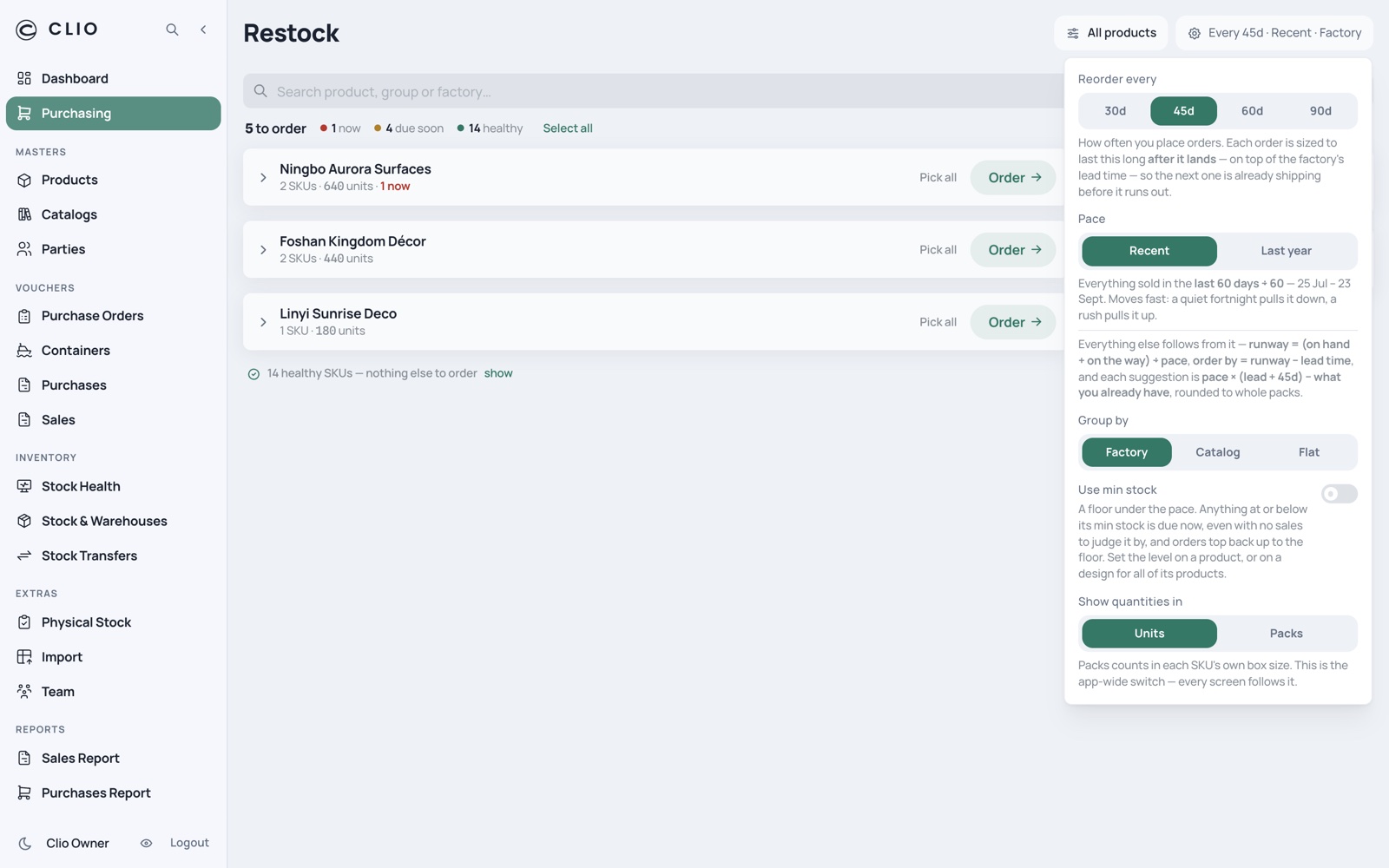
The assumptions behind every order-by date, with the arithmetic stated rather than implied.

Planning settings — desktop, light Planning settings — desktop, dark
Planning settings — phone, light Planning settings — phone, dark
  • Reorder every 30/45/60/90 days — each order is sized to last that long after it lands
  • Pace: recent (last 60 days ÷ 60) or last year (the same 60 days a year ago), with the real date window shown
  • A min-stock floor beneath the pace model, for SKUs with no sales to judge by
  • Units or packs — the app-wide switch
The catalogue

Catalog → design group → SKU. The group is the hub: people reason about designs, not lone SKUs.

3 screens
05

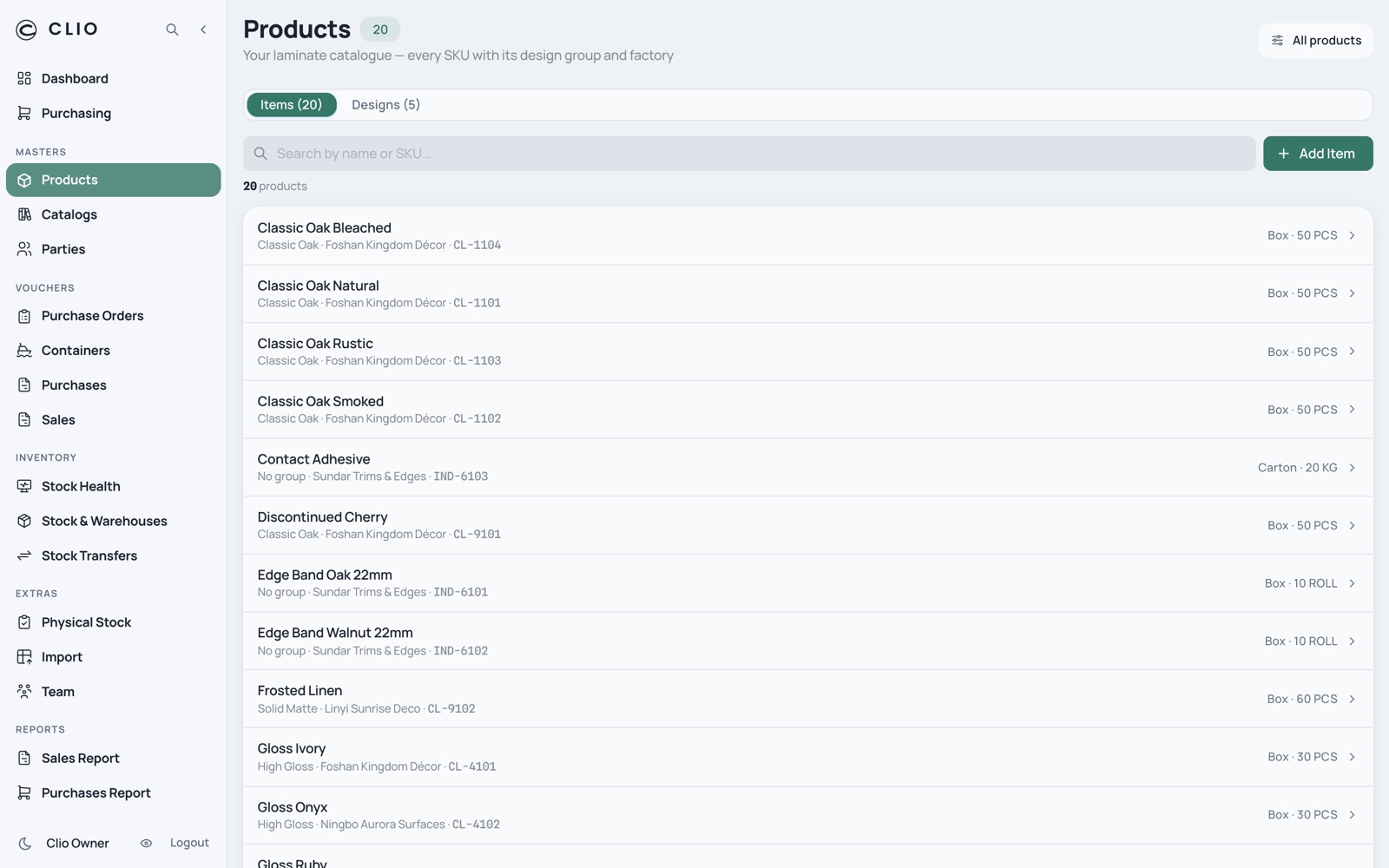
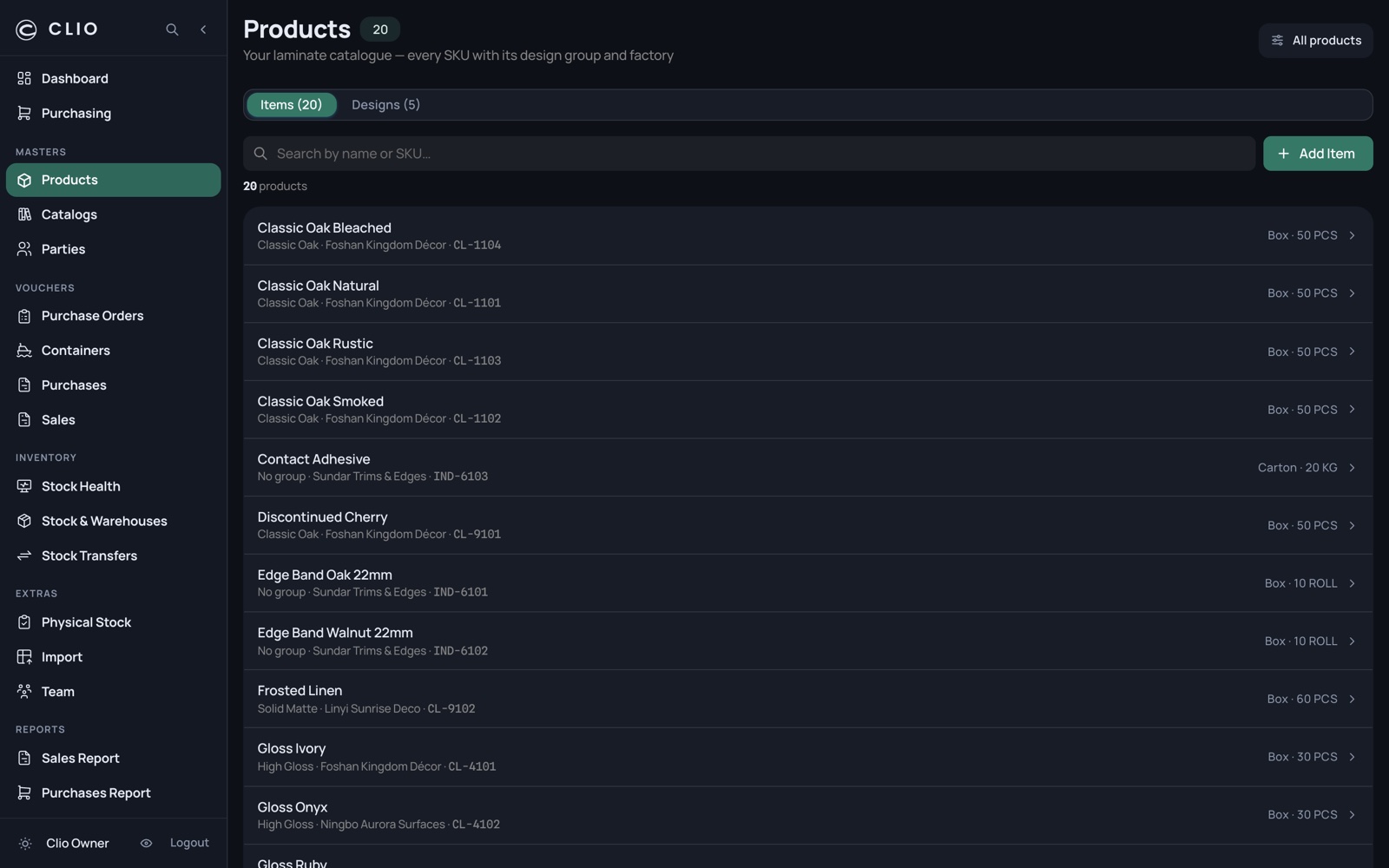
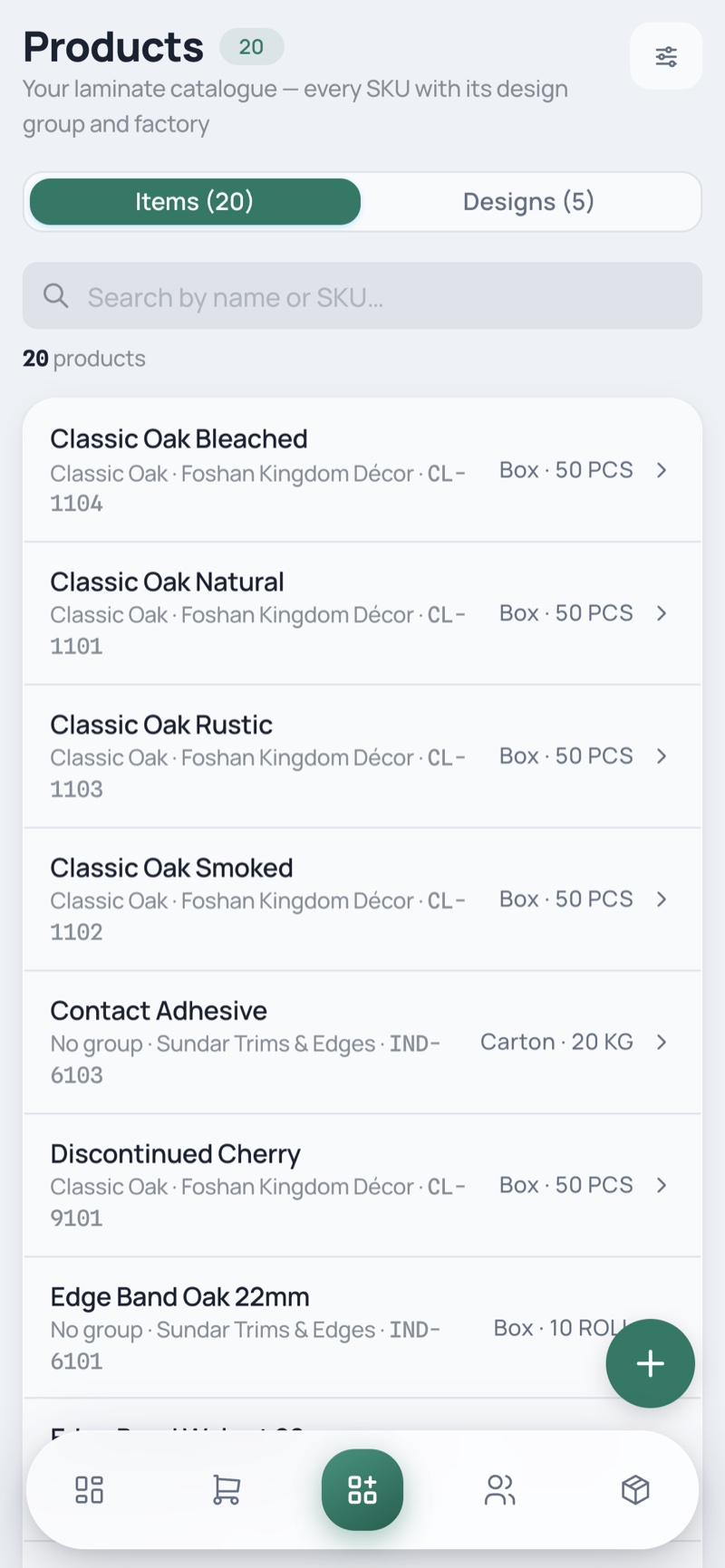
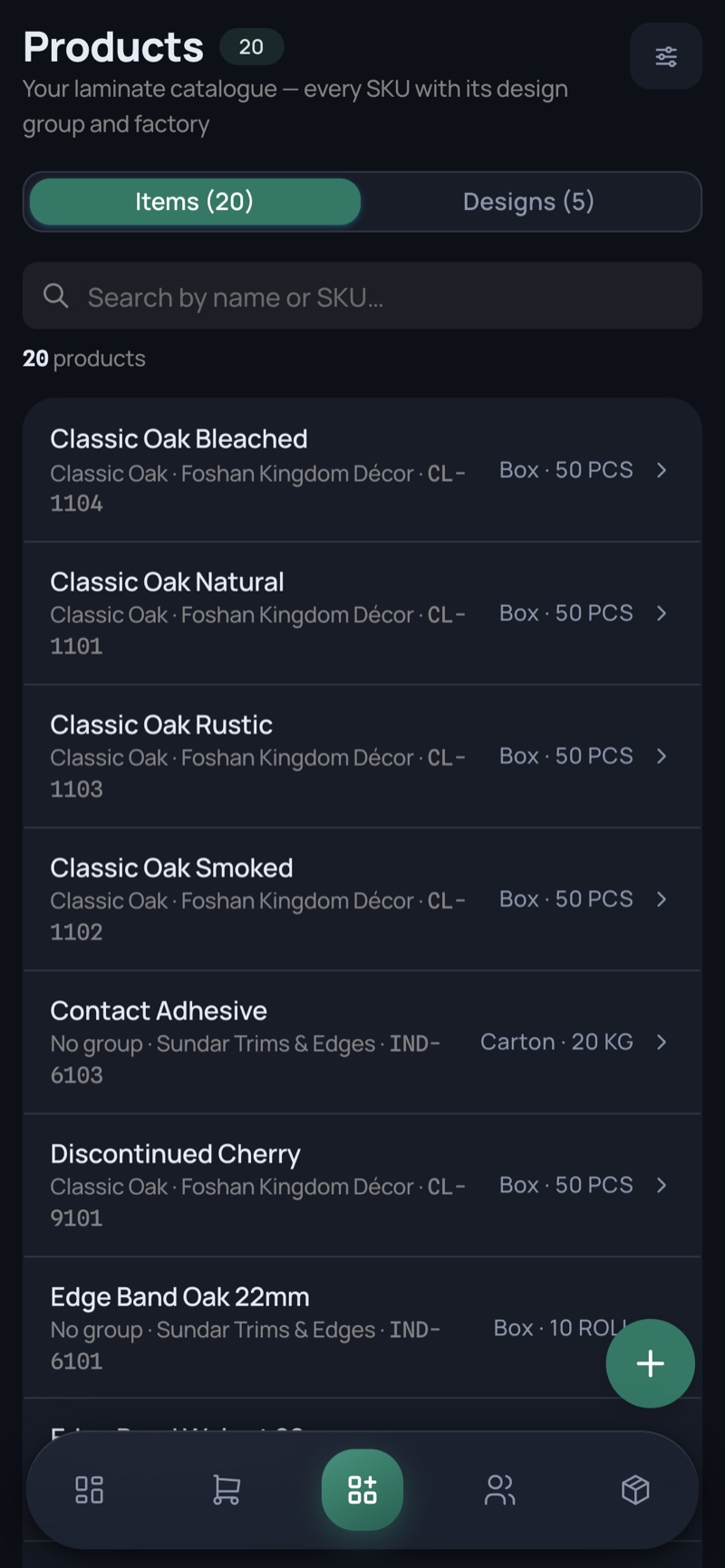
Products

Find any SKU and see which design group and which factory it belongs to.

Products — desktop, light Products — desktop, dark
Products — phone, light Products — phone, dark
  • Items and Designs tabs, server-side search across name and SKU
  • Scope by catalog, group and factory — each with an explicit “No catalog / No factory” bucket
  • Rows expand to ledger, design, edit and delete
06

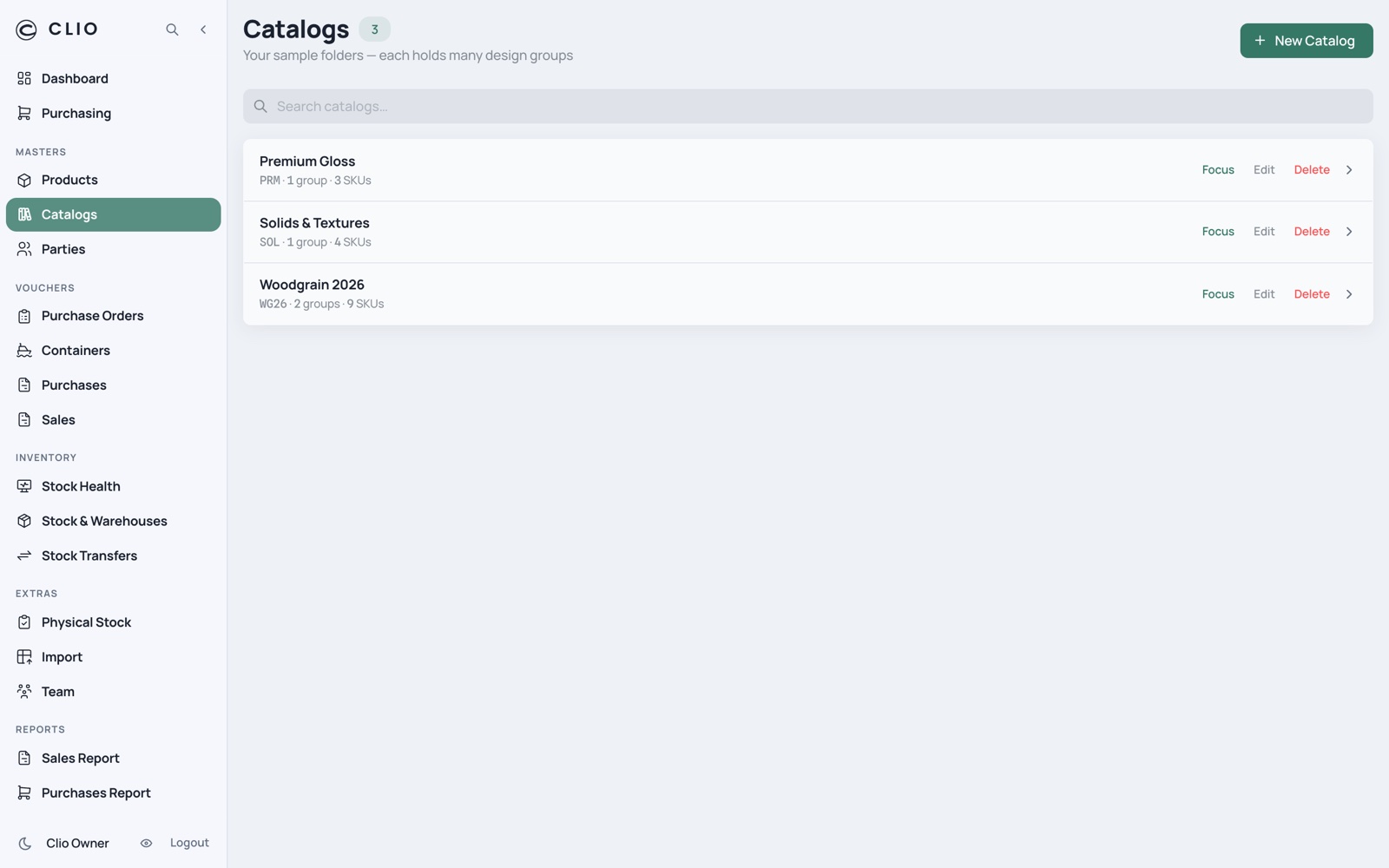
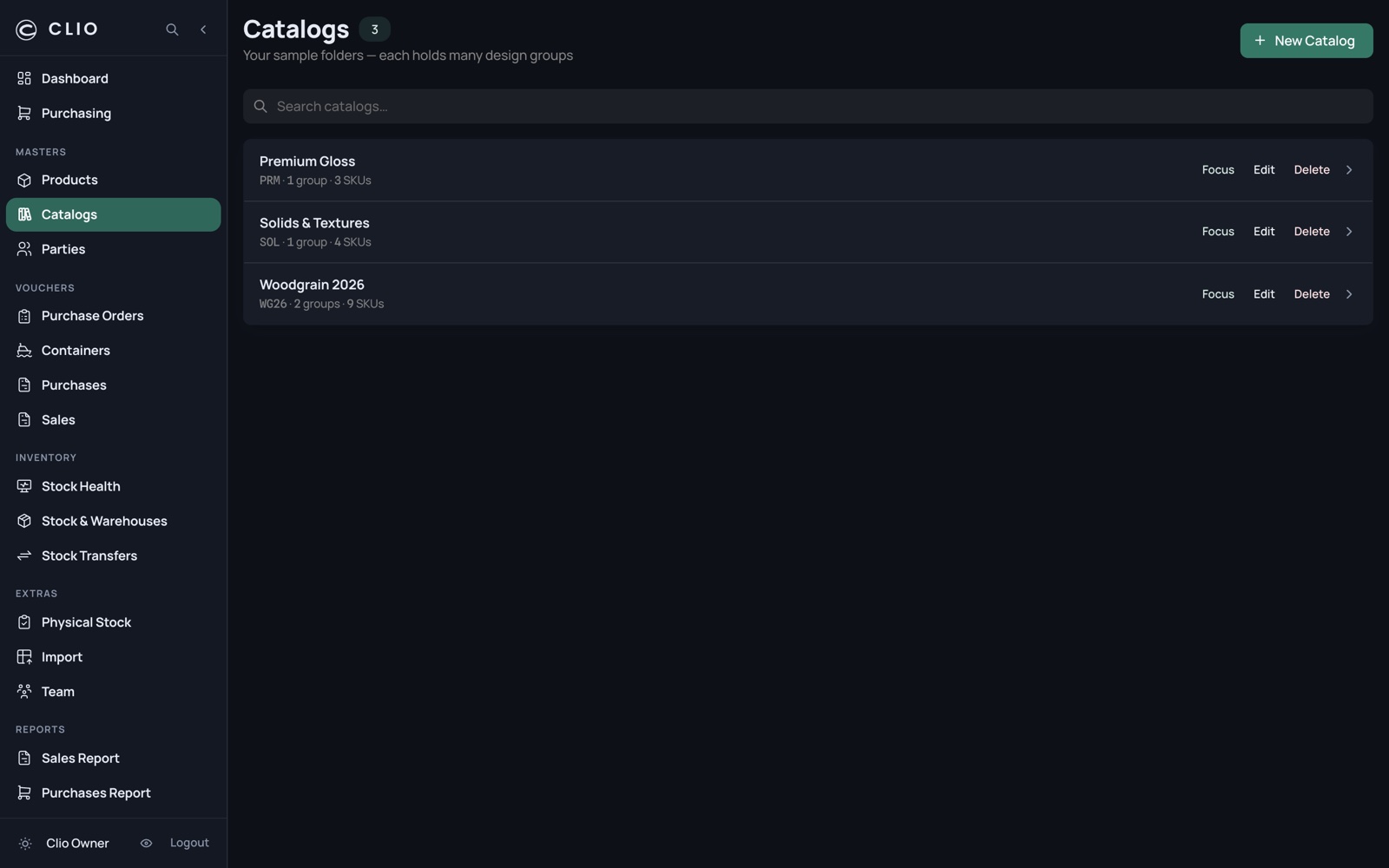
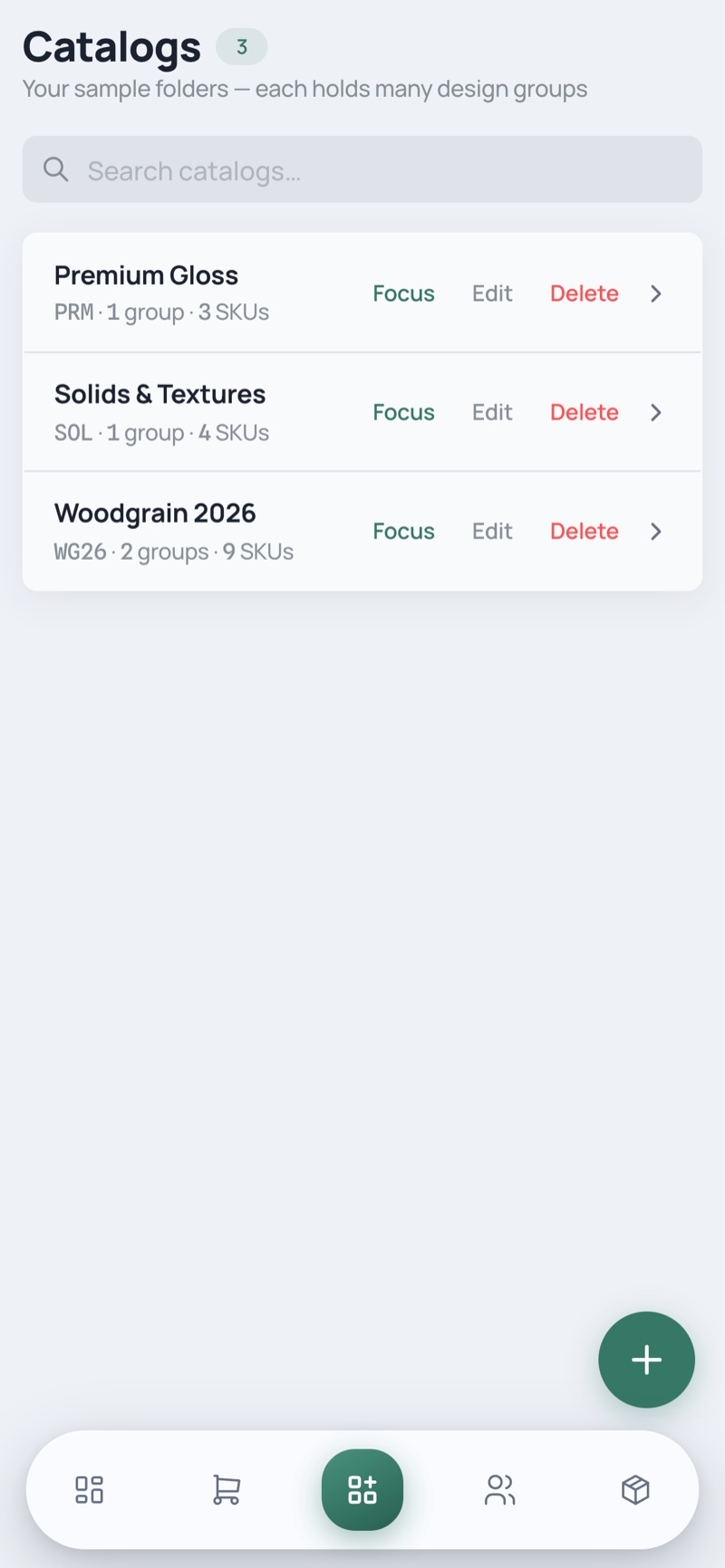
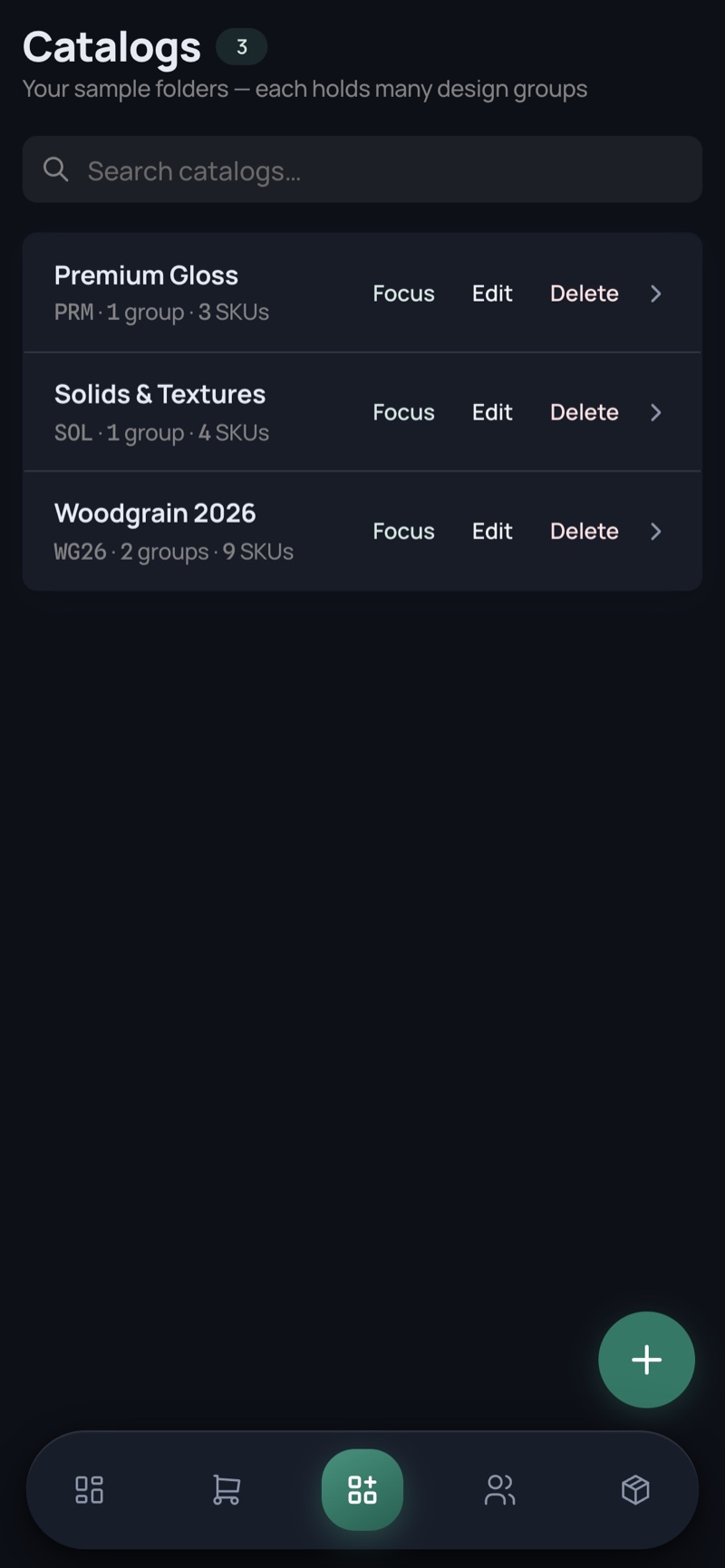
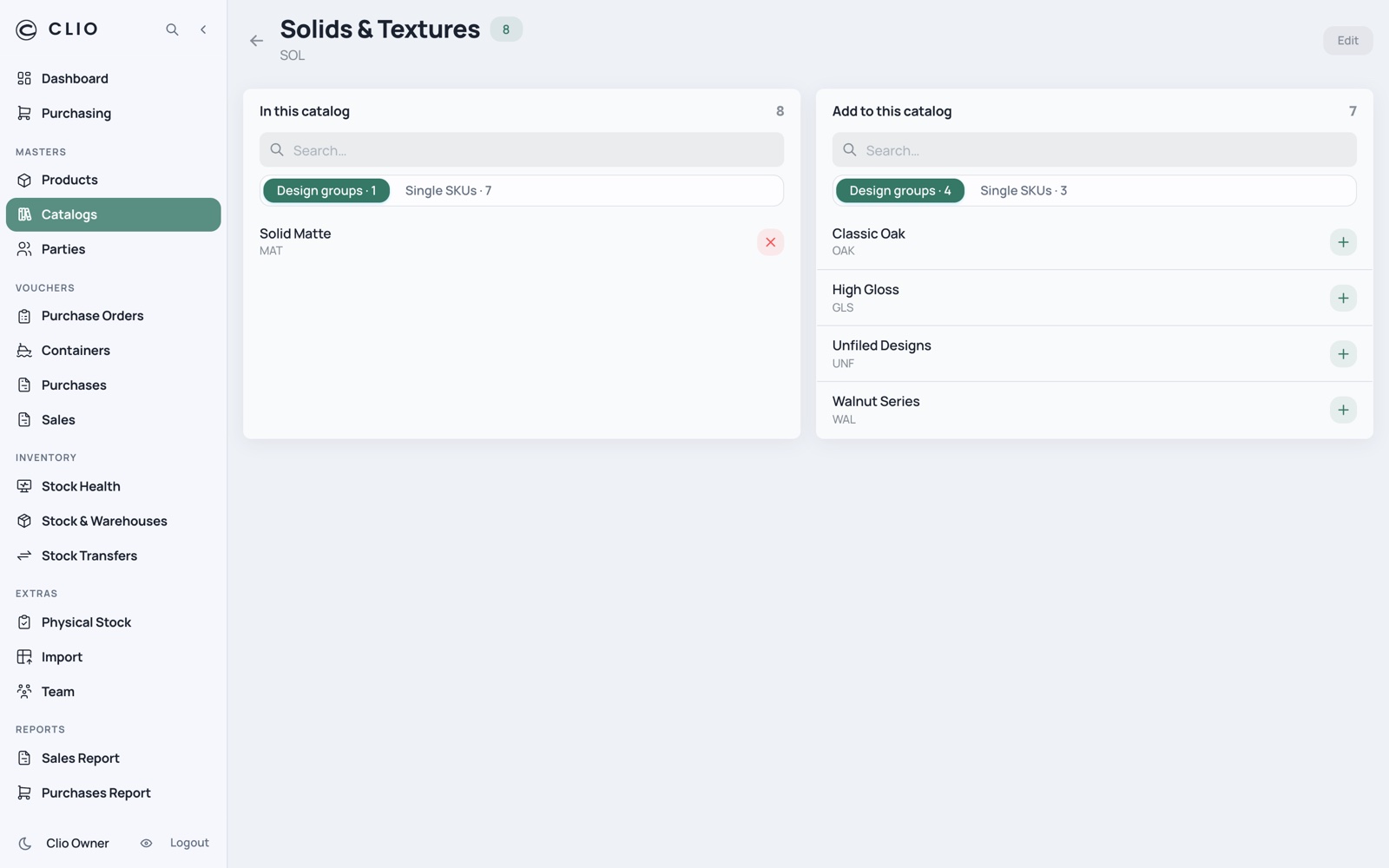
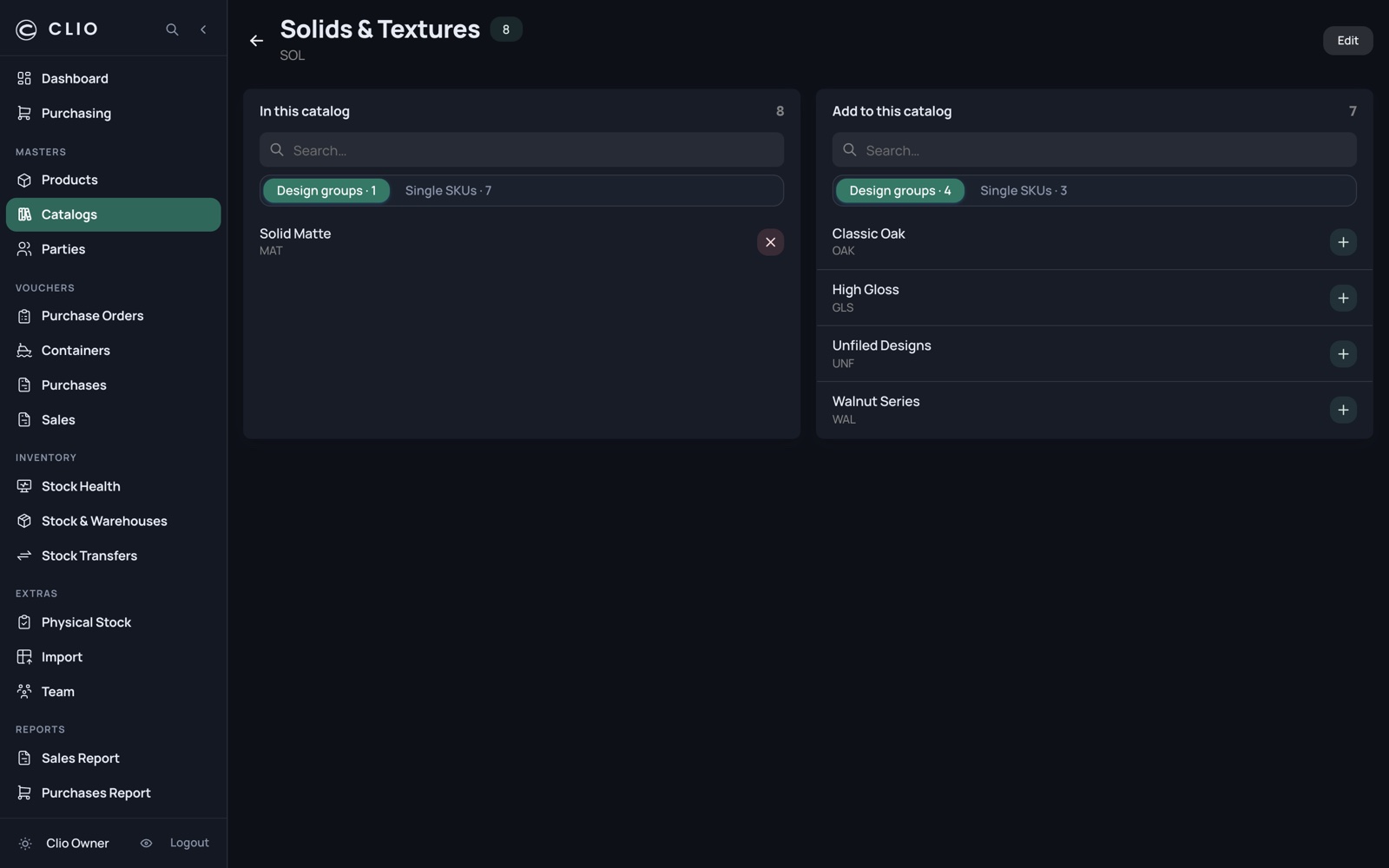
Catalogs

The physical sample folders that sit at the top of the hierarchy.

Catalogs — desktop, light Catalogs — desktop, dark
Catalogs — phone, light Catalogs — phone, dark
  • Each row carries live group and SKU counts
  • Focus sets the app-wide scope to that catalog and jumps to Purchasing
  • Deleting a catalog unlinks its groups rather than destroying them
07

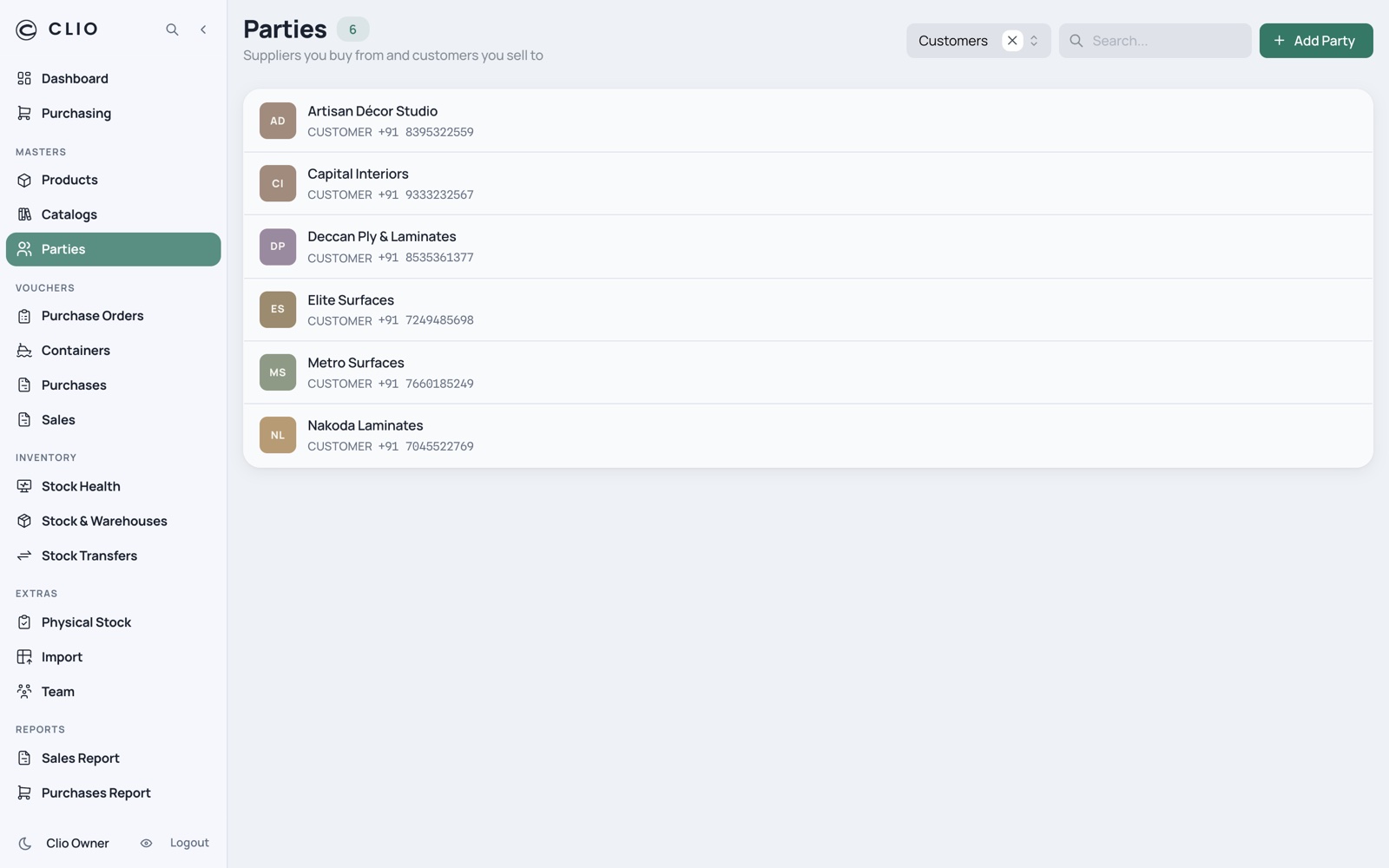
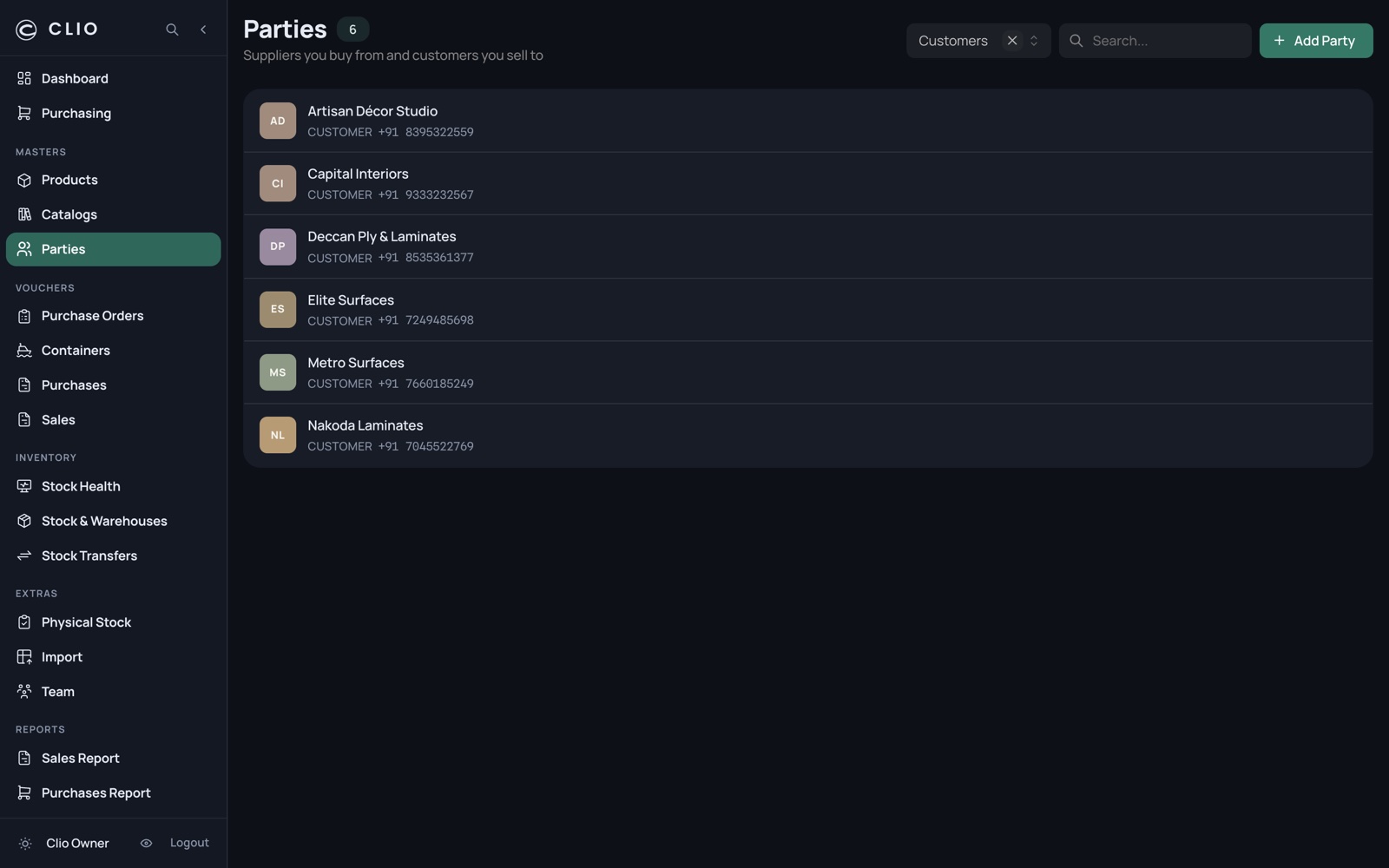
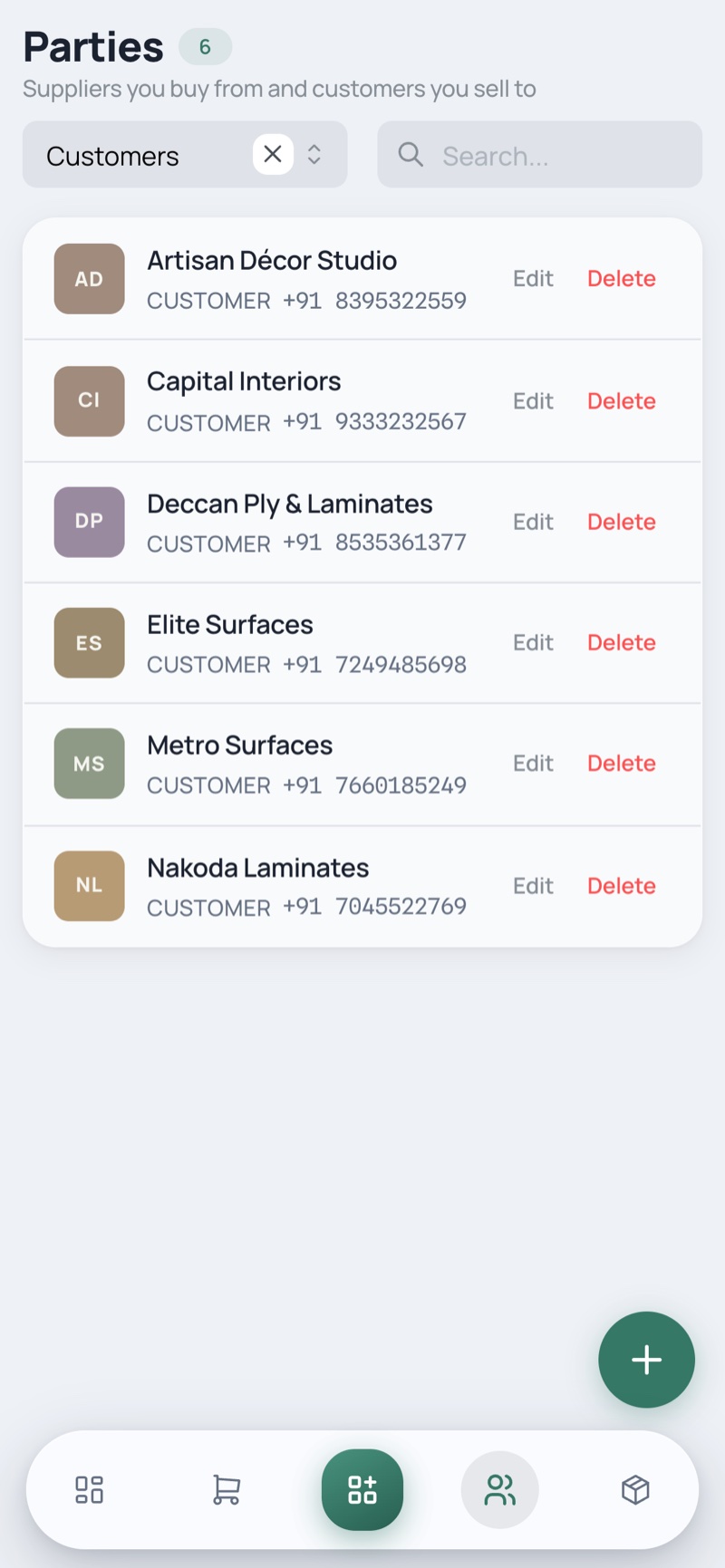
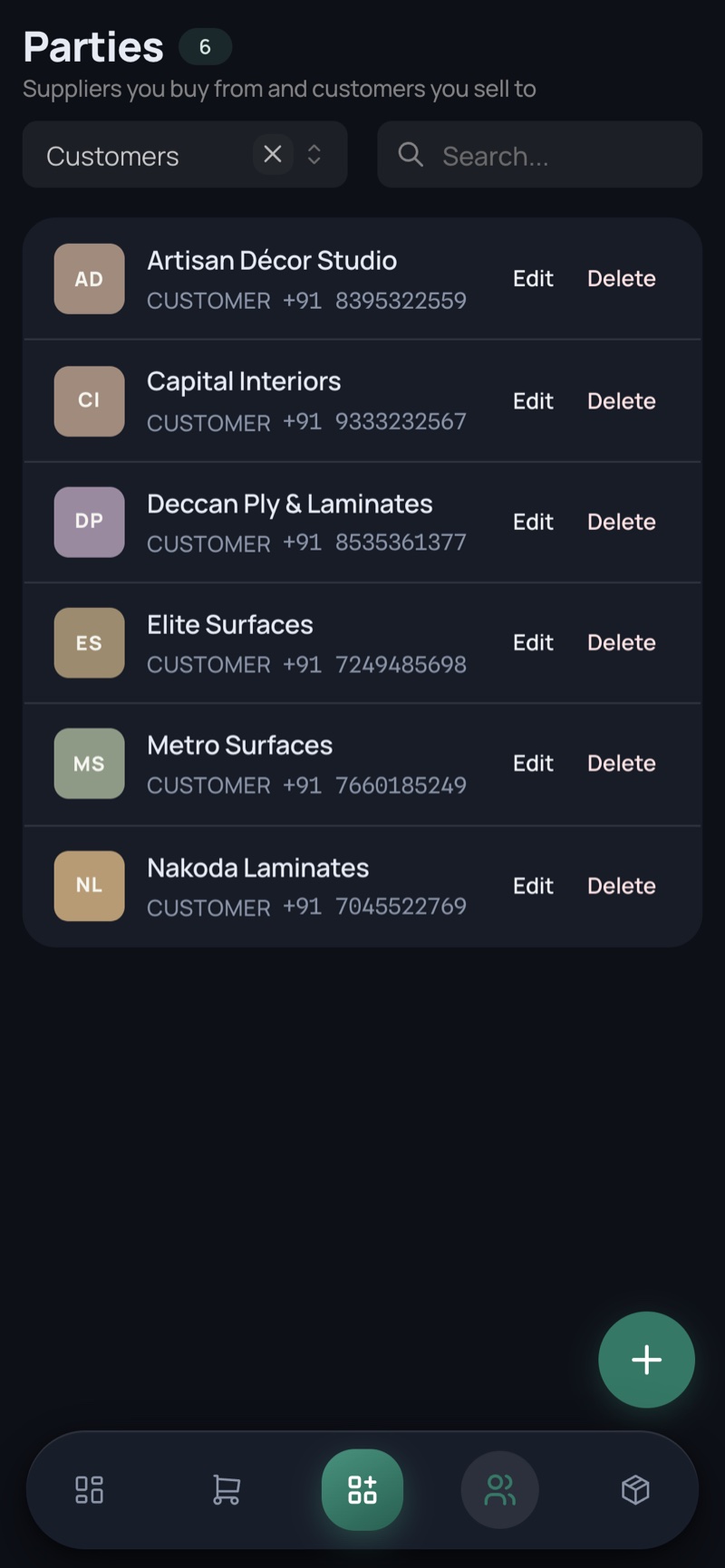
Parties

The Chinese factories you buy from and the Indian customers you sell to.

Parties — desktop, light Parties — desktop, dark
Parties — phone, light Parties — phone, dark
  • Supplier / customer switch with infinite scroll
  • A supplier opens its products builder; a customer opens its ledger
  • The supplier record holds the lead time — the other half of every order-by date

Buying

A purchase order becomes a factory order, rides a container, and lands as stock. One chain, four screens.

8 screens
08

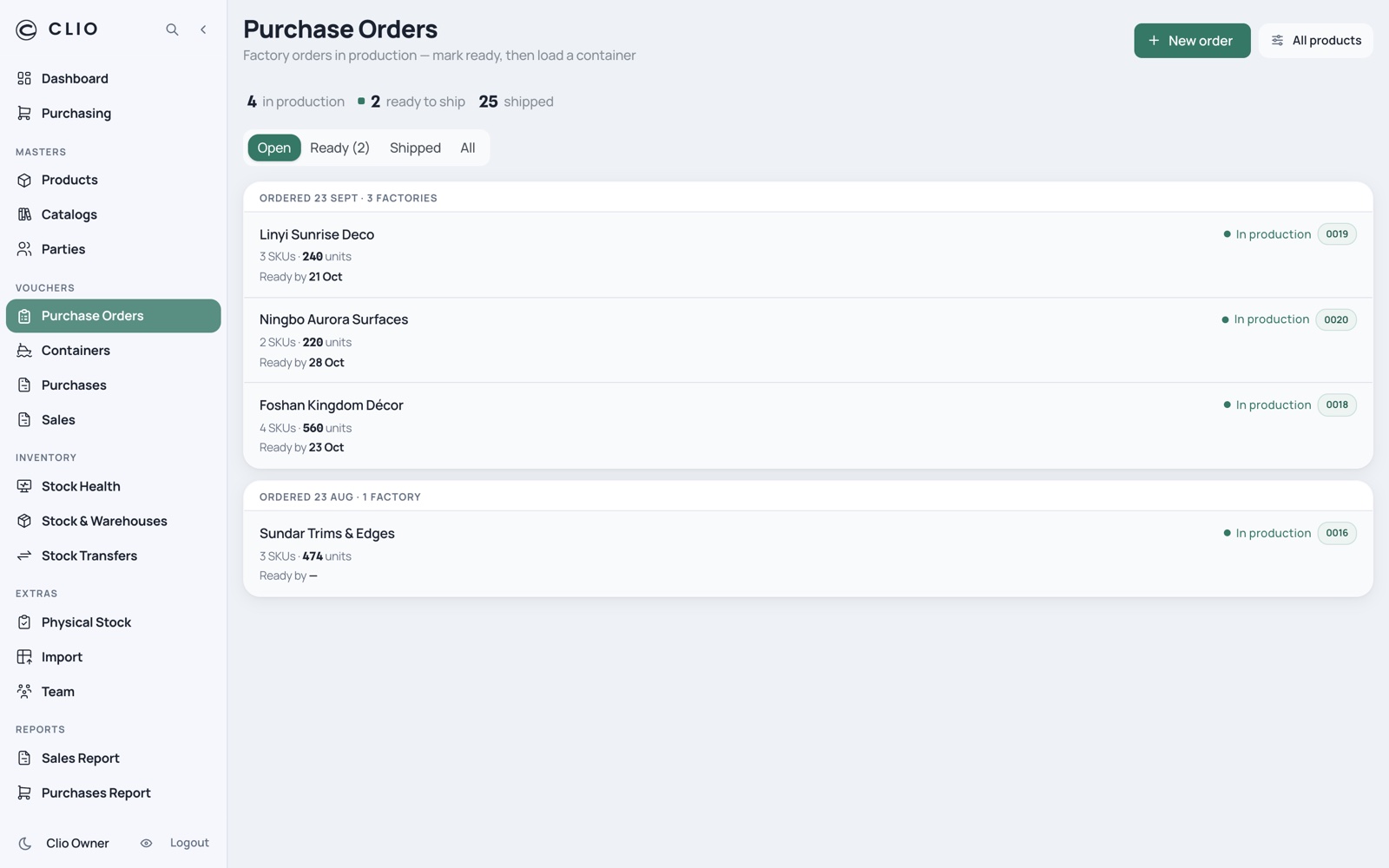
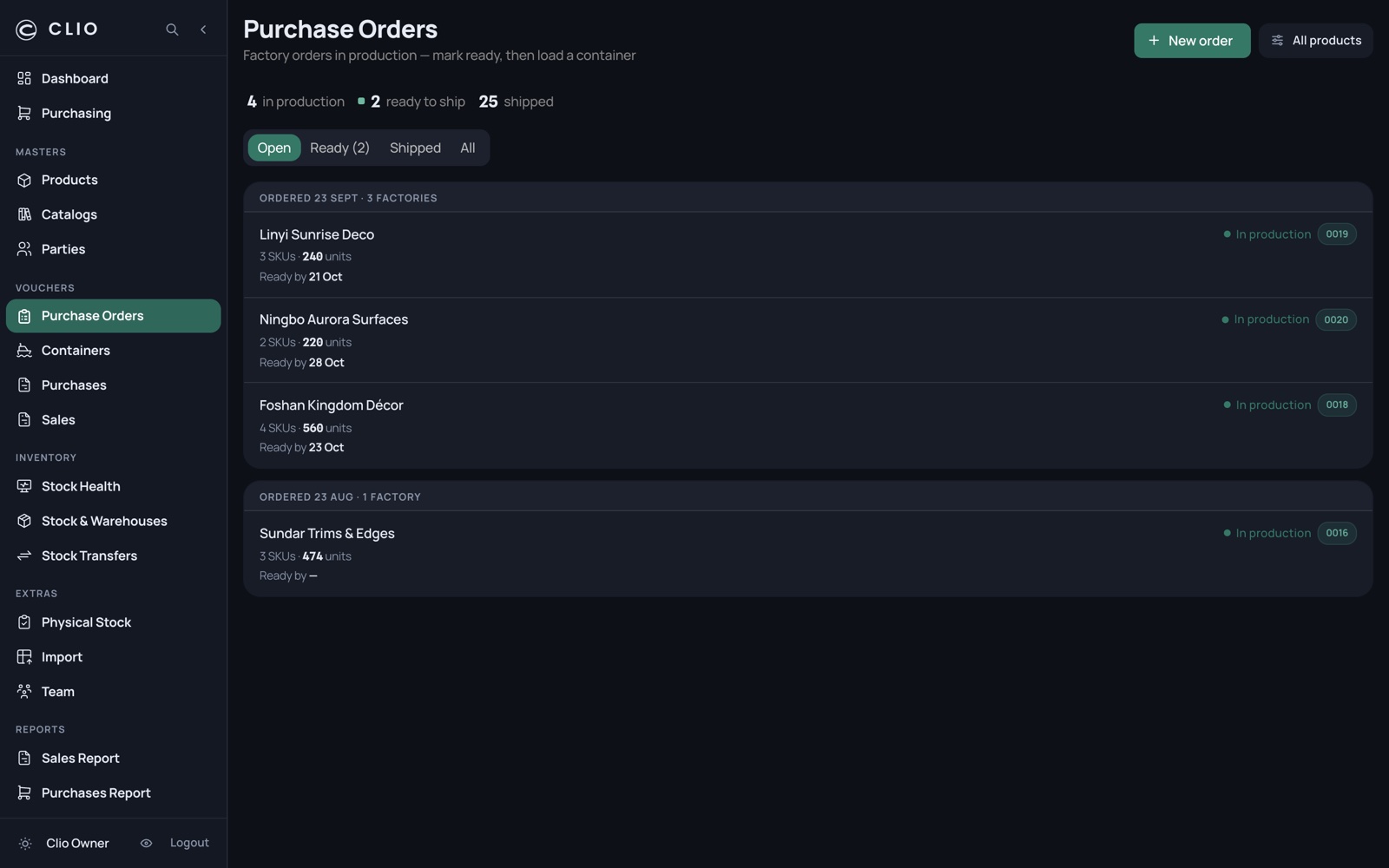
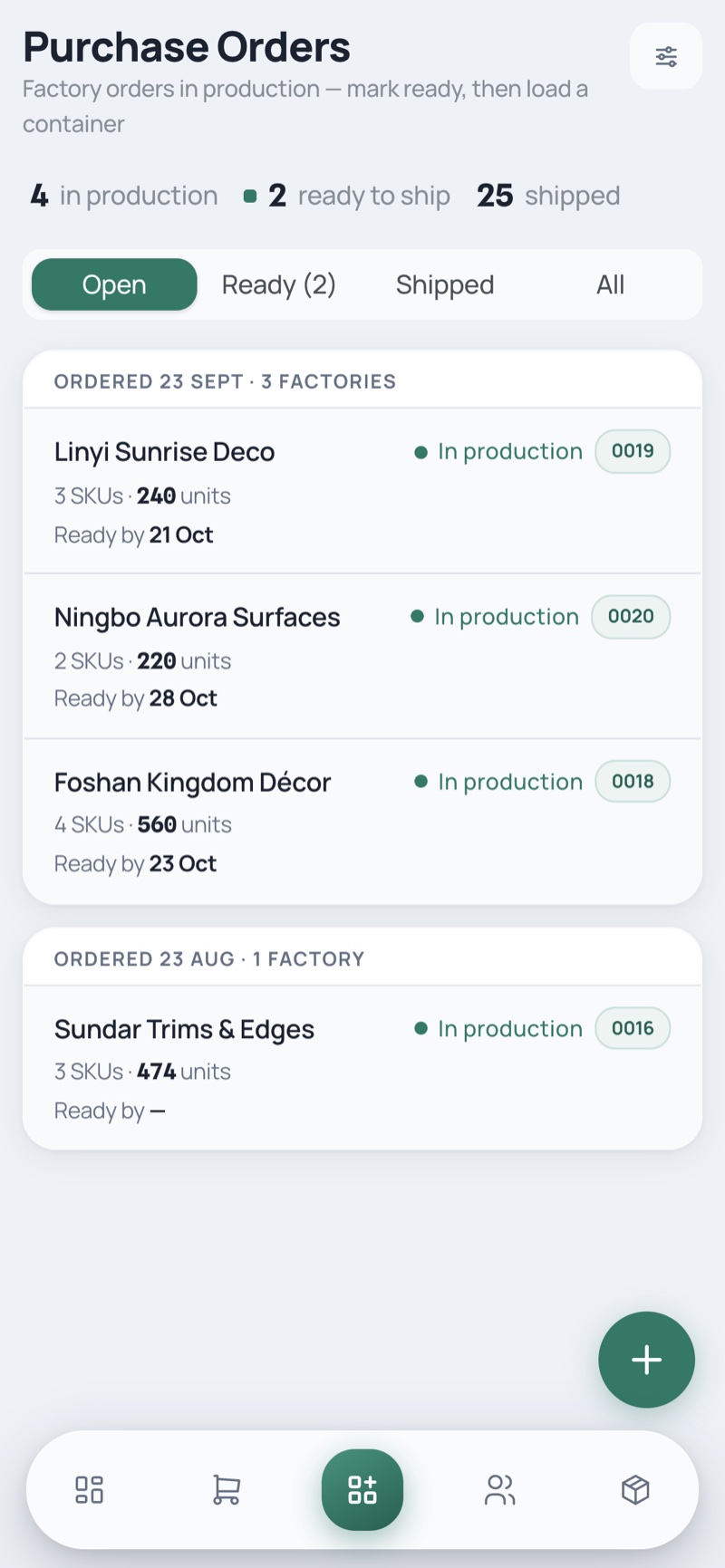
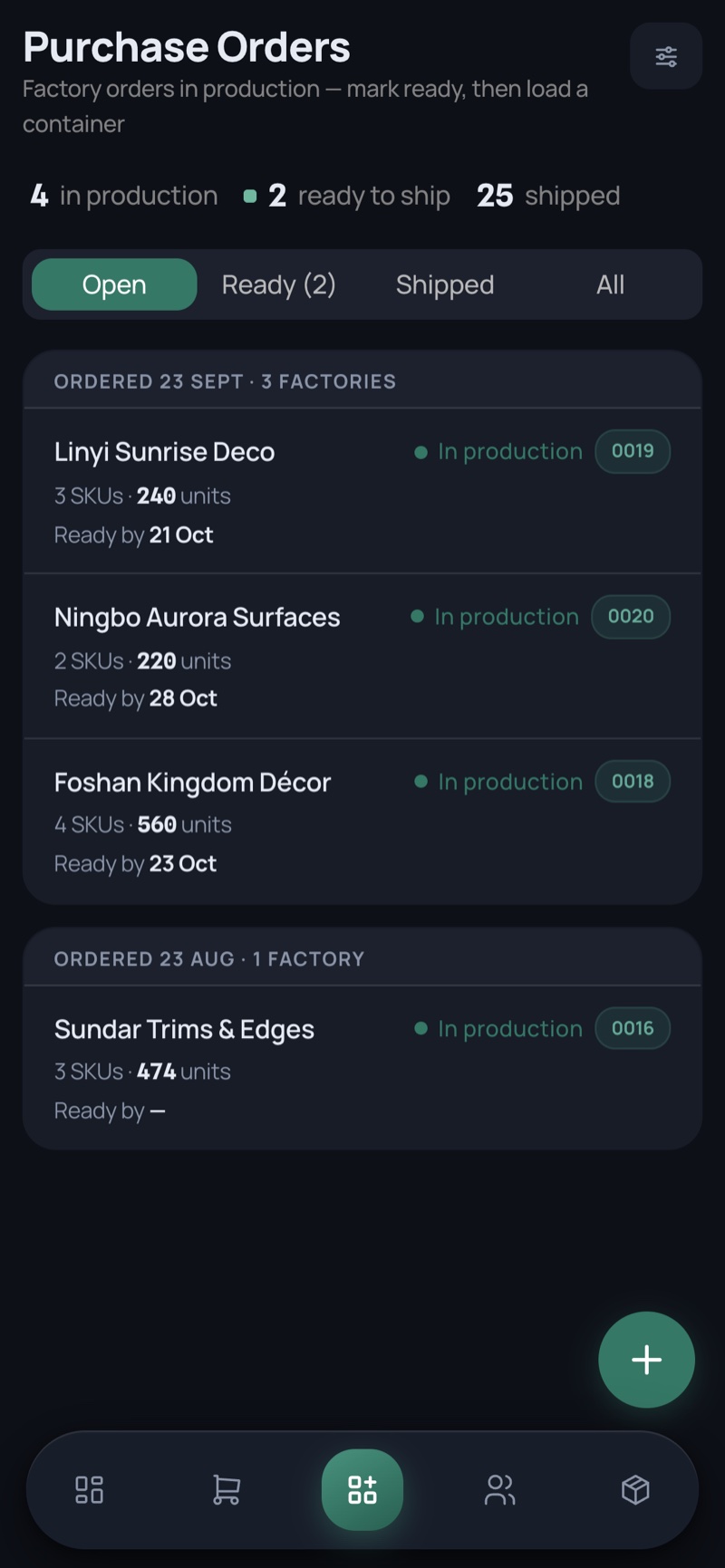
Purchase Orders

Factory orders from placed, through ready, to loaded into a container.

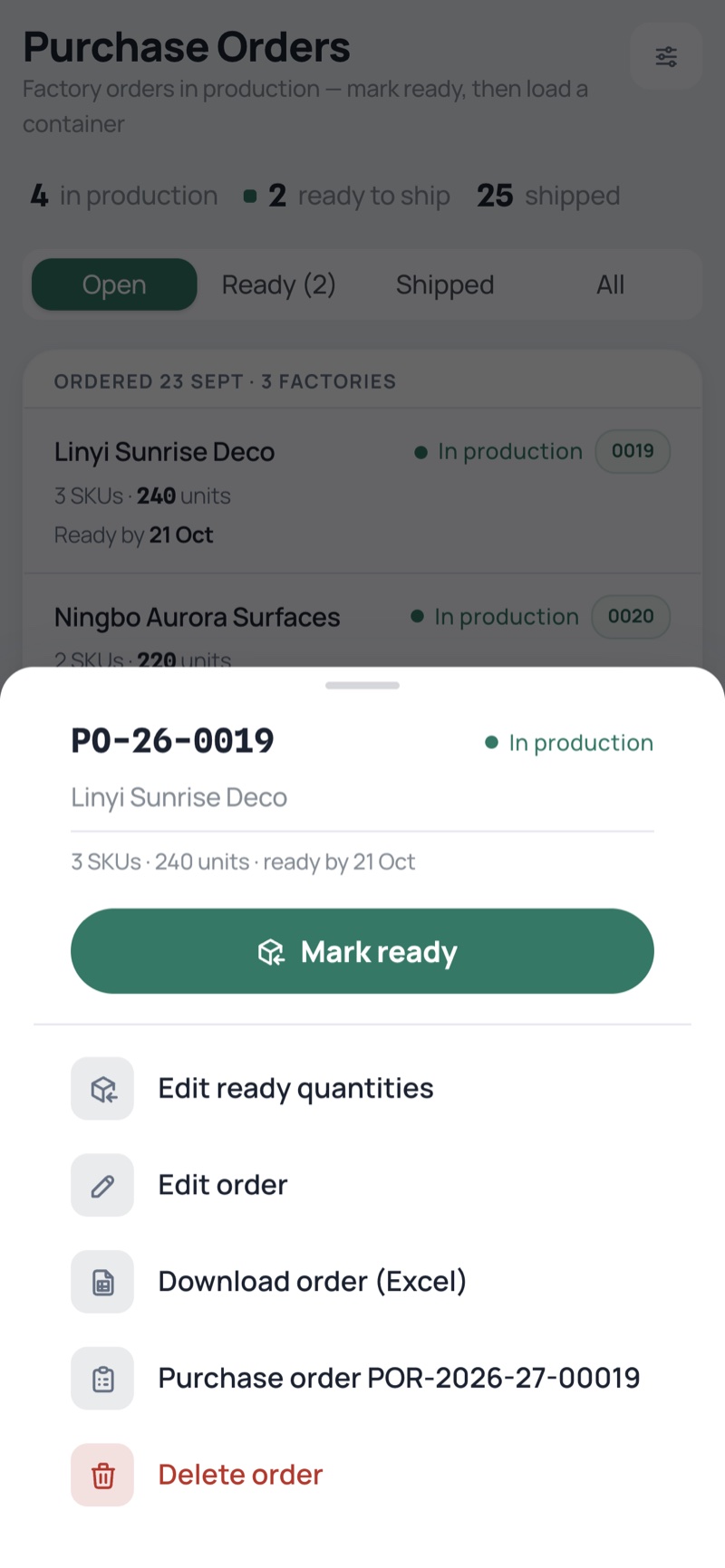
Purchase Orders — desktop, light Purchase Orders — desktop, dark
Purchase Orders — phone, light Purchase Orders — phone, dark
  • Grouped by order date, one row per factory slice
  • A ready bar appears the moment ordered, ready and shipped stop agreeing
  • Selecting ready orders raises a bar to consolidate them into one container
09

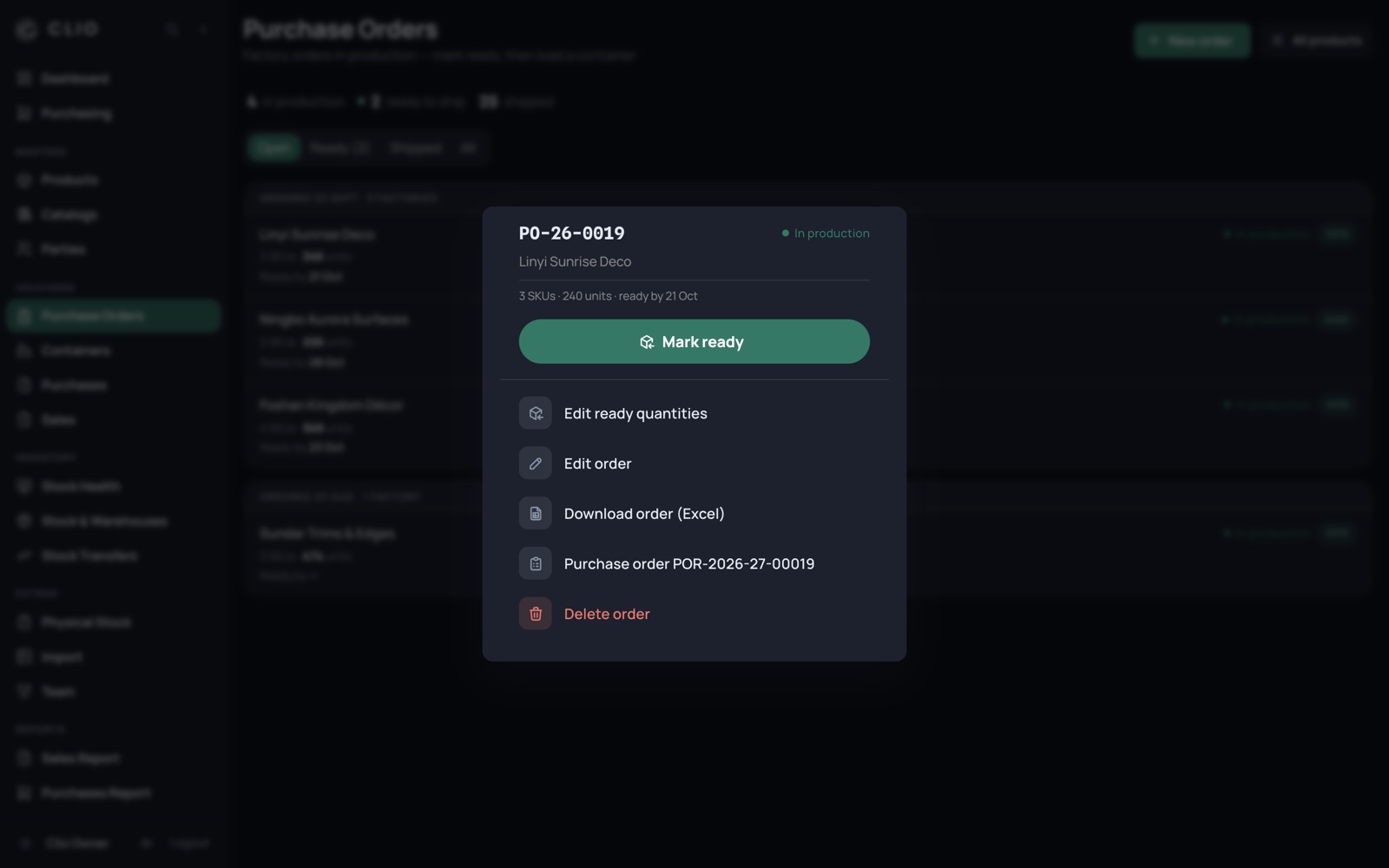
Everything for one order

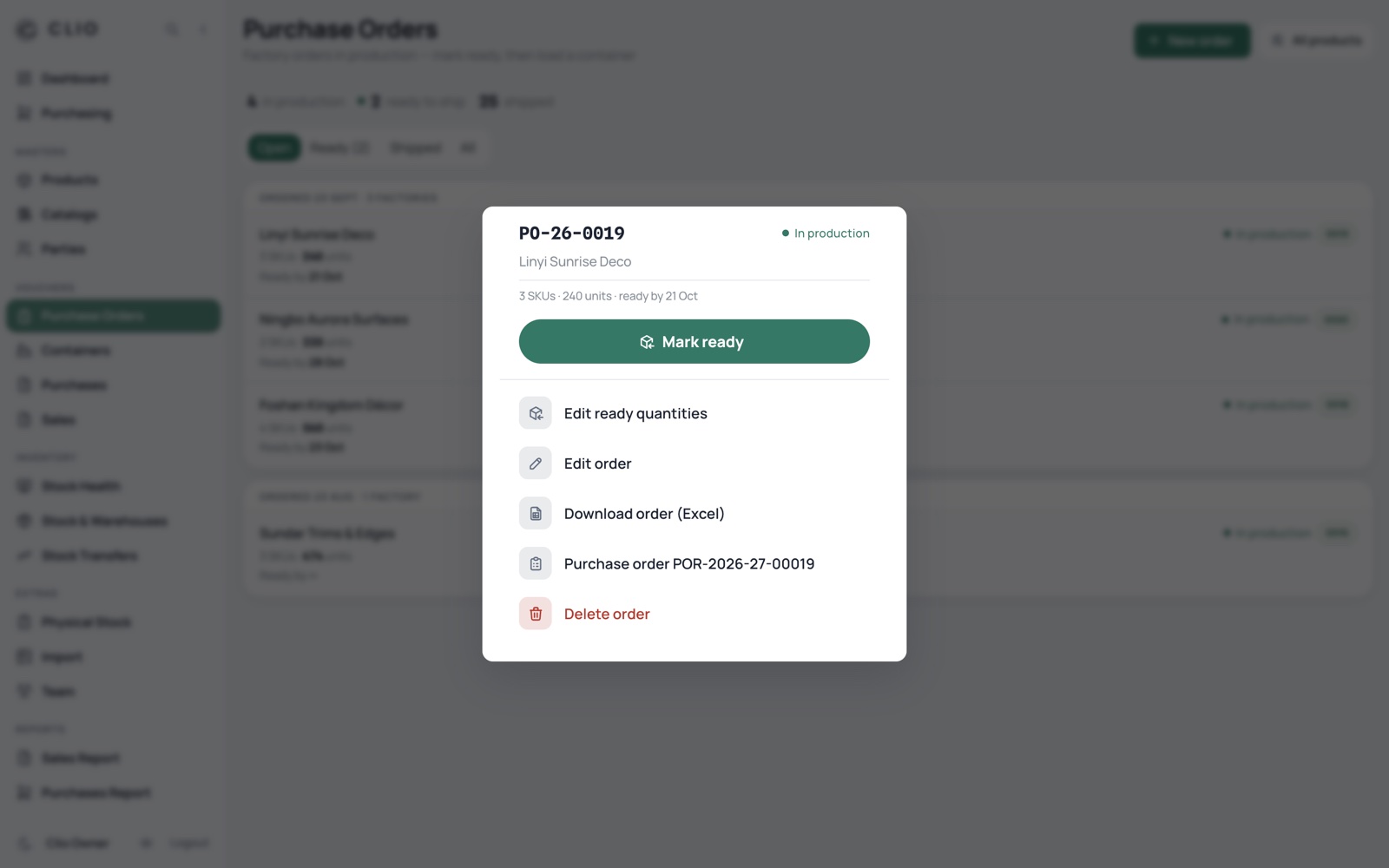
Tapping a row opens every action for it in one place — no three-dot menu to hunt for.

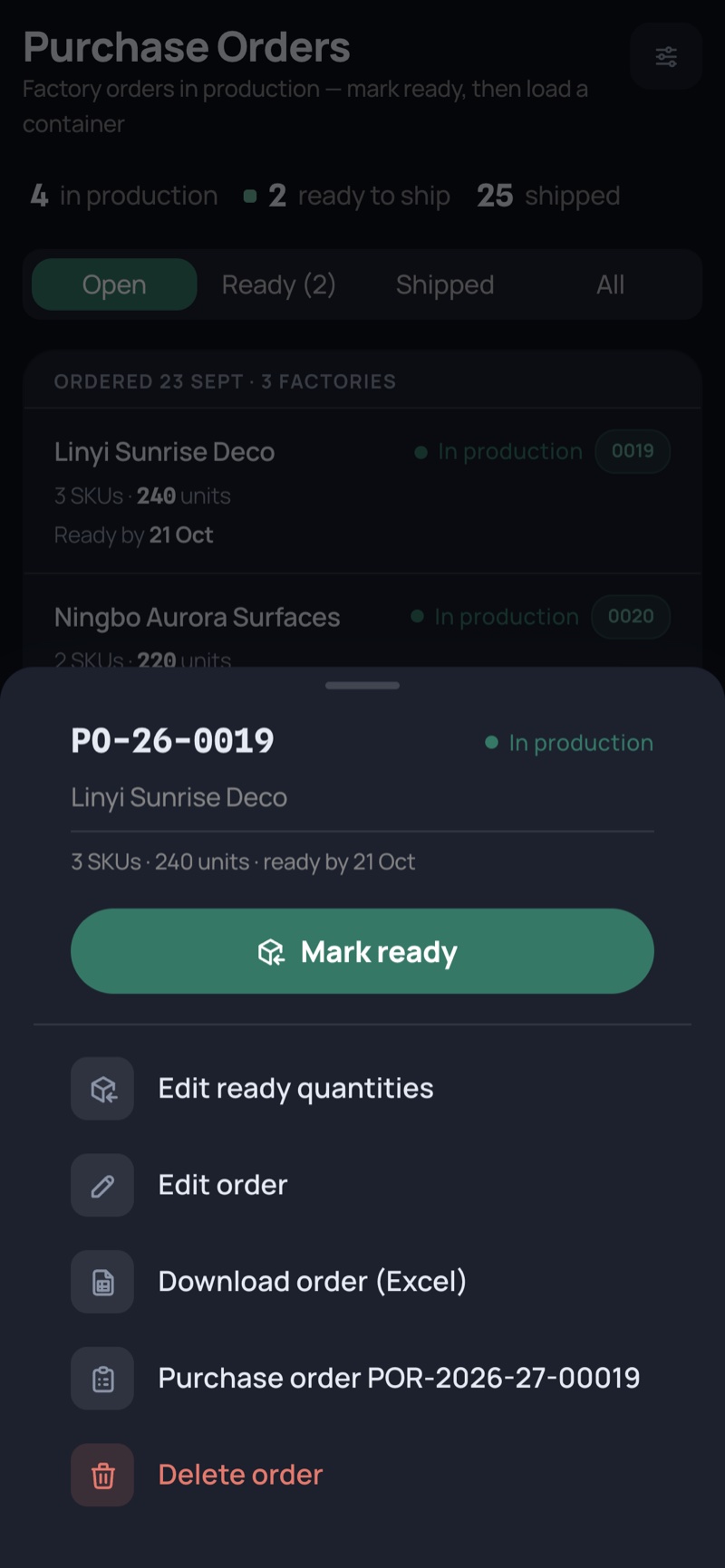
Everything for one order — desktop, light Everything for one order — desktop, dark
Everything for one order — phone, light Everything for one order — phone, dark
  • The state change is the primary button: Mark ready, or Goods received
  • Edit the order, download the factory’s Excel, open the underlying voucher
  • Destructive actions sit last and read red
10

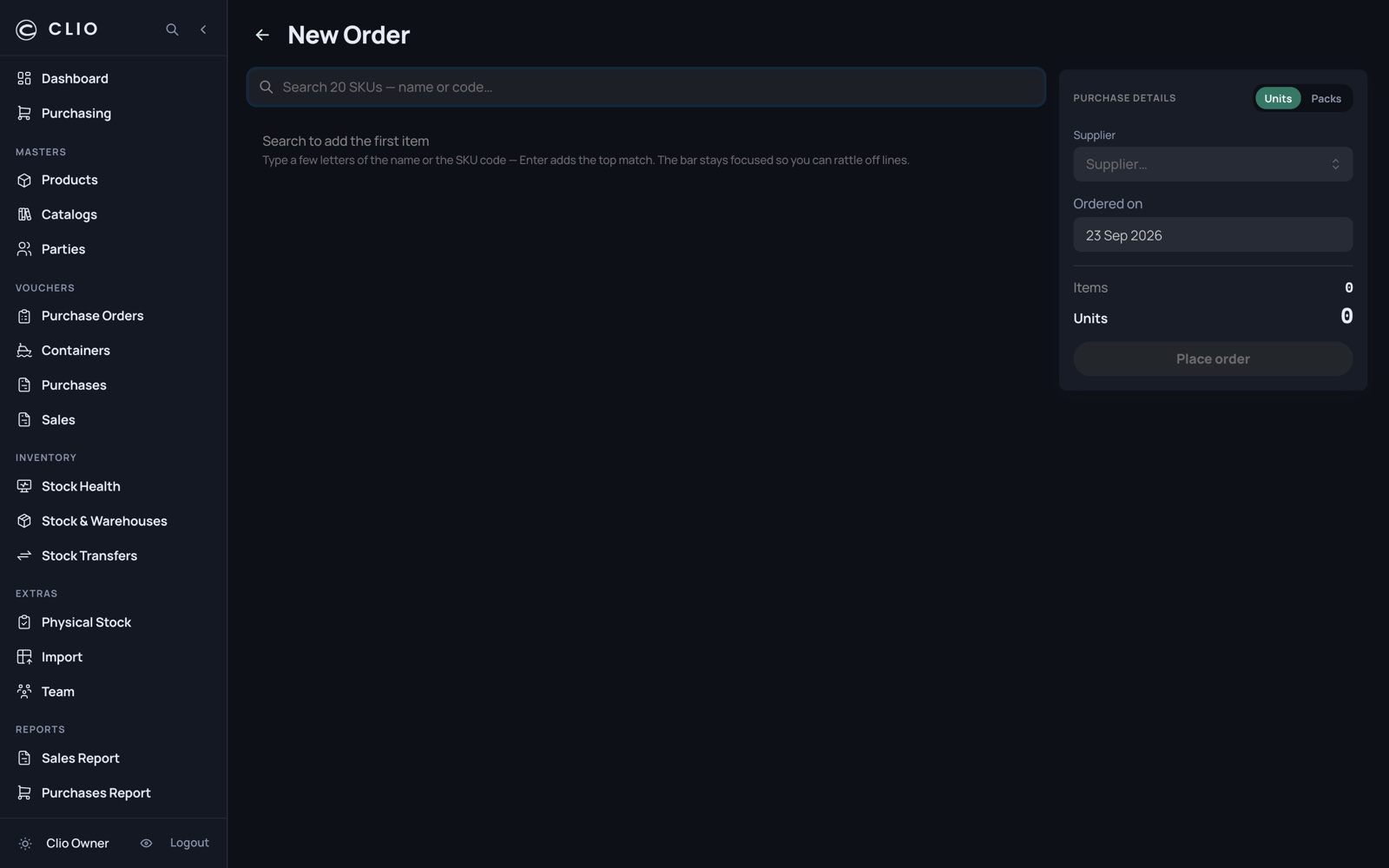
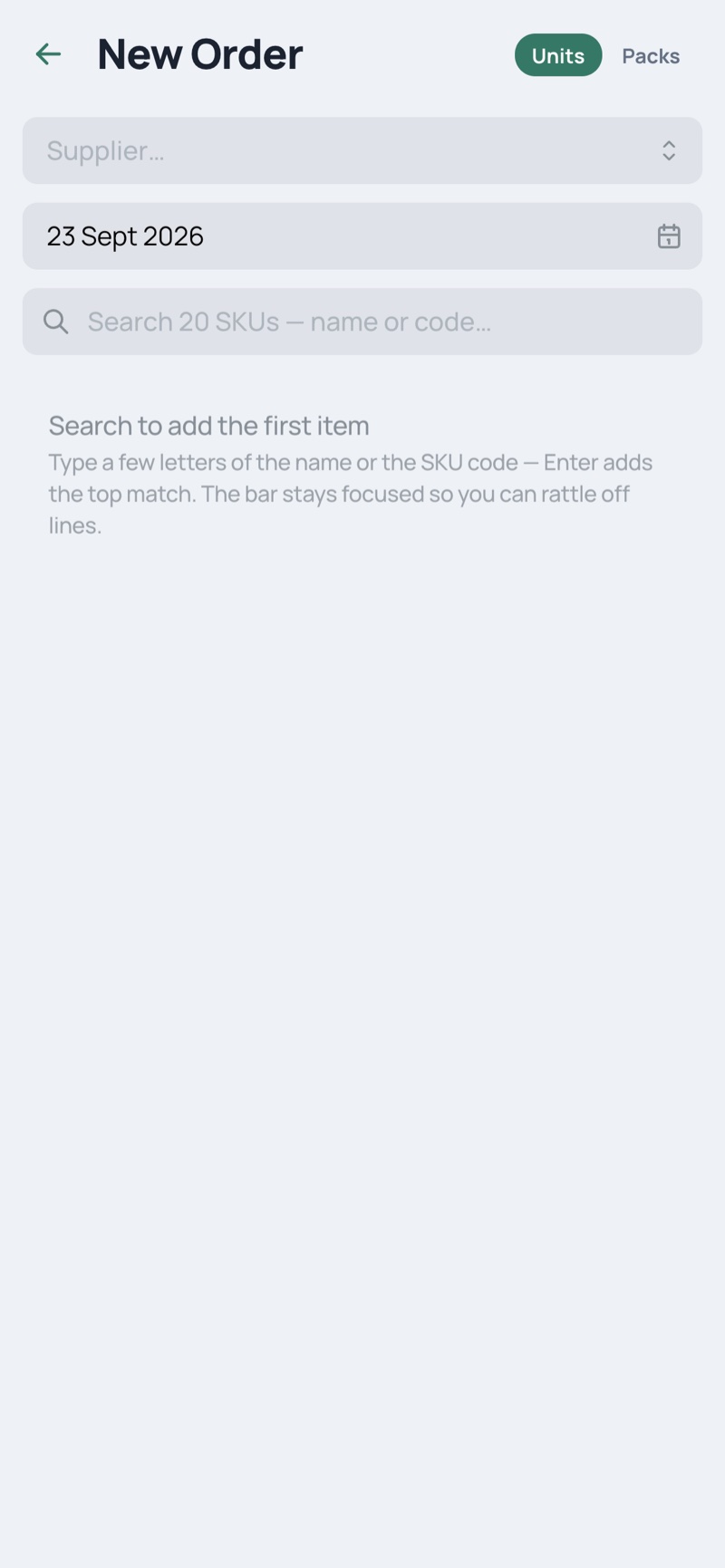
Raising an order

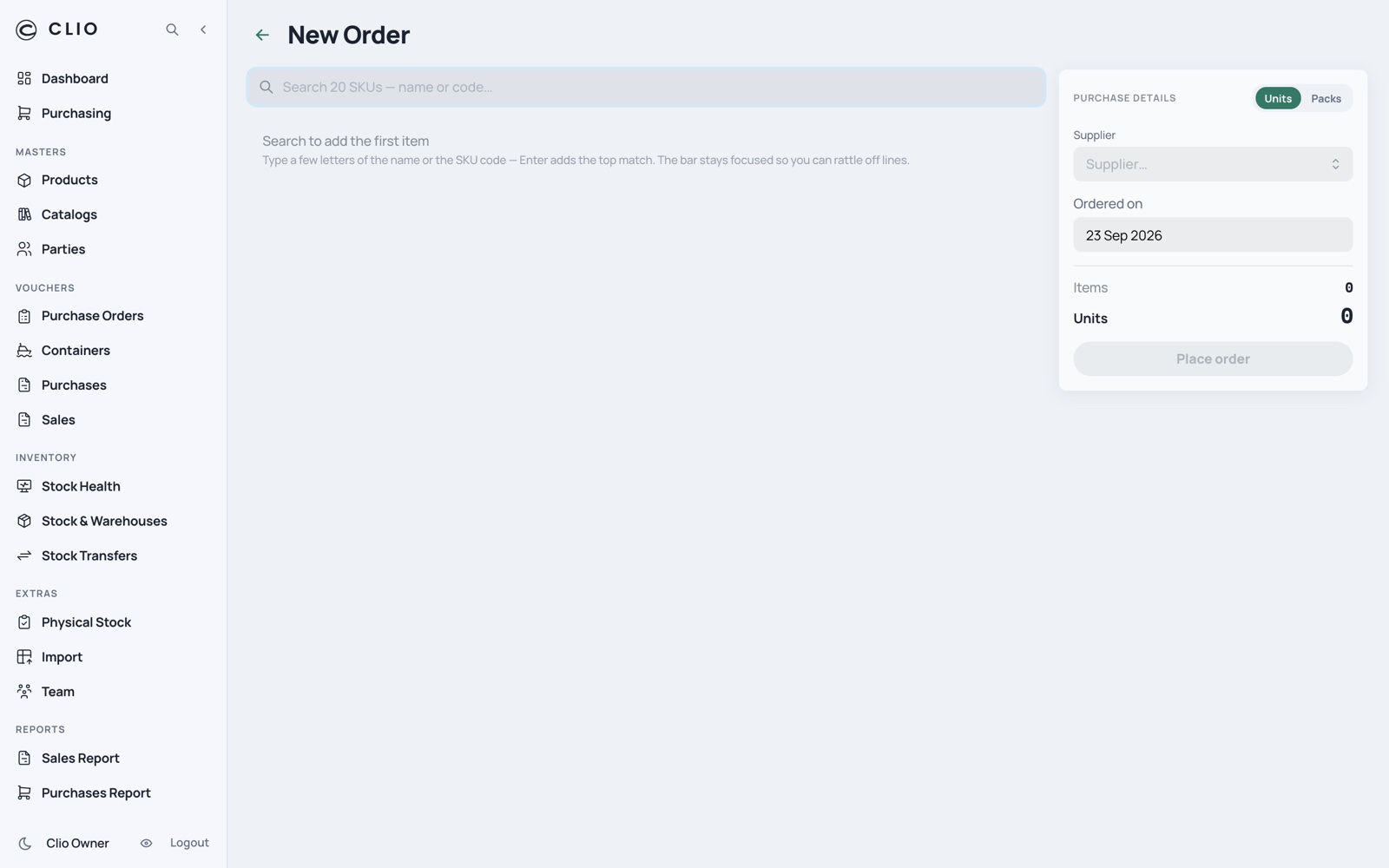
One purchase order means one supplier. Raised on exactly the screen a purchase is entered on.

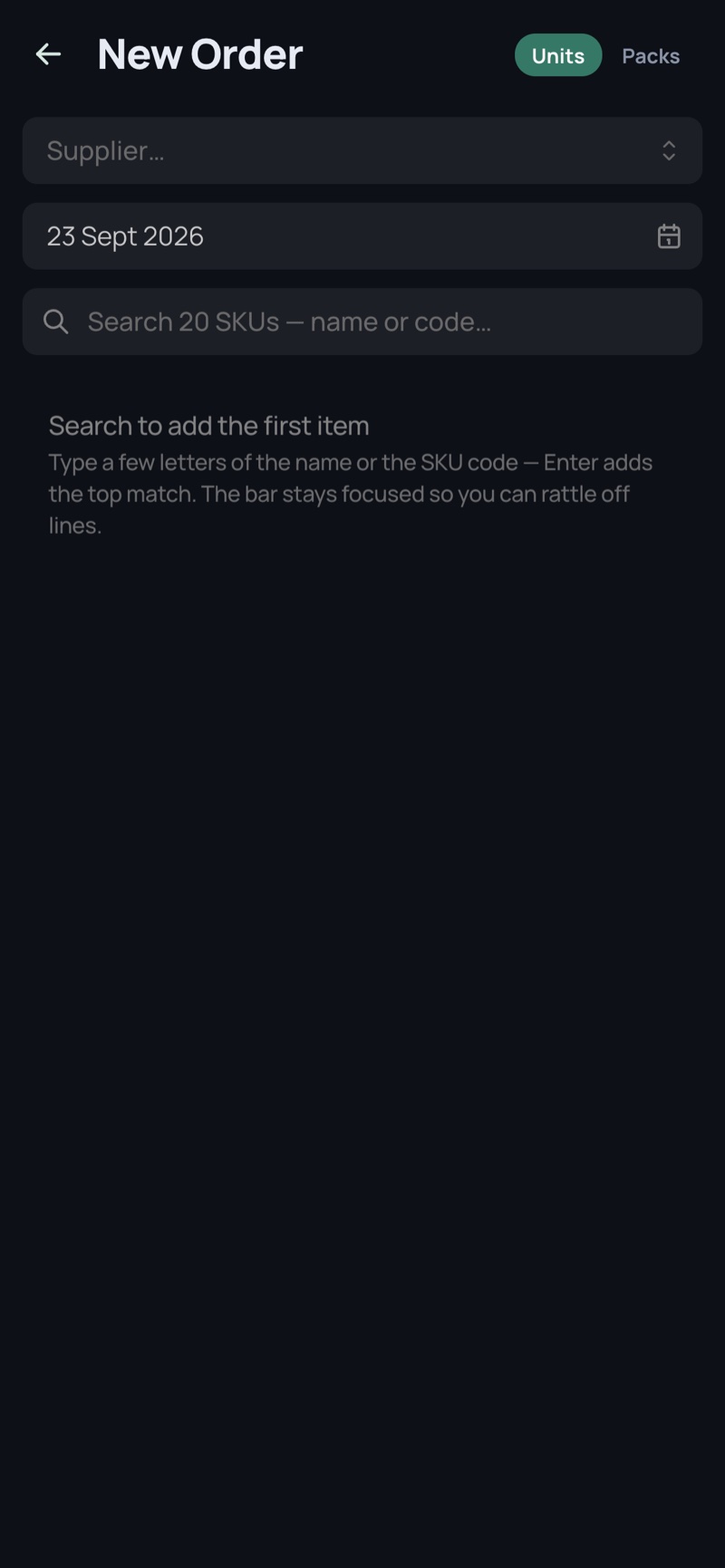
Raising an order — desktop, light Raising an order — desktop, dark
Raising an order — phone, light Raising an order — phone, dark
  • Pick the supplier first, then search every SKU
  • Adding a product the supplier doesn’t make prompts rather than blocking it — a one-off or a new factory is legitimate
  • Quantities step in the SKU’s own pack, and store in base units
11

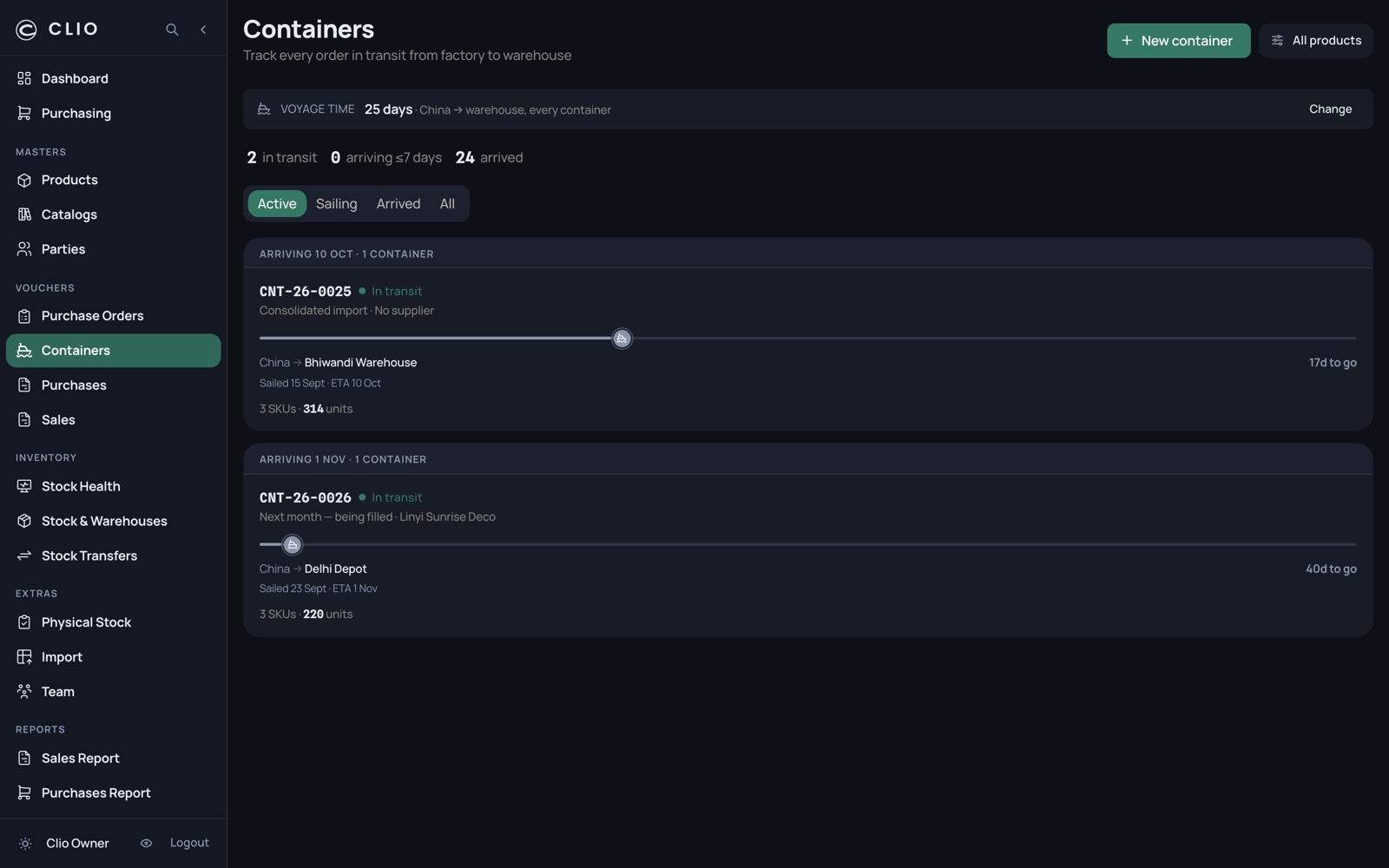
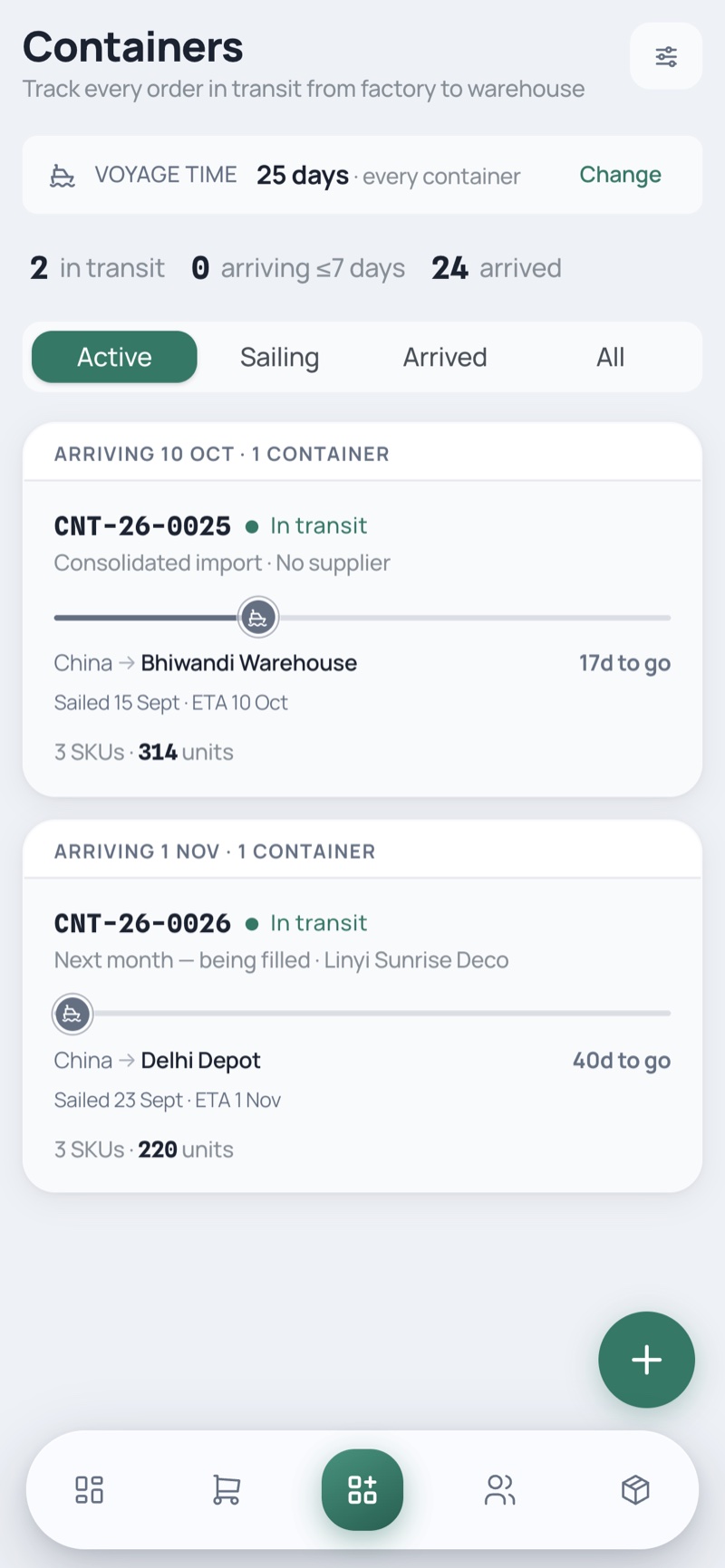
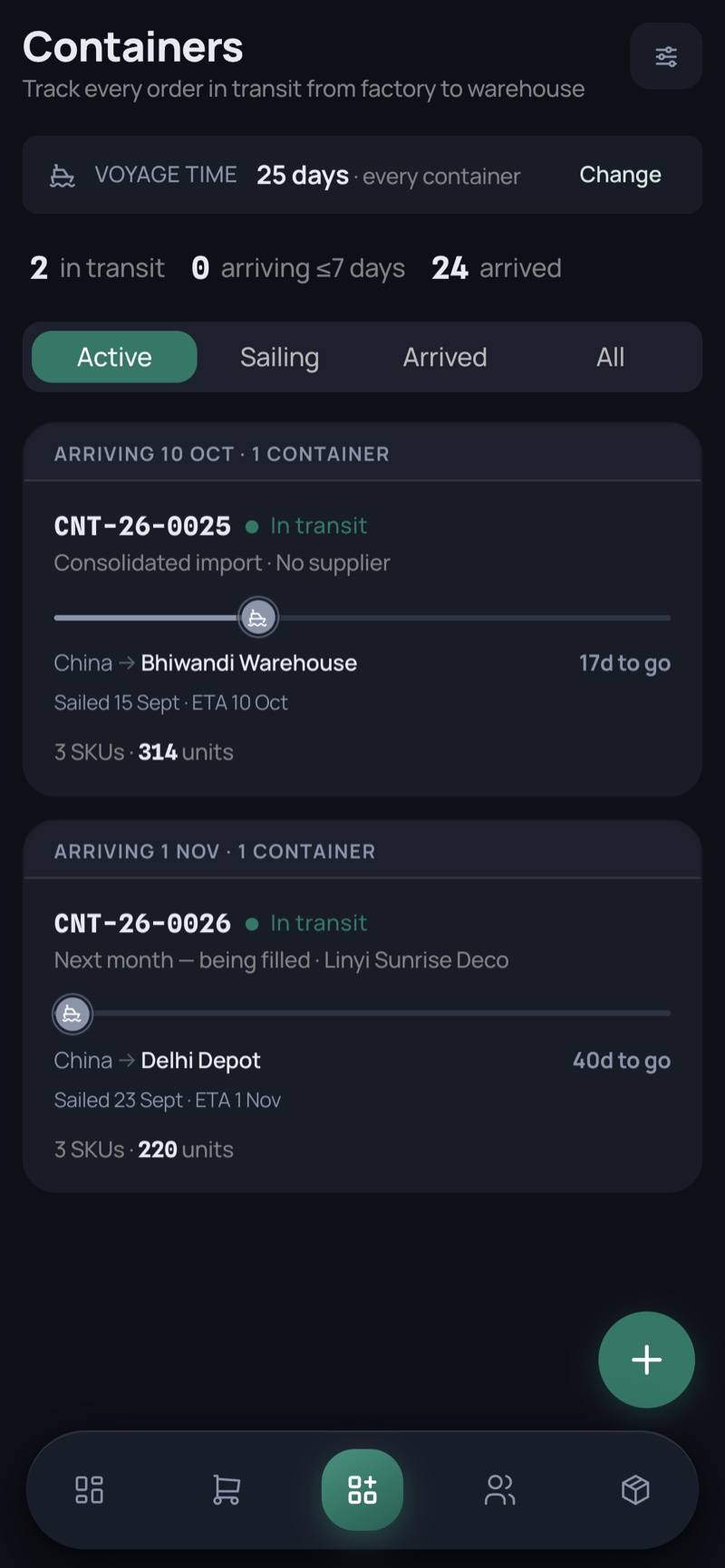
Containers

Every container sailing China → warehouse, grouped by when it lands.

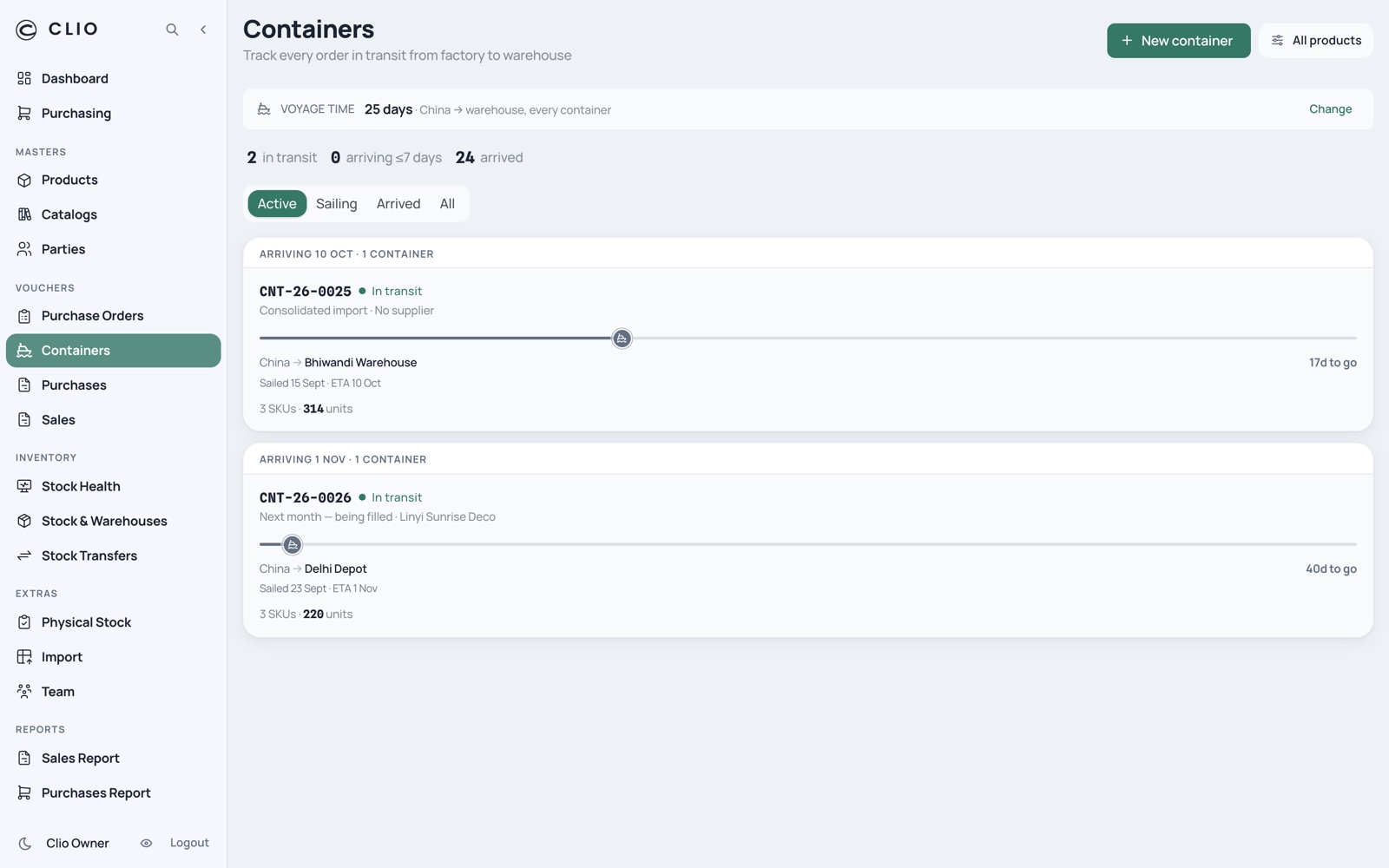
Containers — desktop, light Containers — desktop, dark
Containers — phone, light Containers — phone, dark
  • The voyage rail draws itself on load, the ship riding its real position along the route
  • Colour only when it means something — amber arriving soon, brick overdue
  • Voyage time is a business-wide setting, editable in place
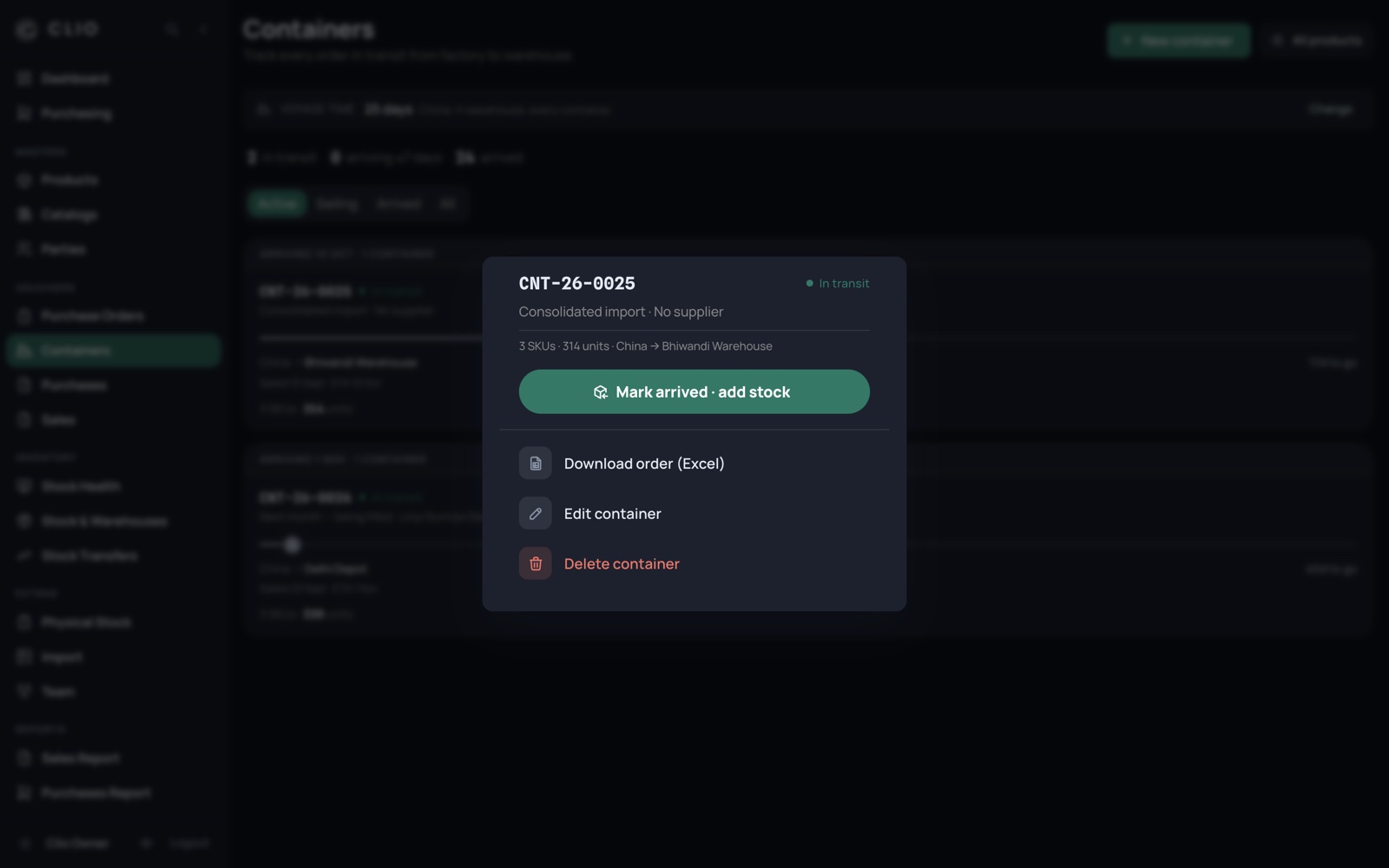
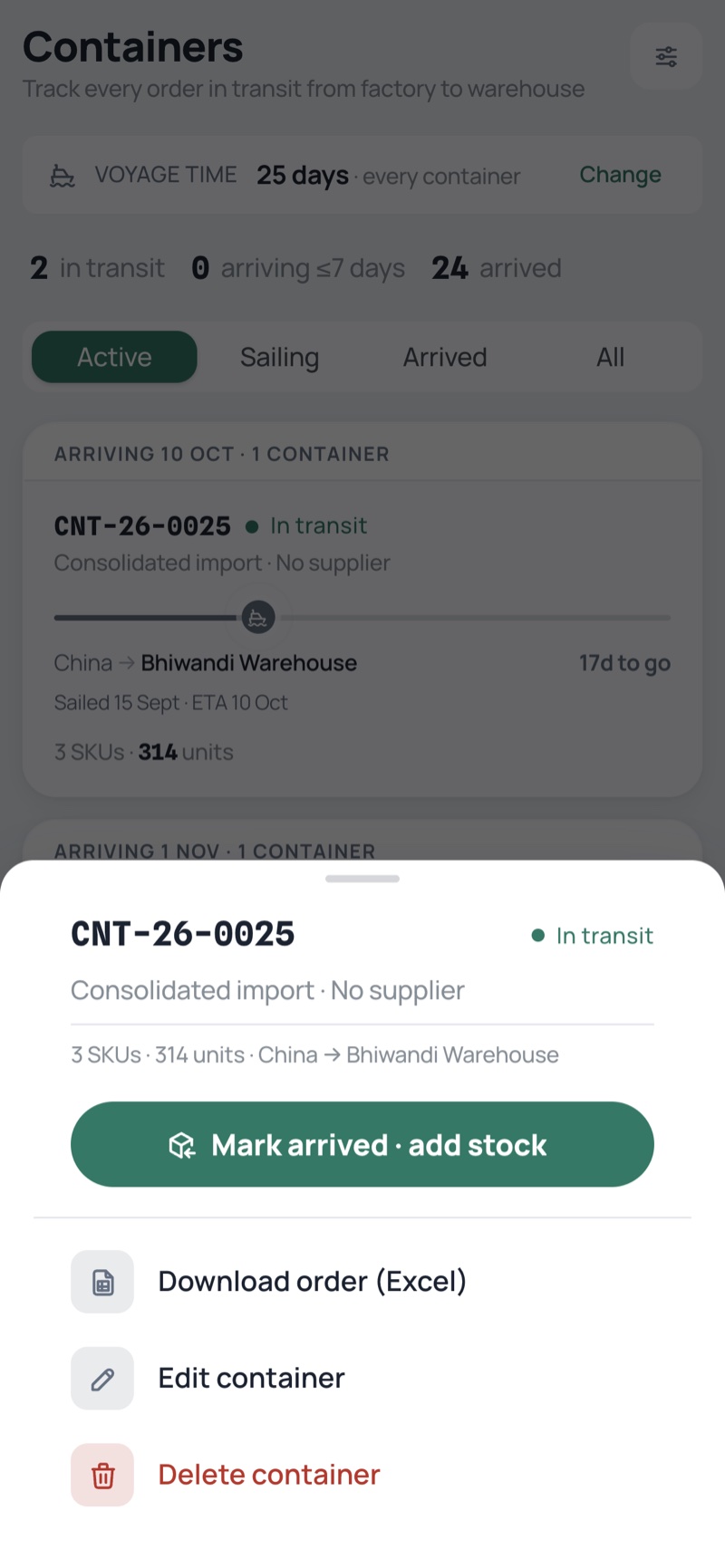
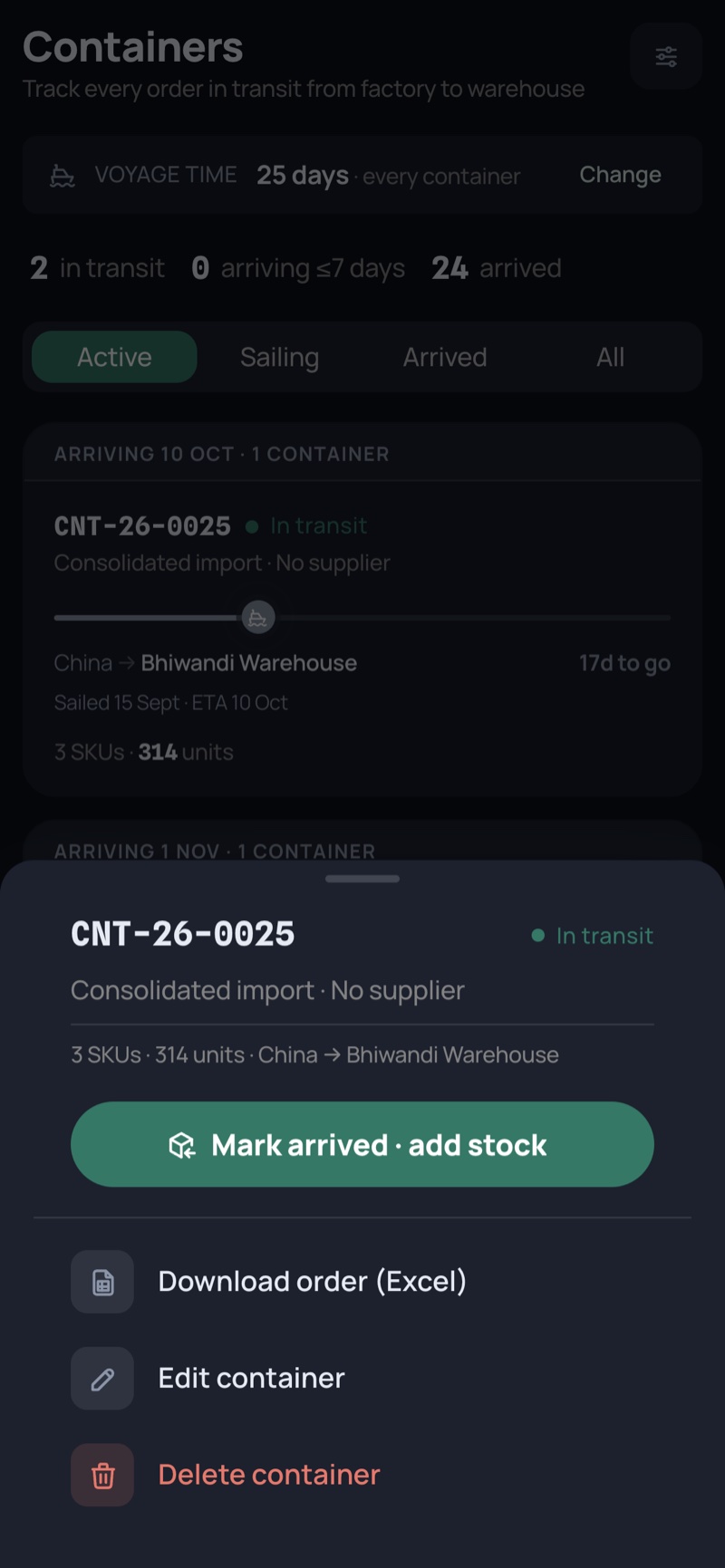
12

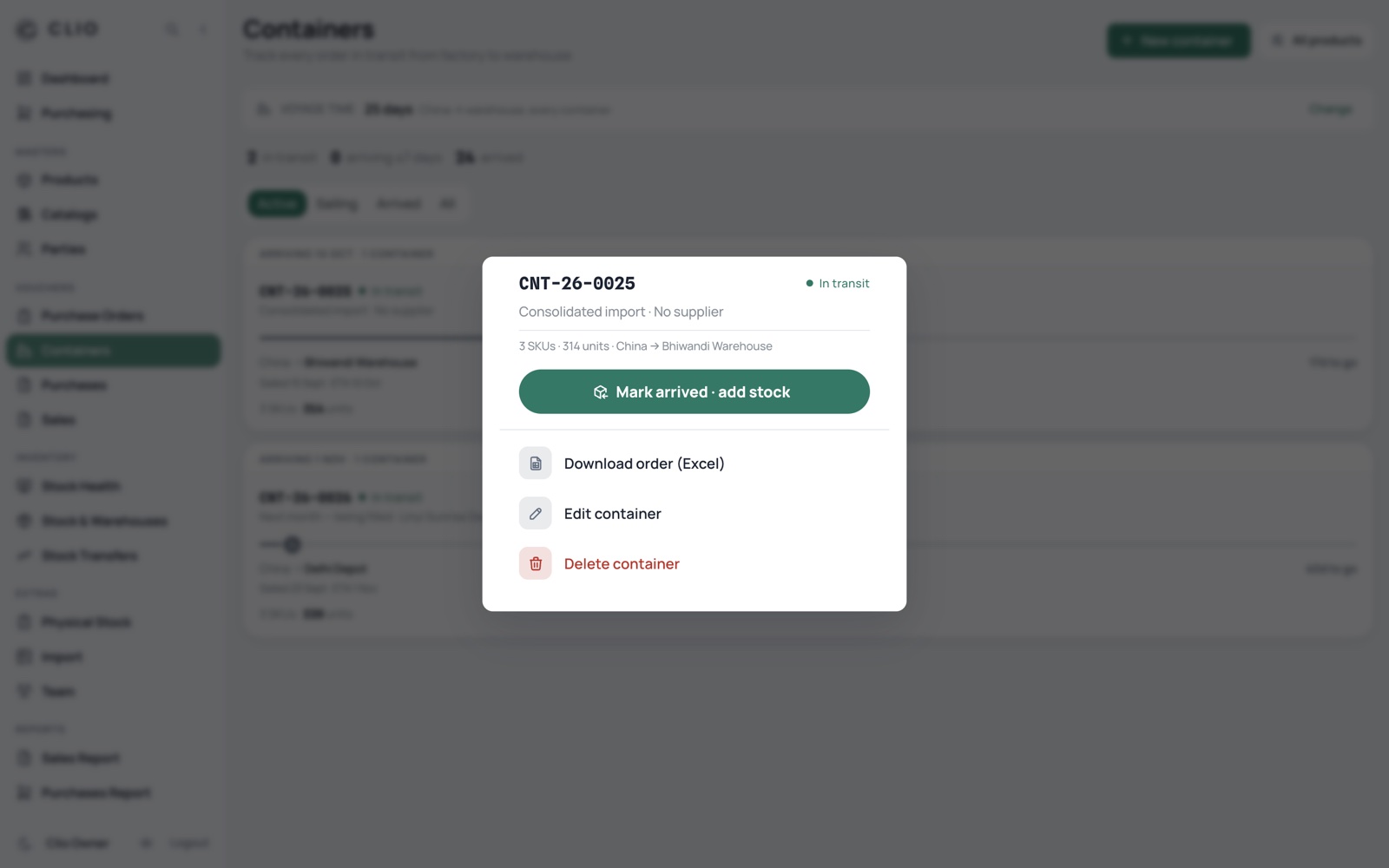
Receiving a container

Marking a container arrived is the moment goods become stock.

Receiving a container — desktop, light Receiving a container — desktop, dark
Receiving a container — phone, light Receiving a container — phone, dark
  • It adds the units into the destination warehouse and posts a purchase invoice per factory
  • Reopen pulls the stock back out and cancels those invoices
  • The same sheet carries the Excel export and the edit
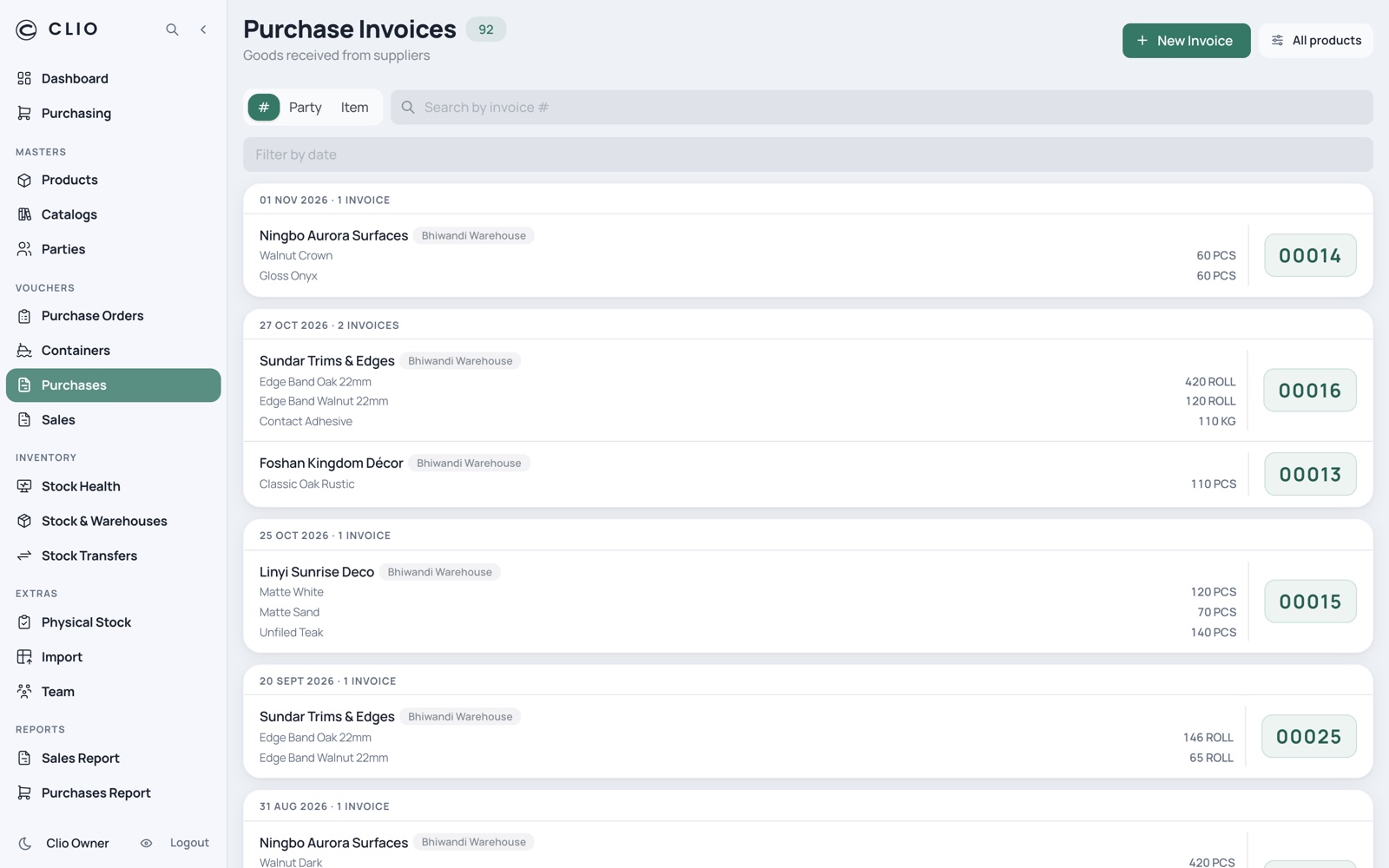
13

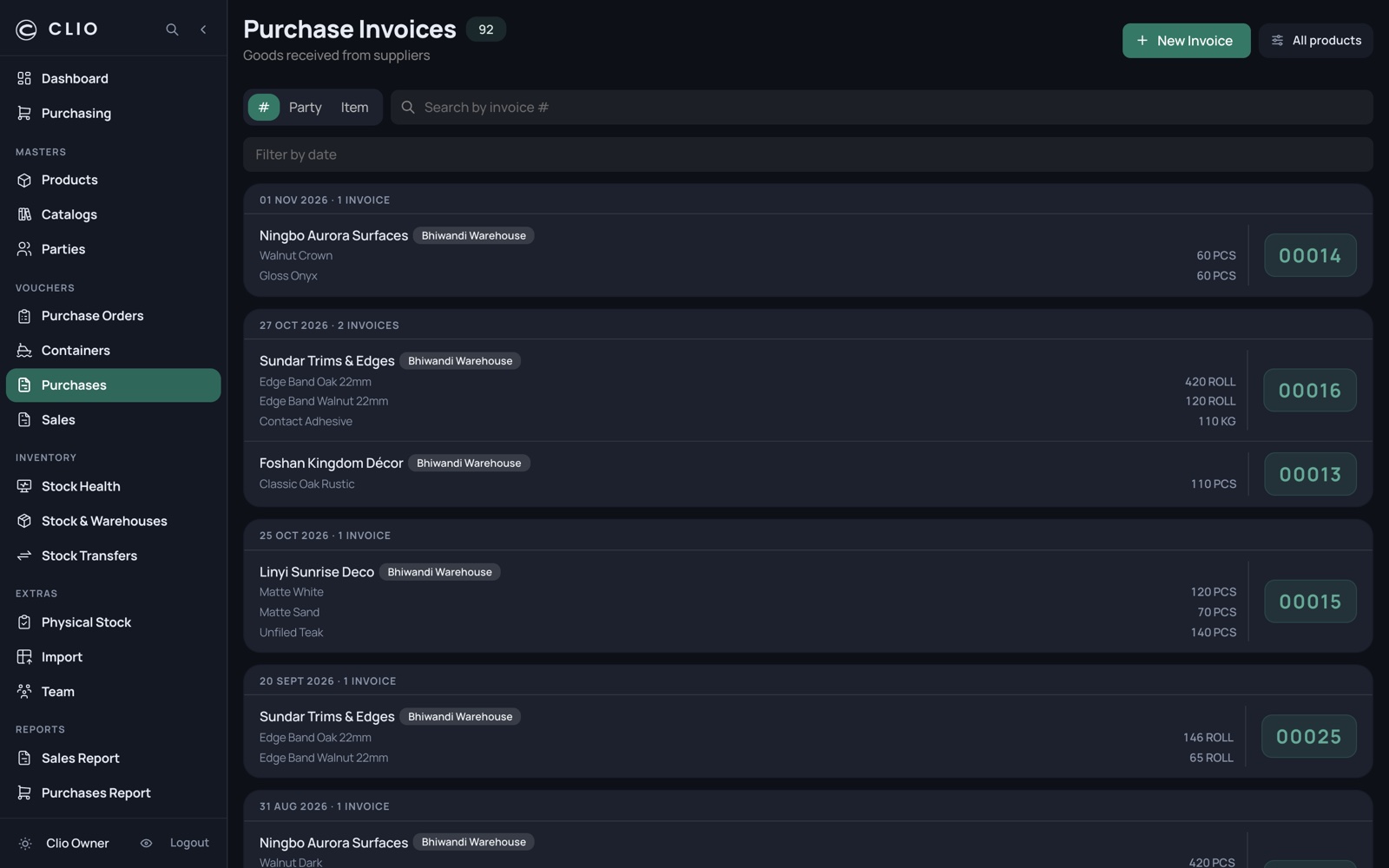
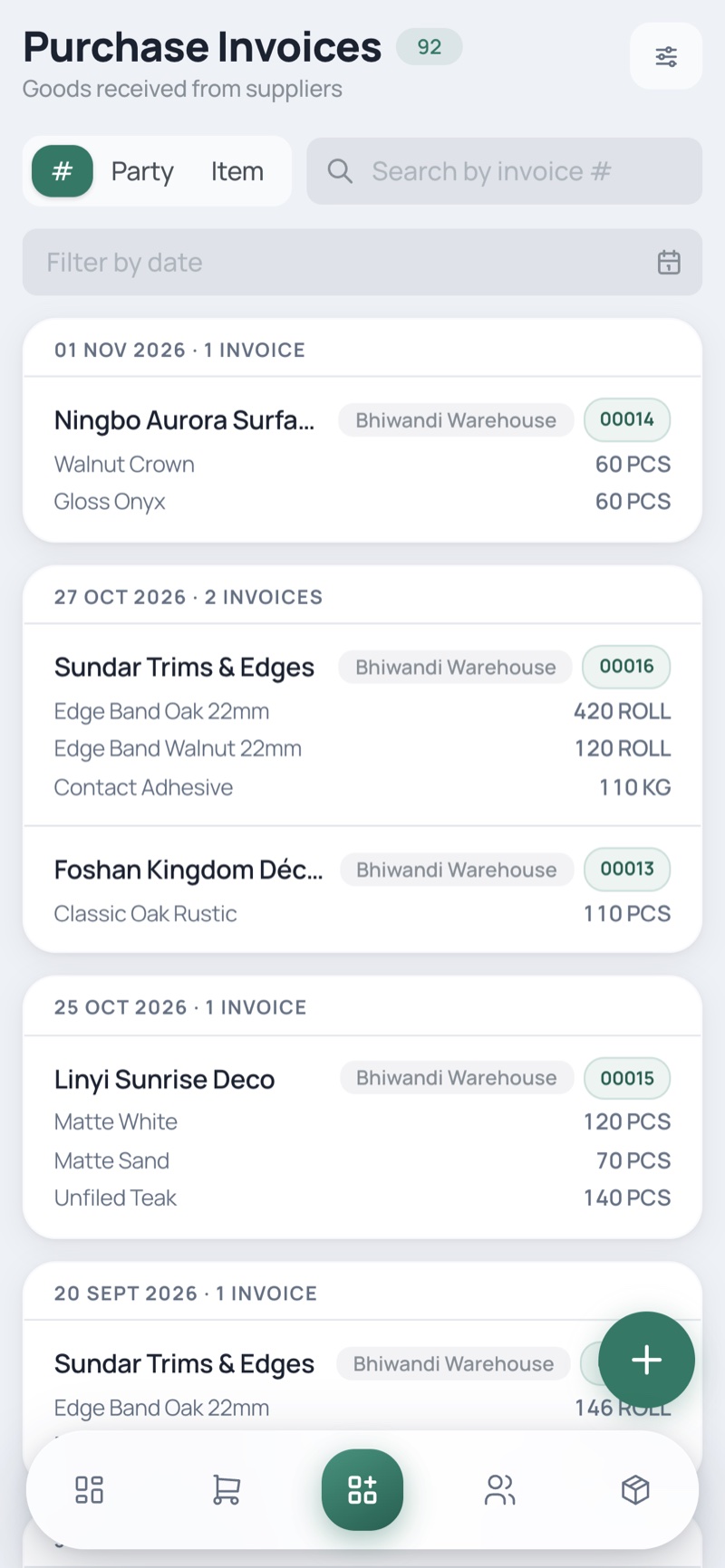
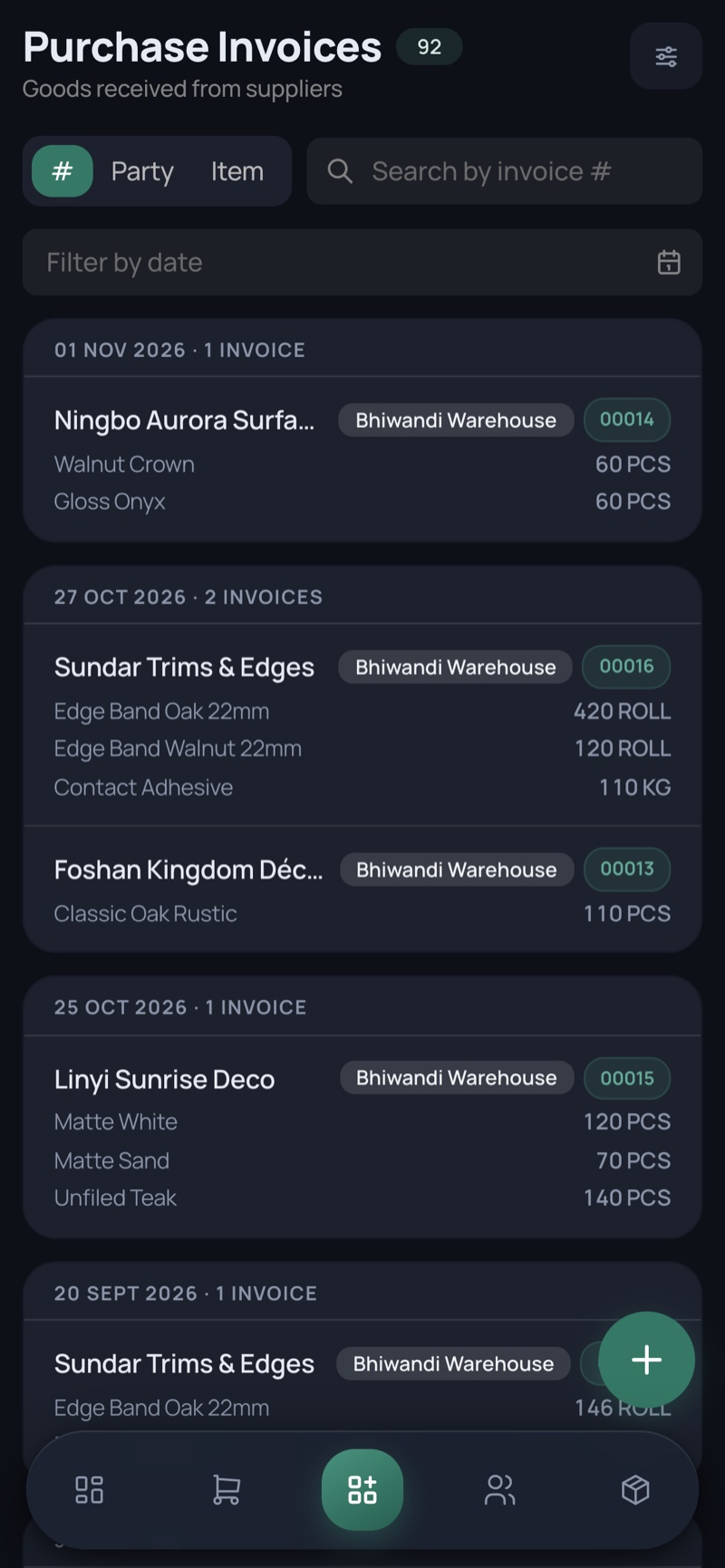
Purchases

The register of goods actually received — quantity only, no money anywhere.

Purchases — desktop, light Purchases — desktop, dark
Purchases — phone, light Purchases — phone, dark
  • Date-grouped rows, each listing every line with its quantity and unit
  • Swipe a row to cancel, with a mandatory reason
  • Scope resolves against the line items, not just the header
14

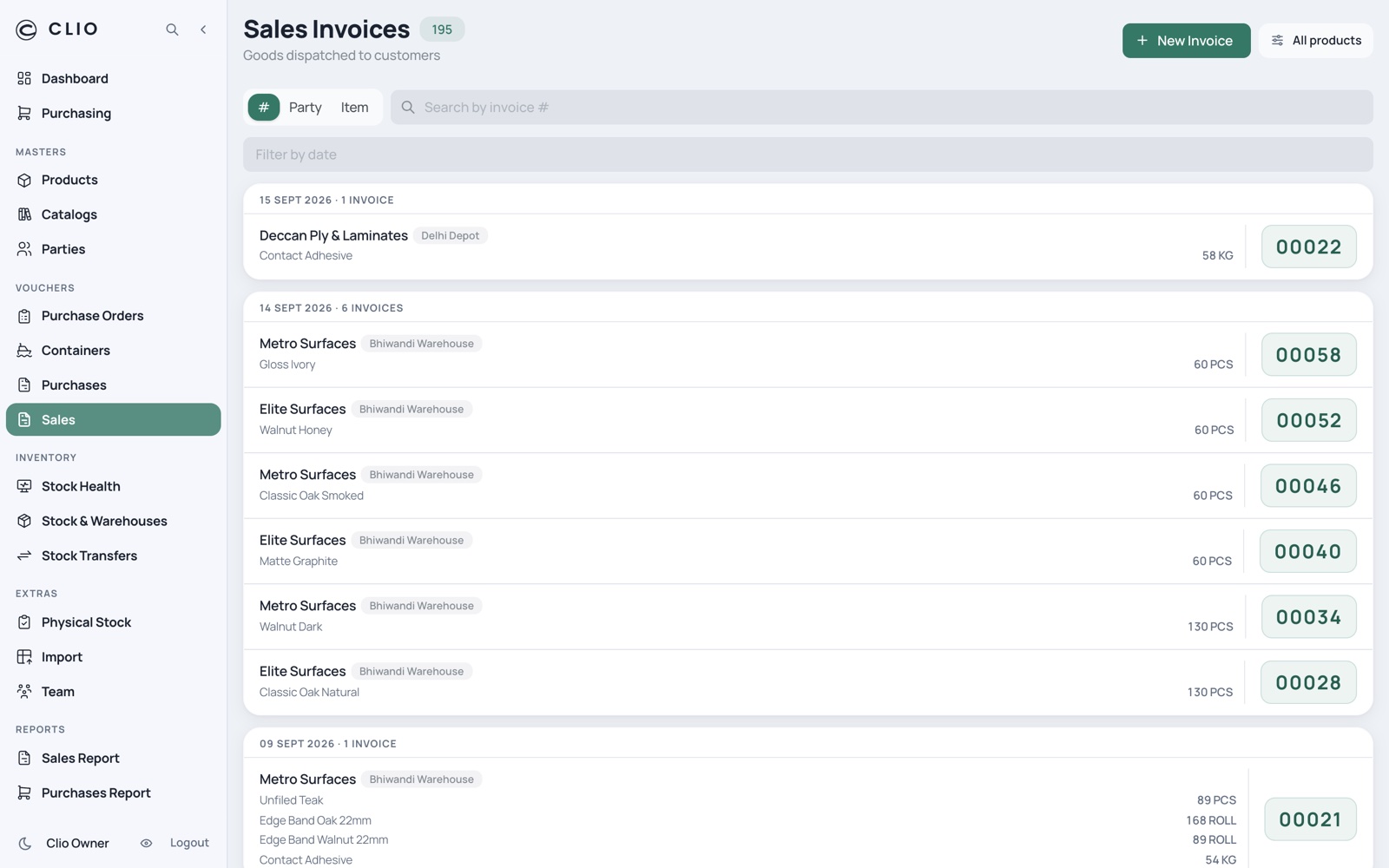
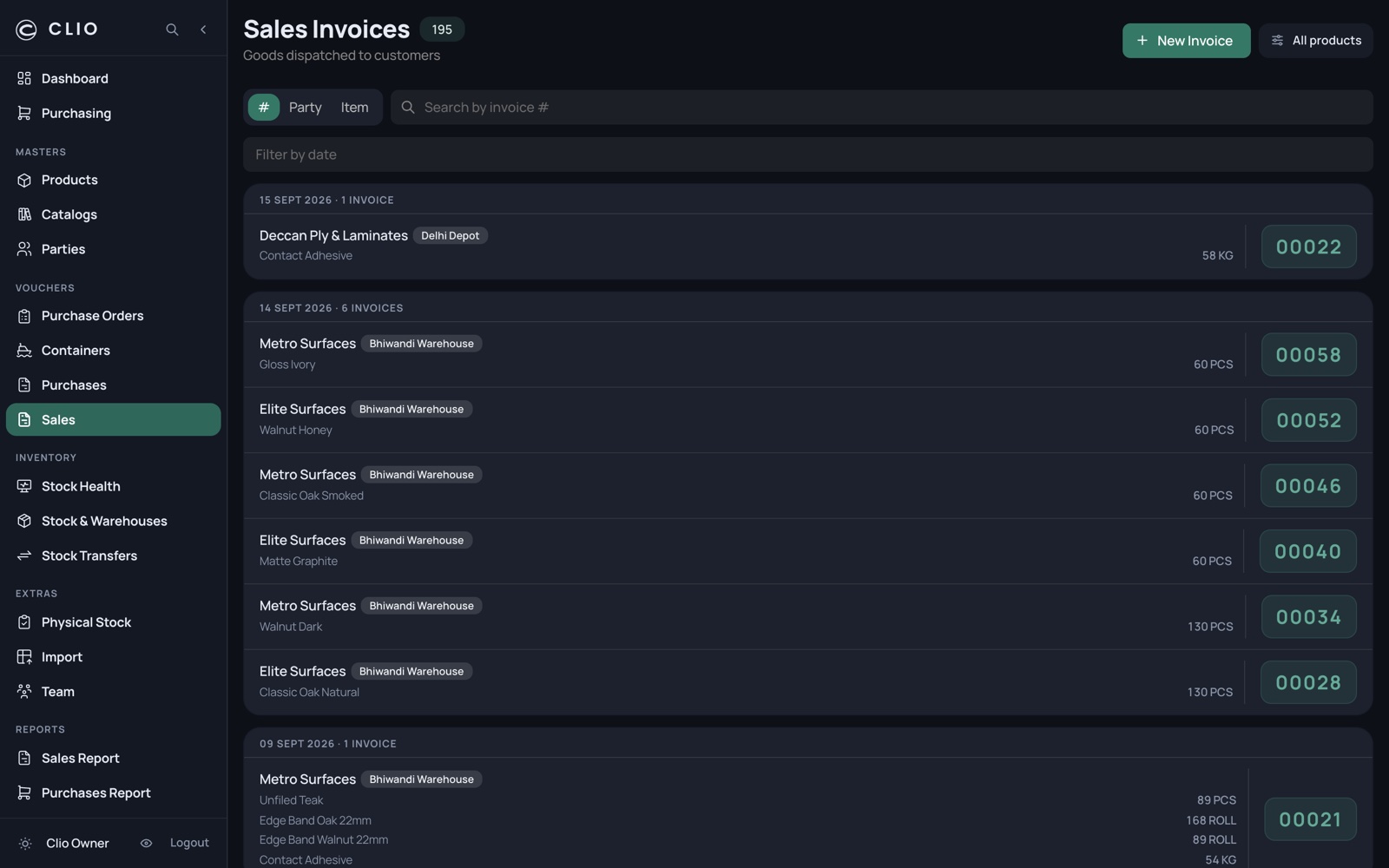
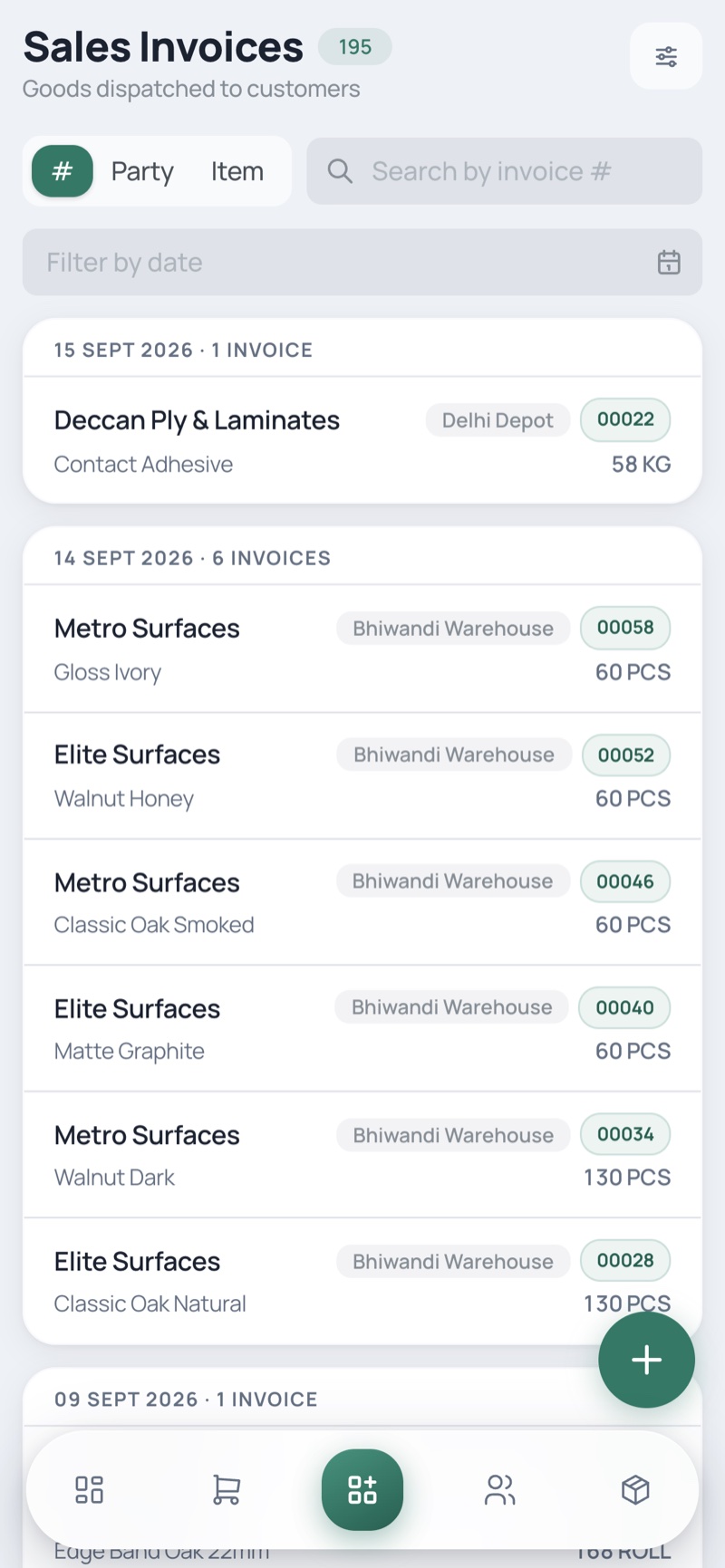
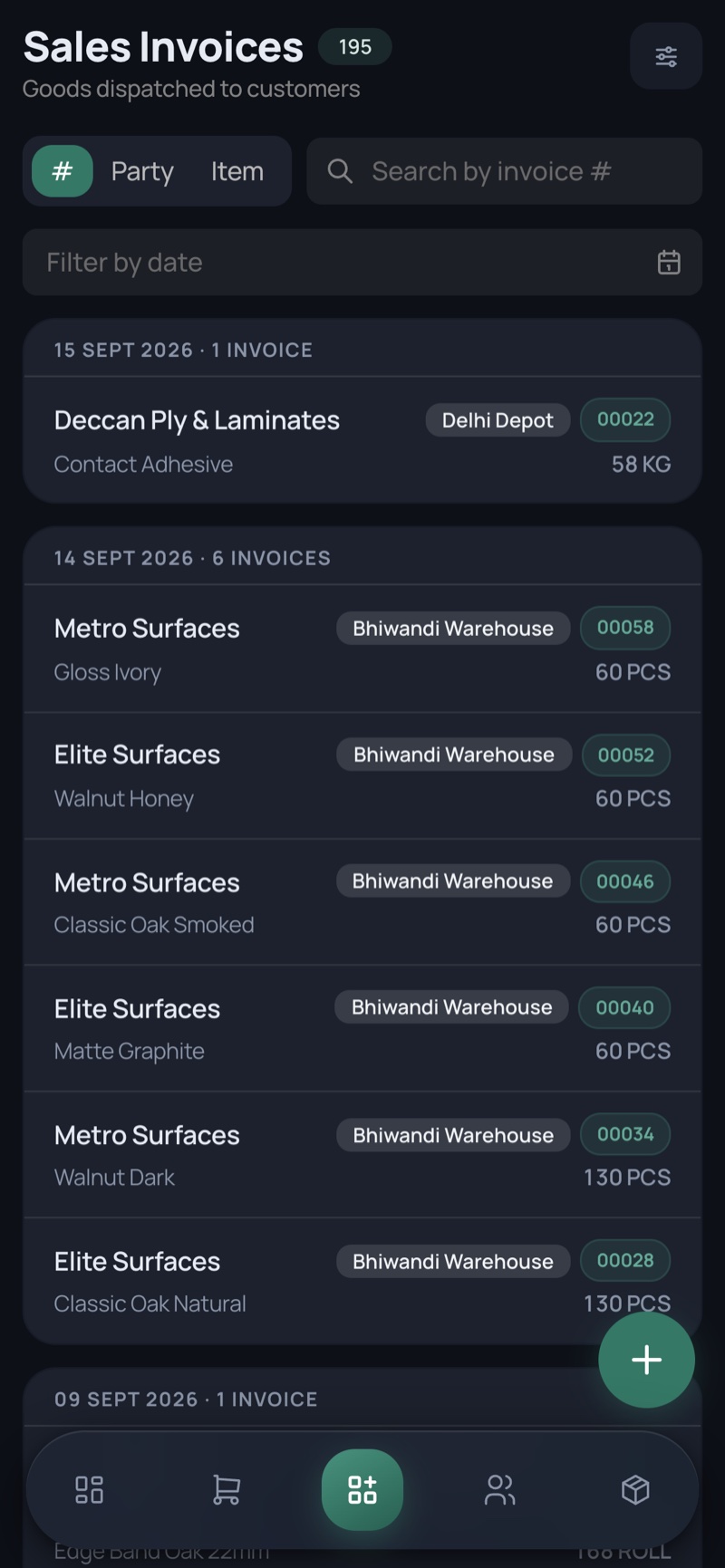
Sales

Goods dispatched to customers — the outgoing movement that defines velocity.

Sales — desktop, light Sales — desktop, dark
Sales — phone, light Sales — phone, dark
  • These postings are the 60-day ledger that daily pace is computed from
  • Same row grammar as Purchases
  • Cancelling asks why
15

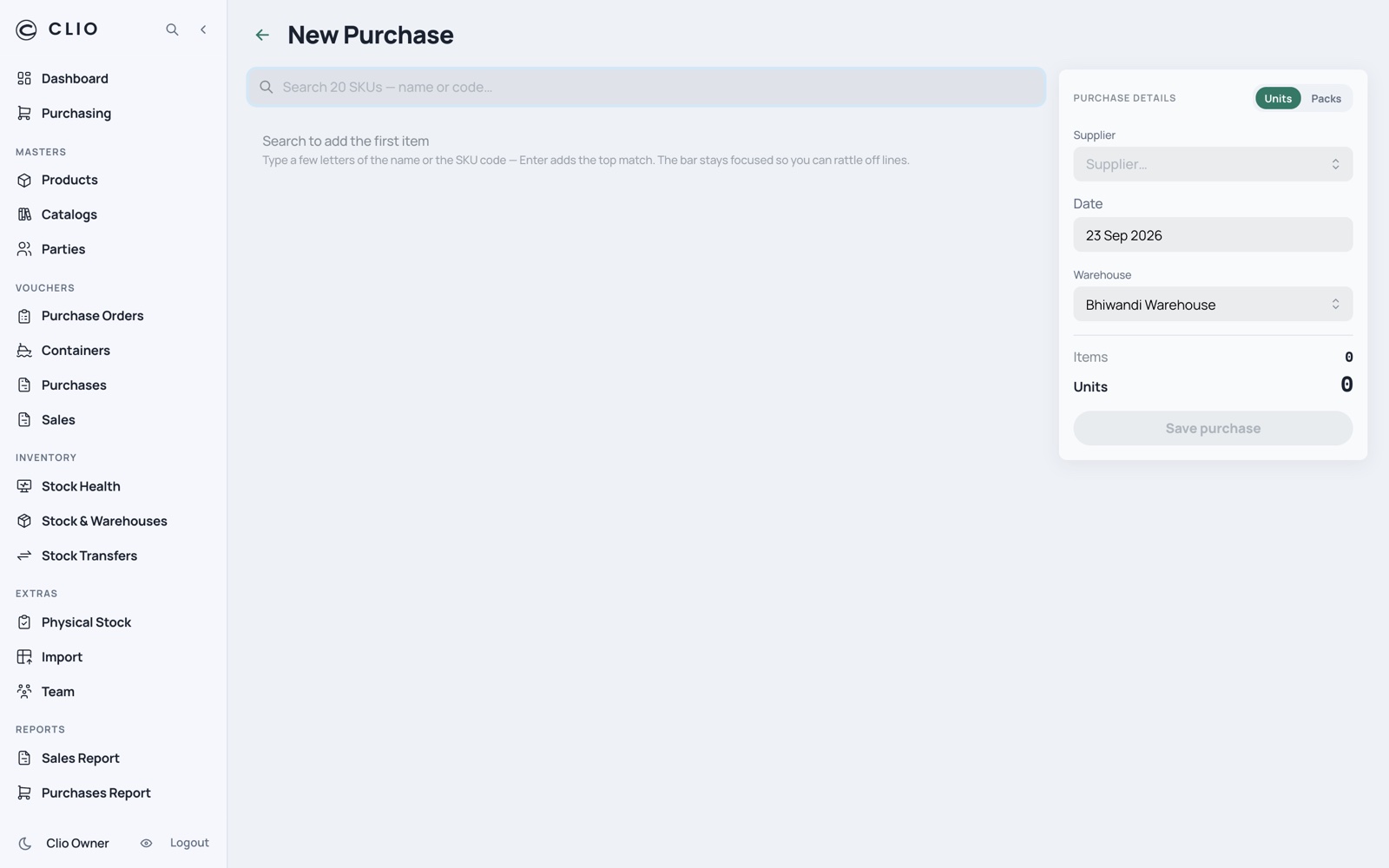
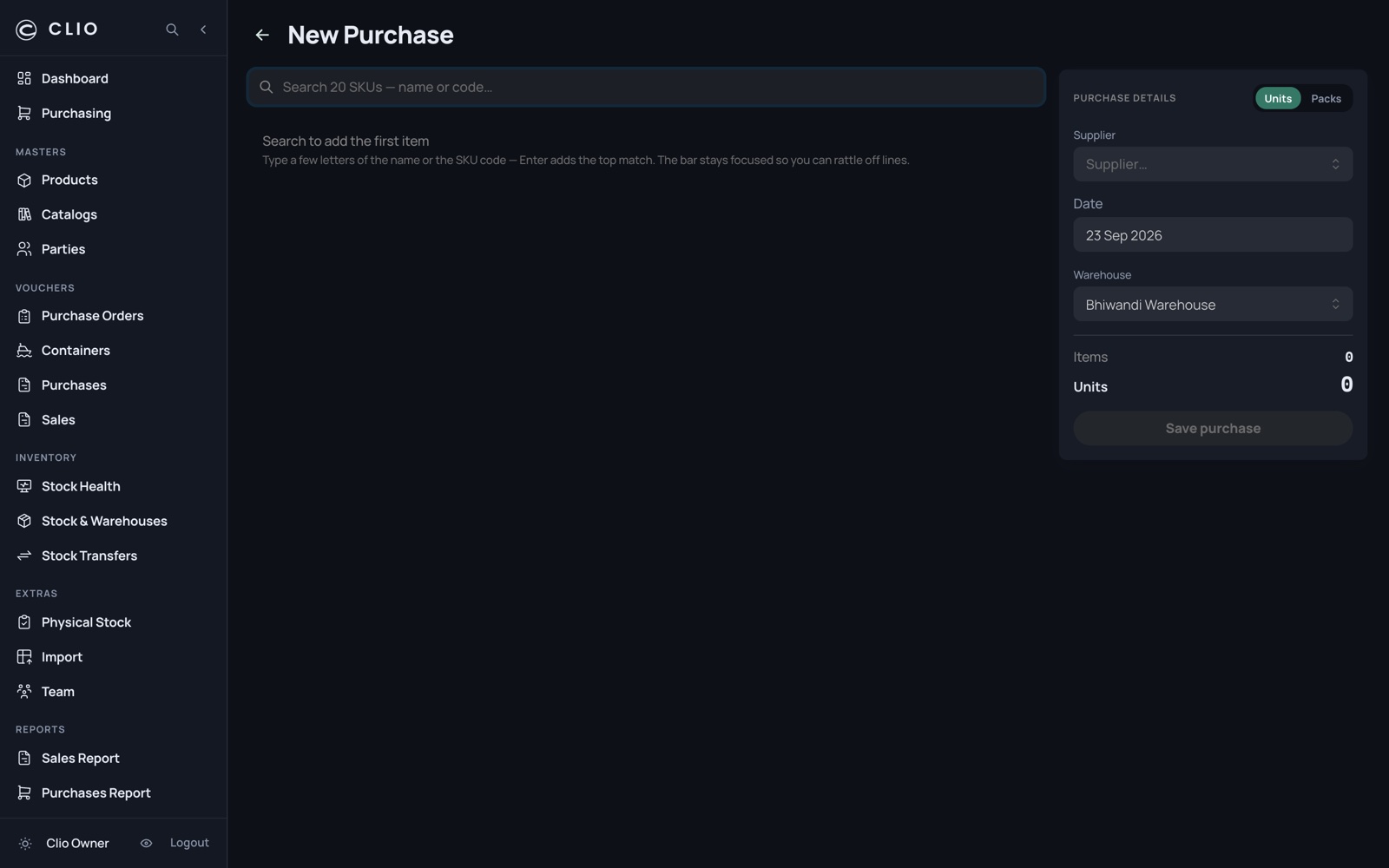
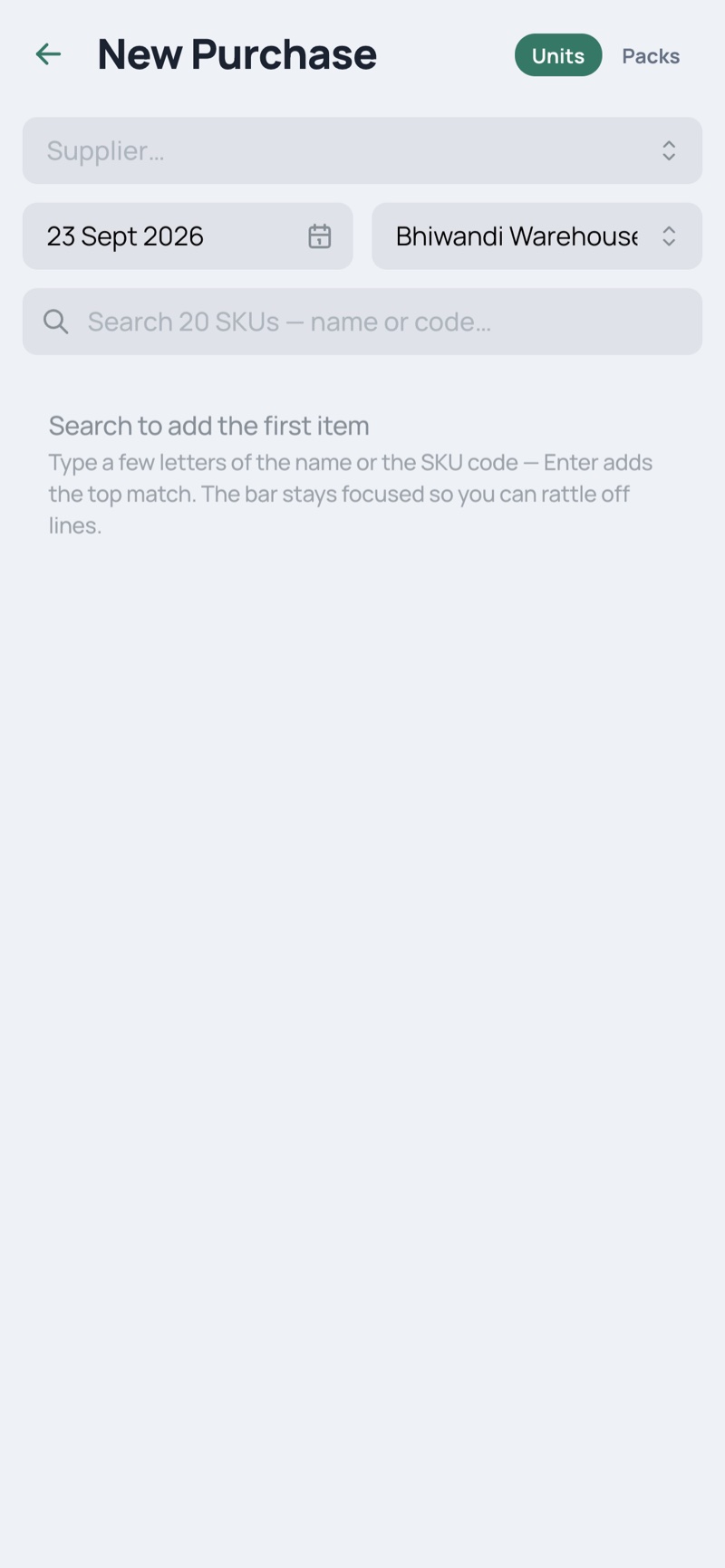
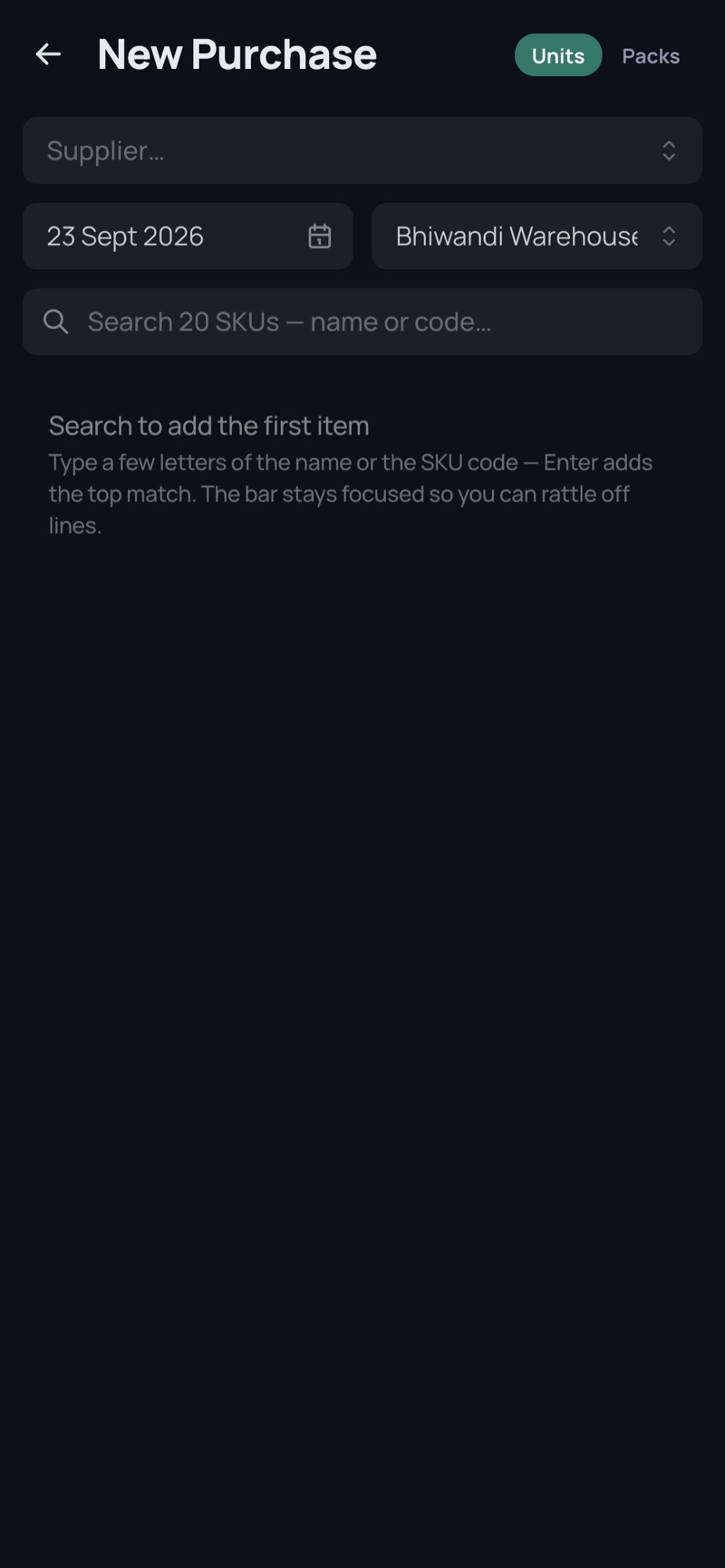
Entering a purchase

The entry screen shared by purchases, sales, transfers and orders.

Entering a purchase — desktop, light Entering a purchase — desktop, dark
Entering a purchase — phone, light Entering a purchase — phone, dark
  • Search adds a line; the bar keeps focus so you can rattle off a whole invoice
  • Quantities can be typed in units or in packs — storage is always base units
  • No rate, no tax, no total: Clio is quantity-only by design

Stock

What you hold, where it is, what is moving, and what has stopped.

5 screens
16

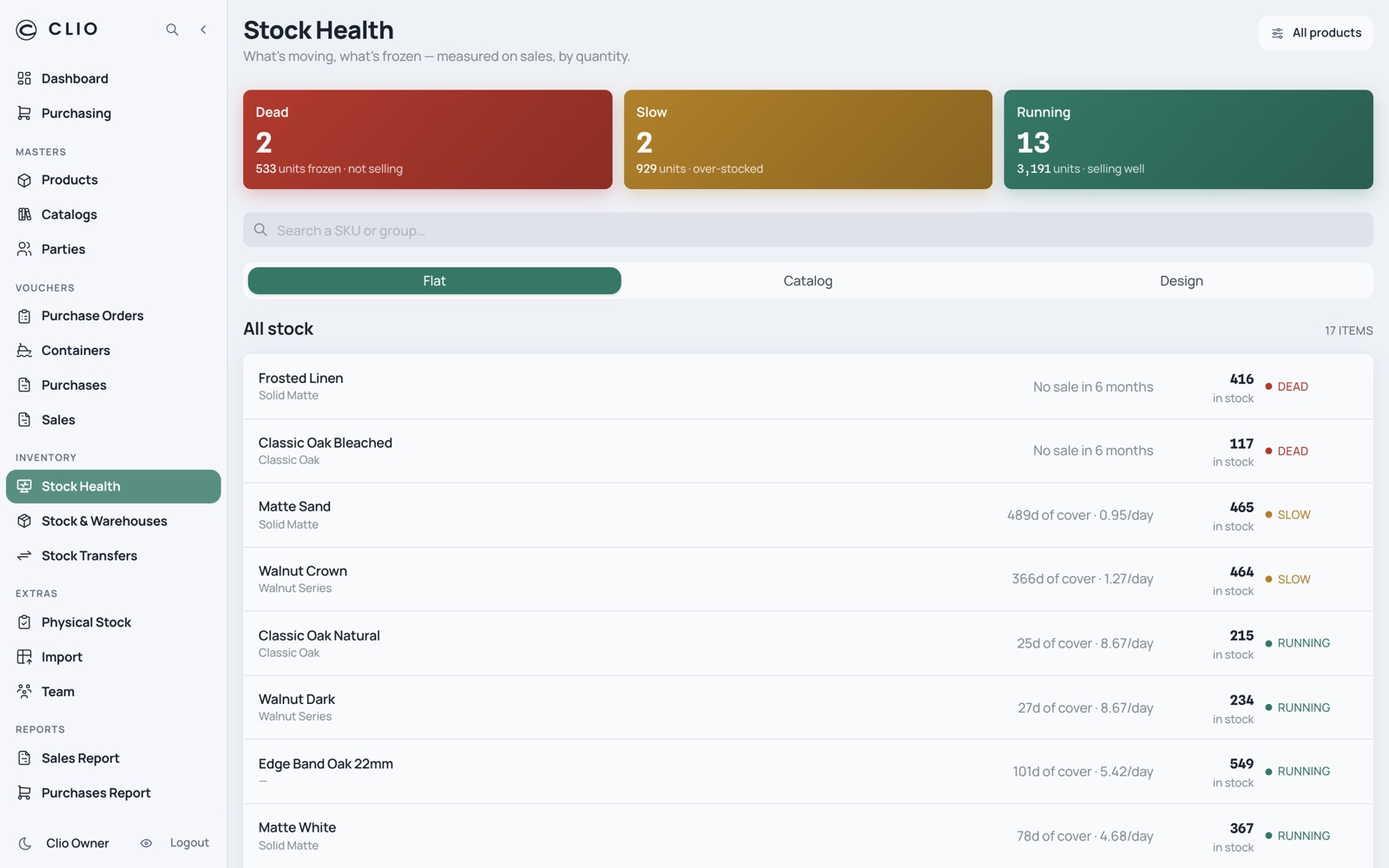
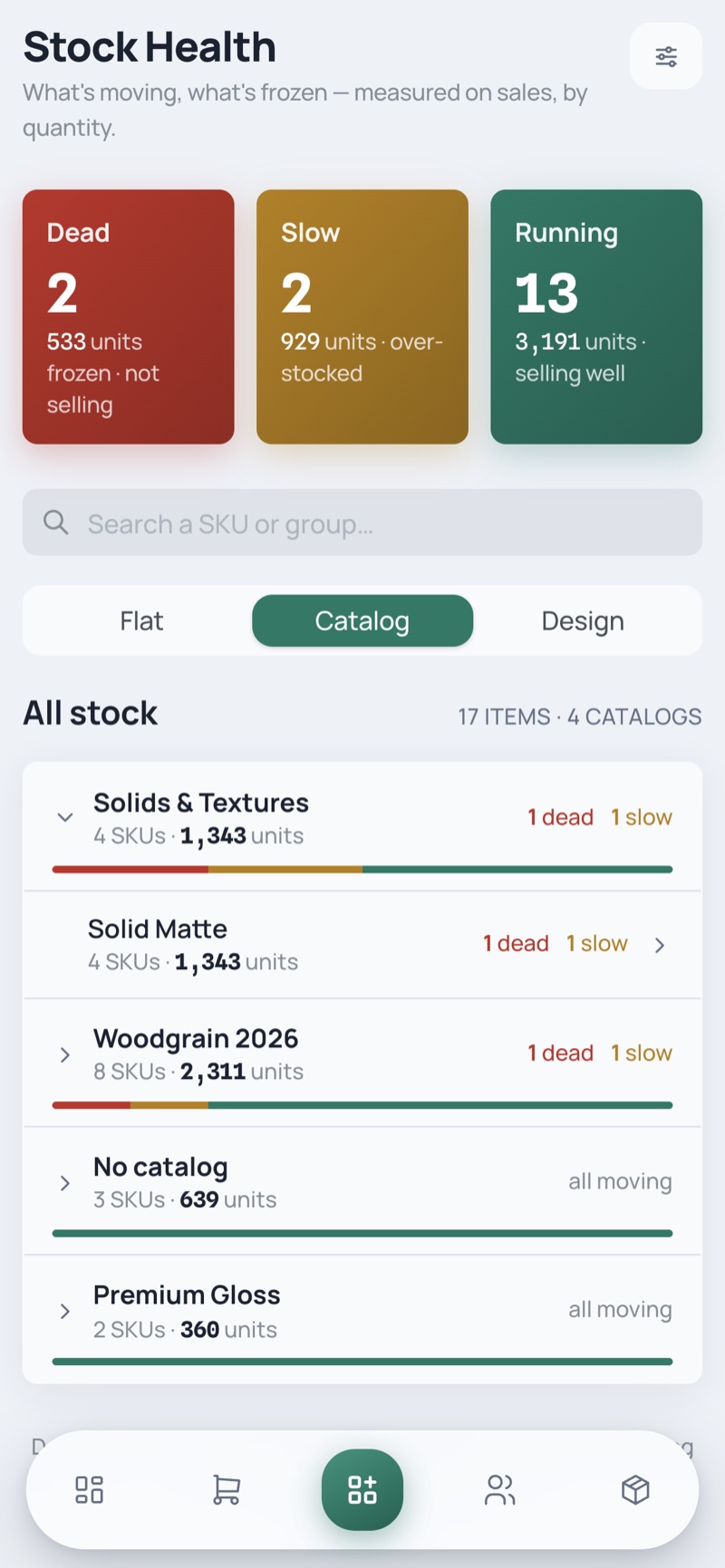
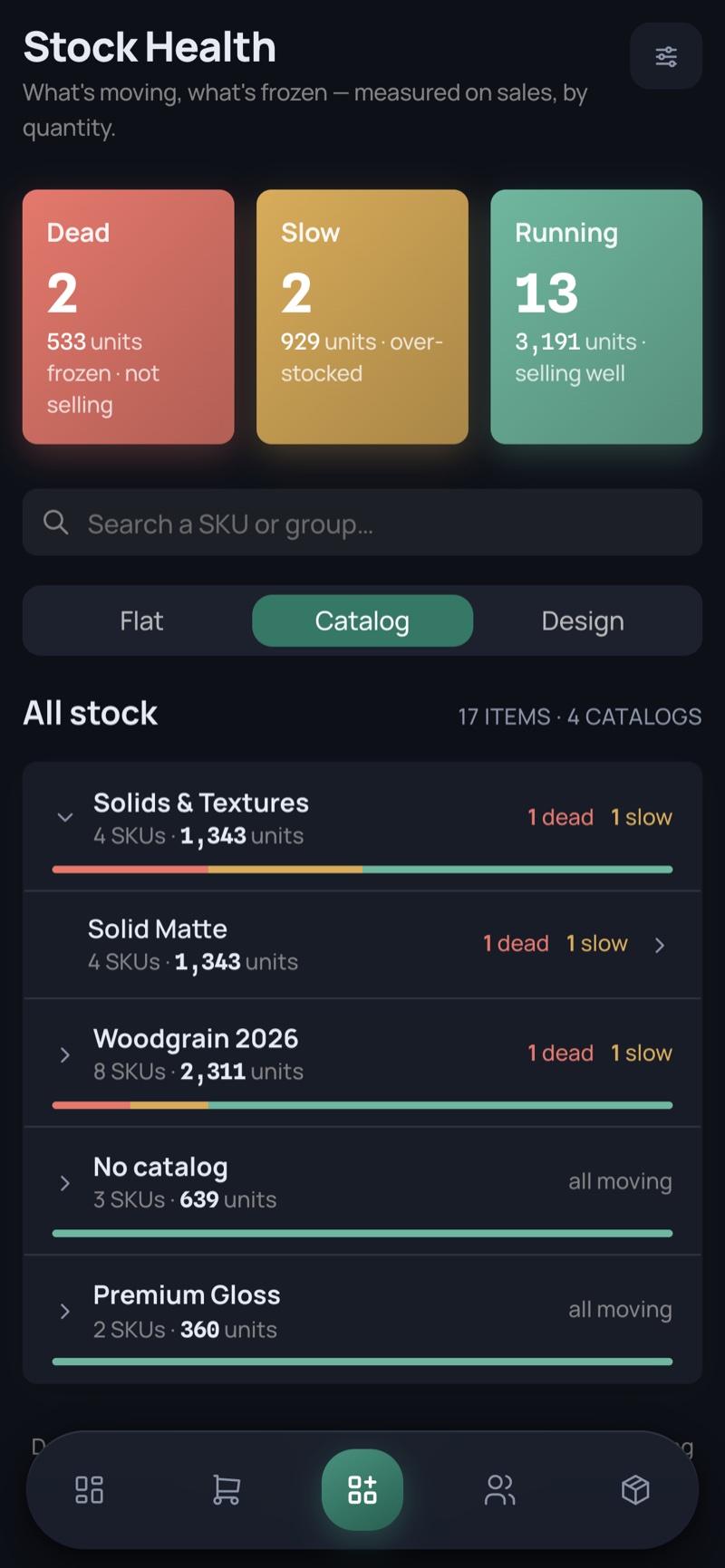
Stock Health

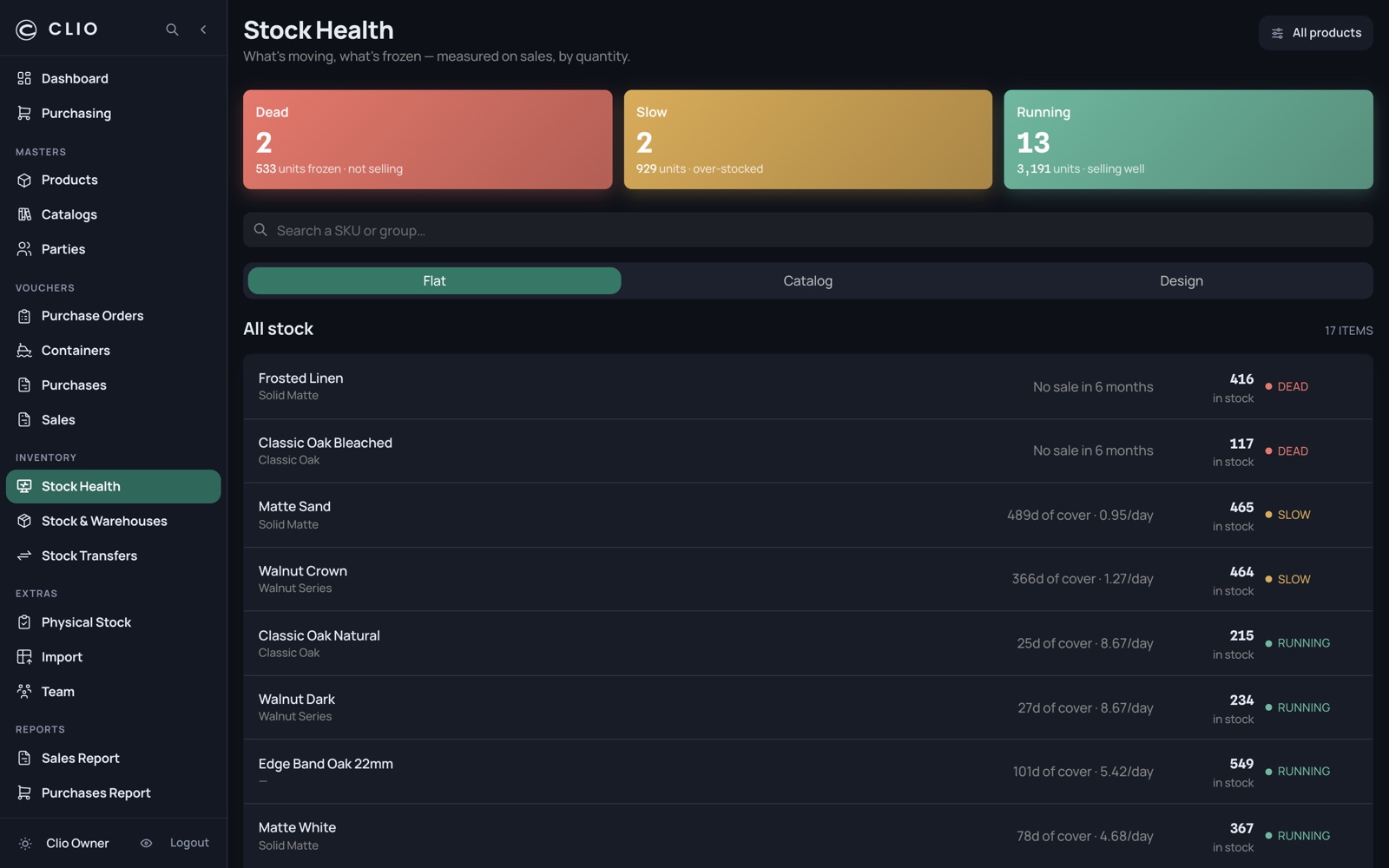
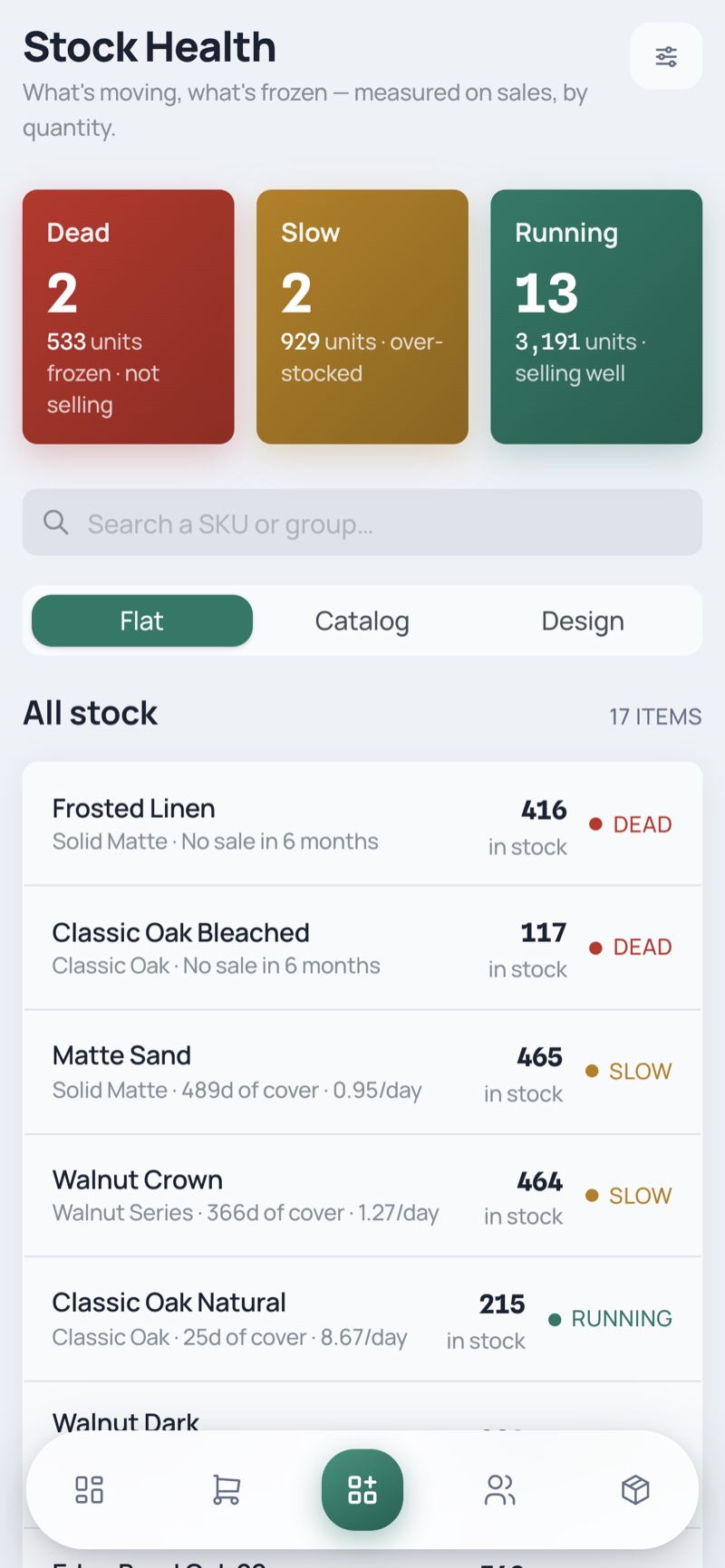
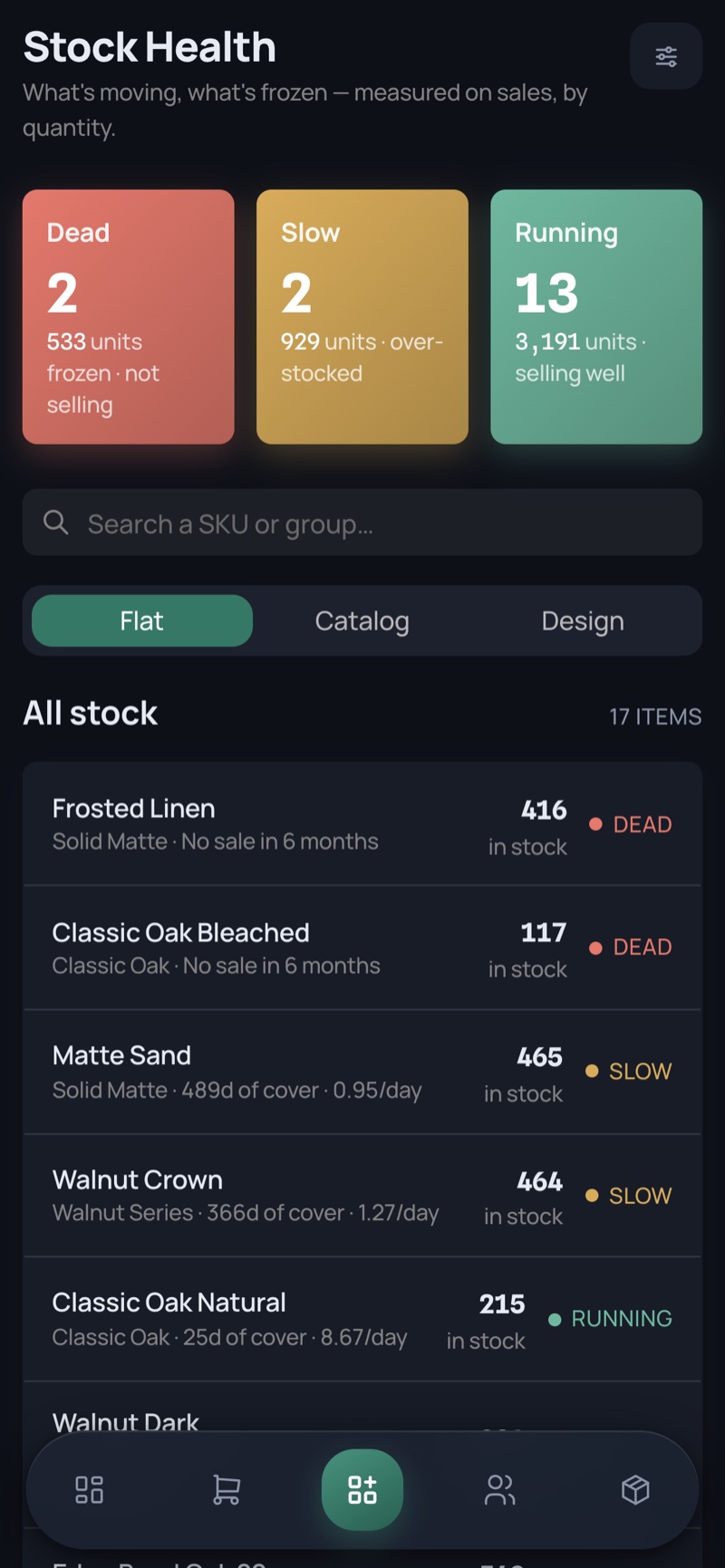
What is selling, what is over-stocked, and what is frozen — measured on sales.

Stock Health — desktop, light Stock Health — desktop, dark
Stock Health — phone, light Stock Health — phone, dark
  • Dead = no sale in 90 days · Slow = over 120 days of cover · Running = selling through
  • The three tiles are the filter; tapping one narrows the list and tapping it again clears
  • Counts recount from whatever scope is applied, so the tiles can never disagree with the list
17

Health by catalog

Health rolled up the way the catalogue is actually organised, worst first.

Health by catalog — desktop, light Health by catalog — desktop, dark
Health by catalog — phone, light Health by catalog — phone, dark
  • Collapsed by default — at 1,500 SKUs the rollup is the answer, the SKUs are the drill-in
  • Each header carries its own dead/slow counts and a mix bar
  • Opening a catalog reveals its design groups; picking one switches to the design view with that group open
18

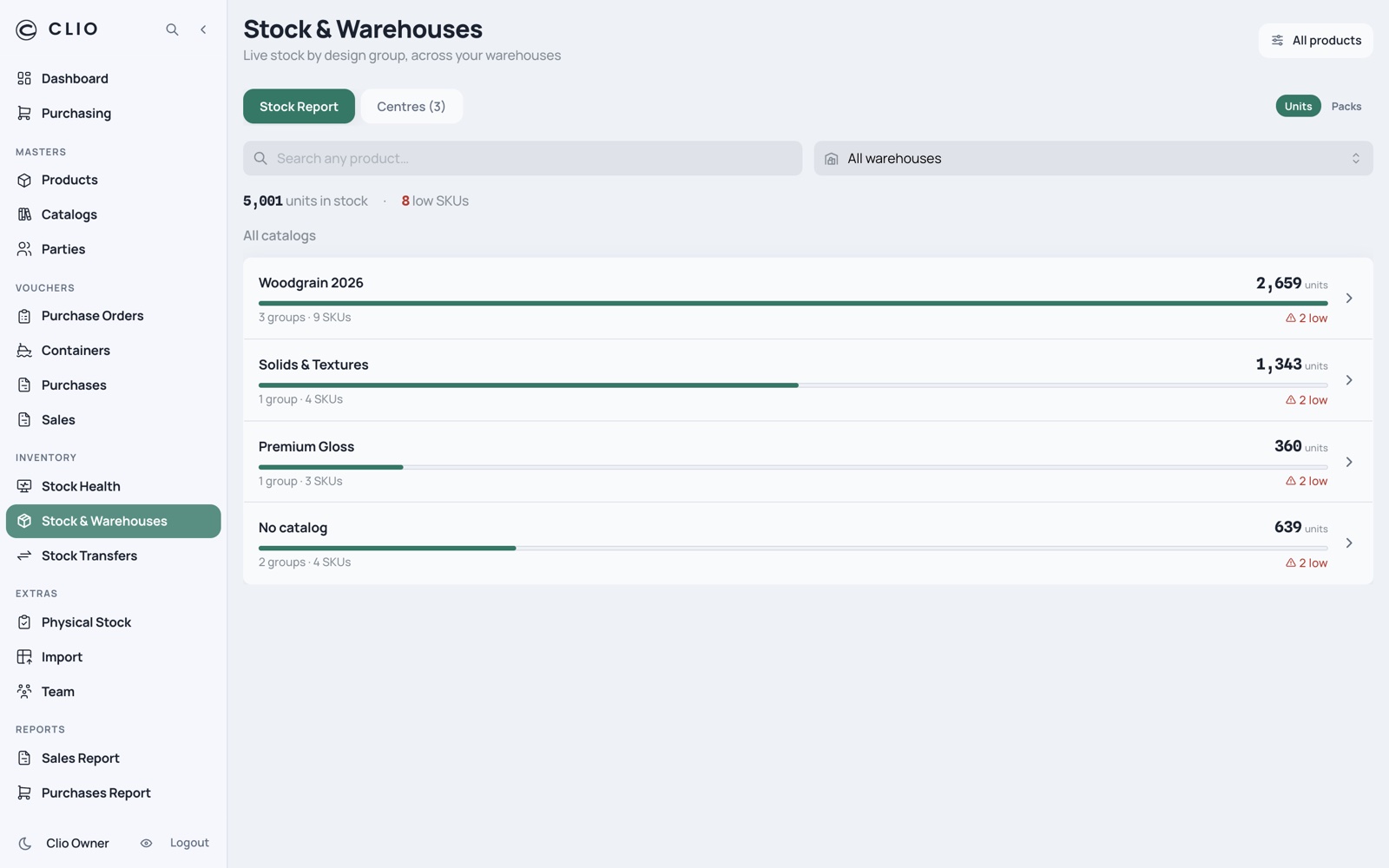
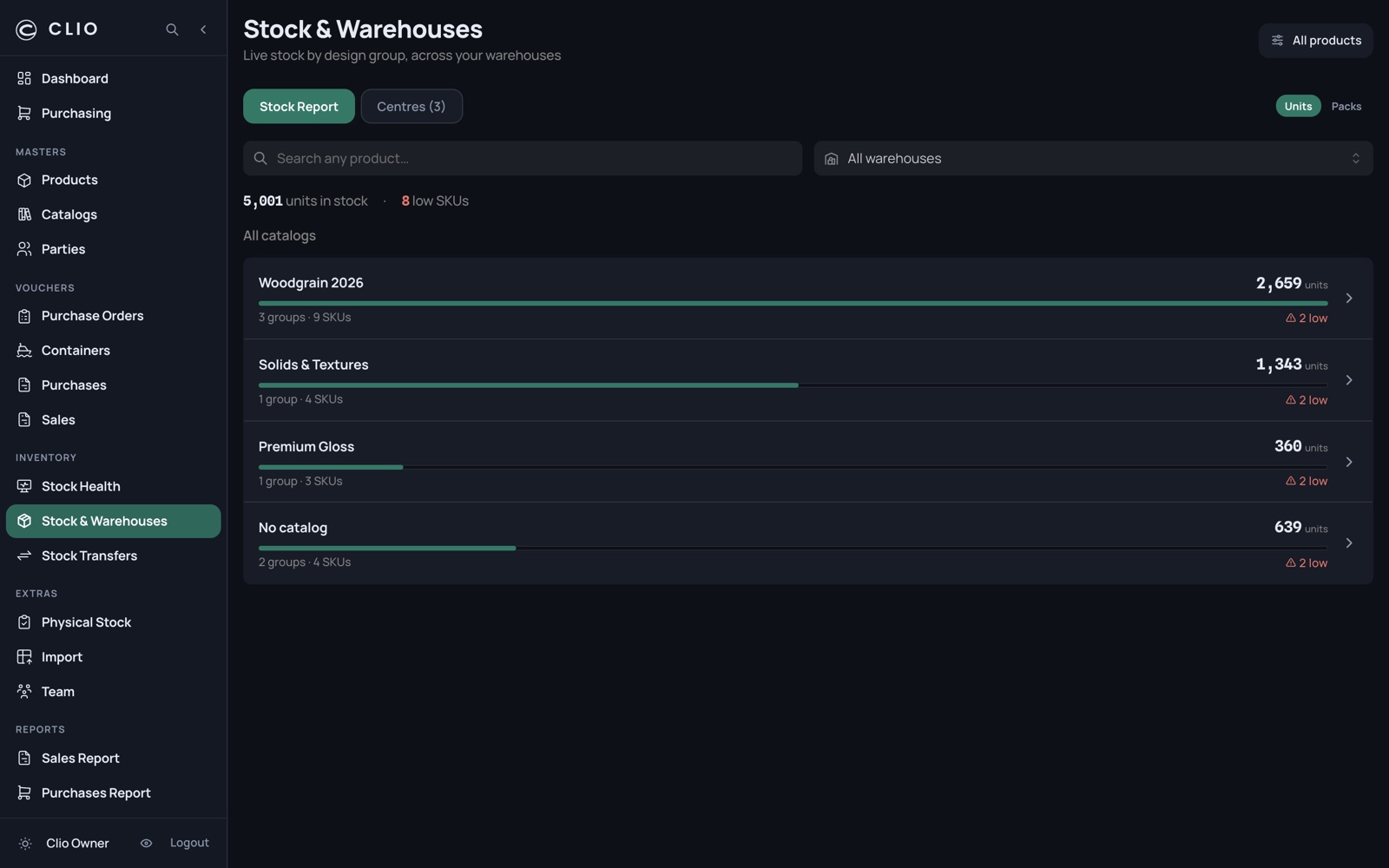
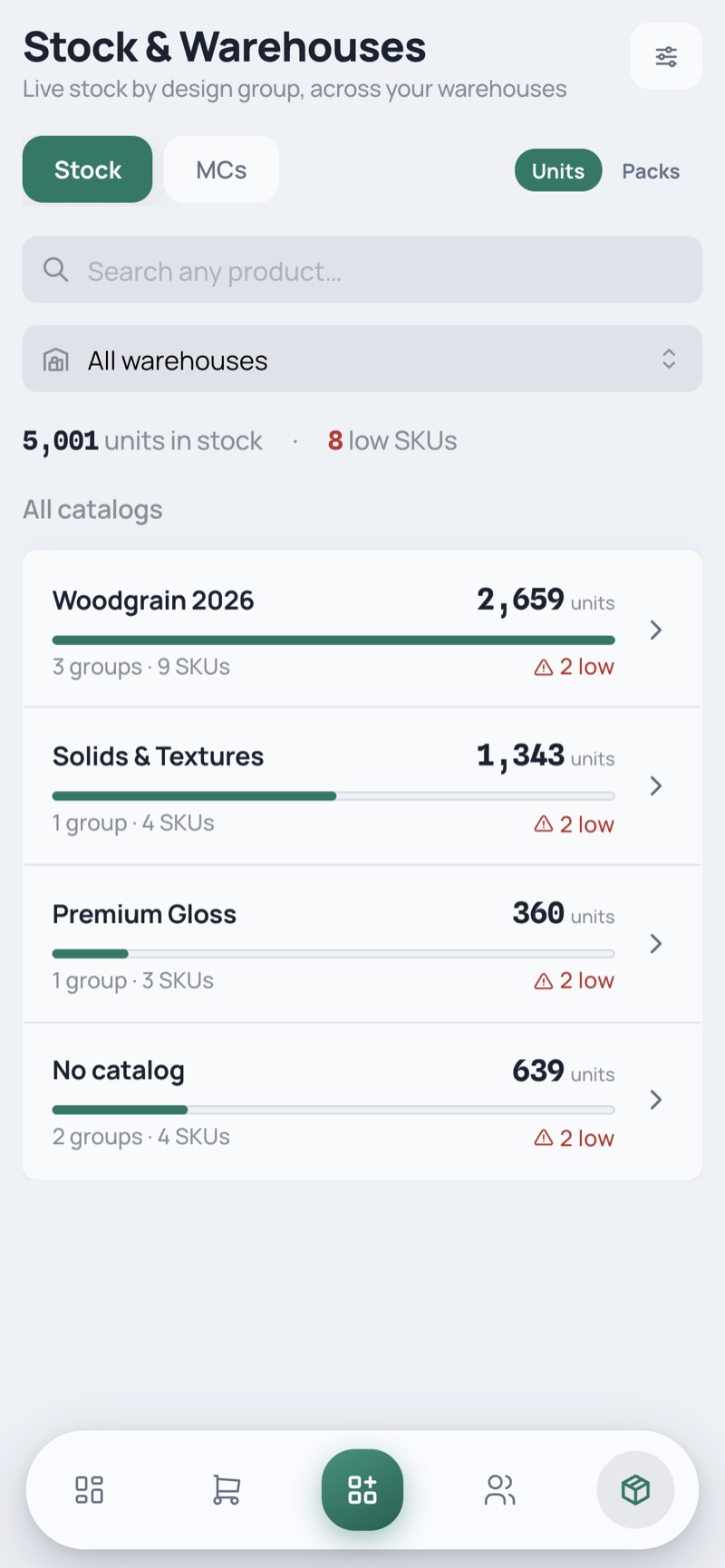
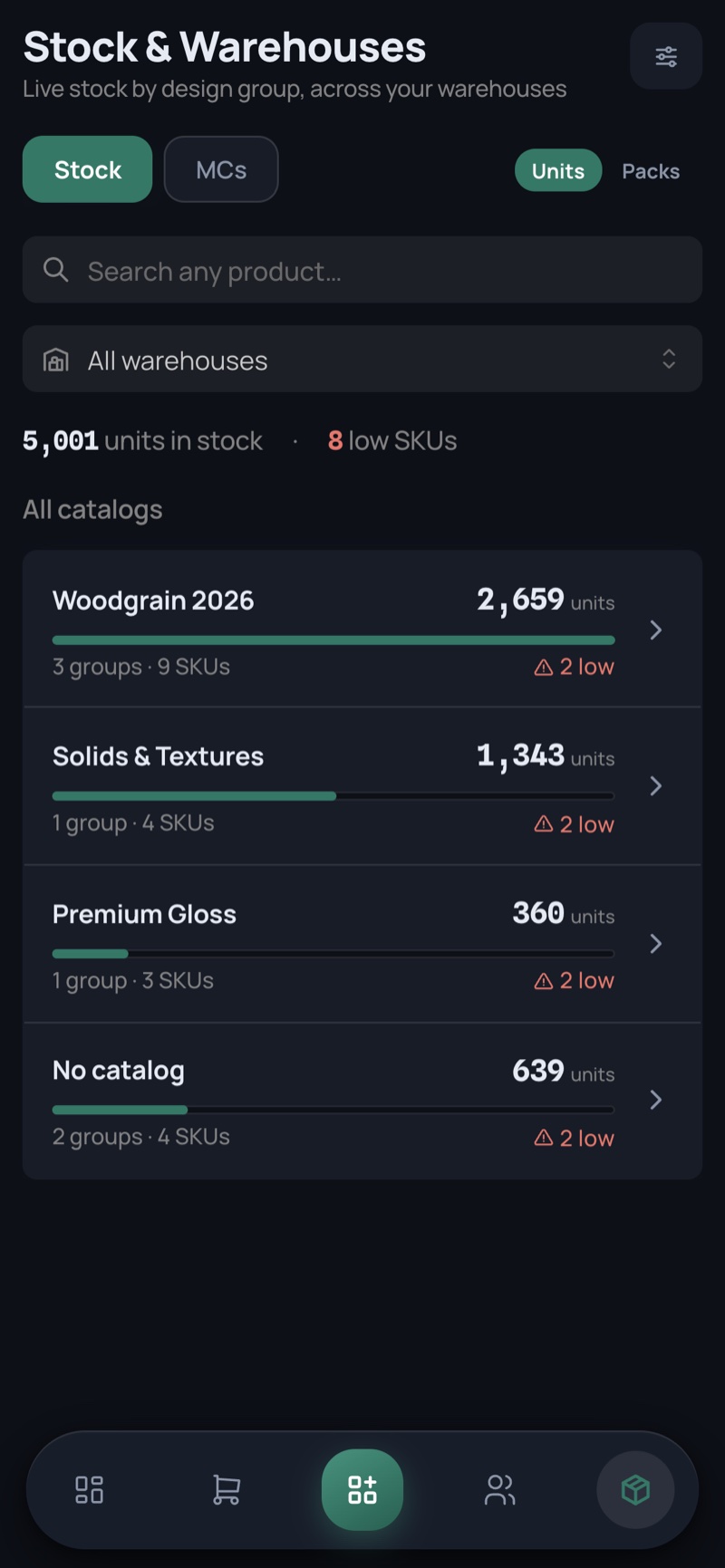
Stock & Warehouses

The live position across warehouses, plus the warehouse master itself.

Stock & Warehouses — desktop, light Stock & Warehouses — desktop, dark
Stock & Warehouses — phone, light Stock & Warehouses — phone, dark
  • Drill catalog → design → SKU with share meters and low-stock flags
  • Orders vs Stock shows the coverage gap per SKU with the buffer maths explained
  • Stock exceptions track negative-stock and transfer shortages to resolution
19

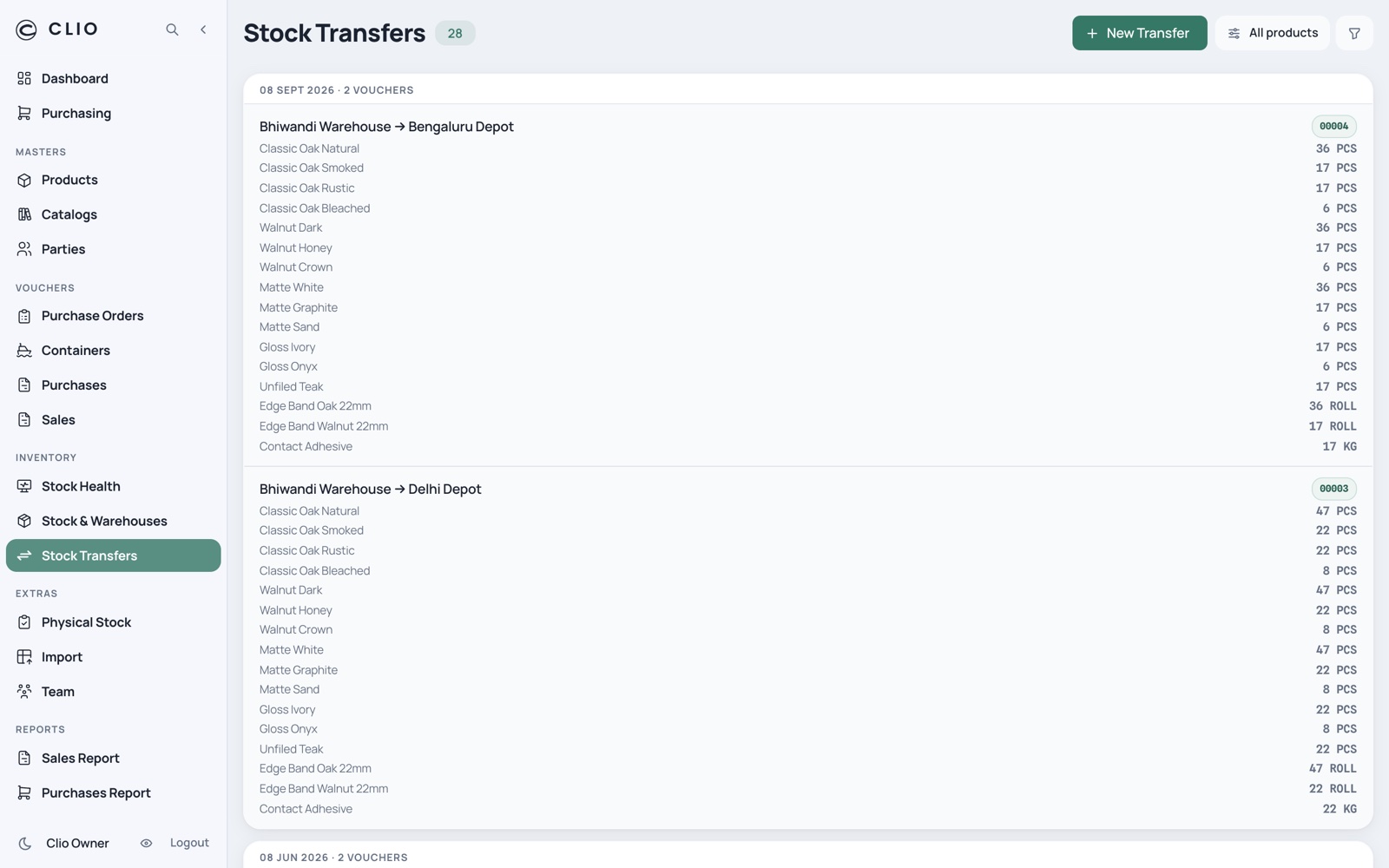
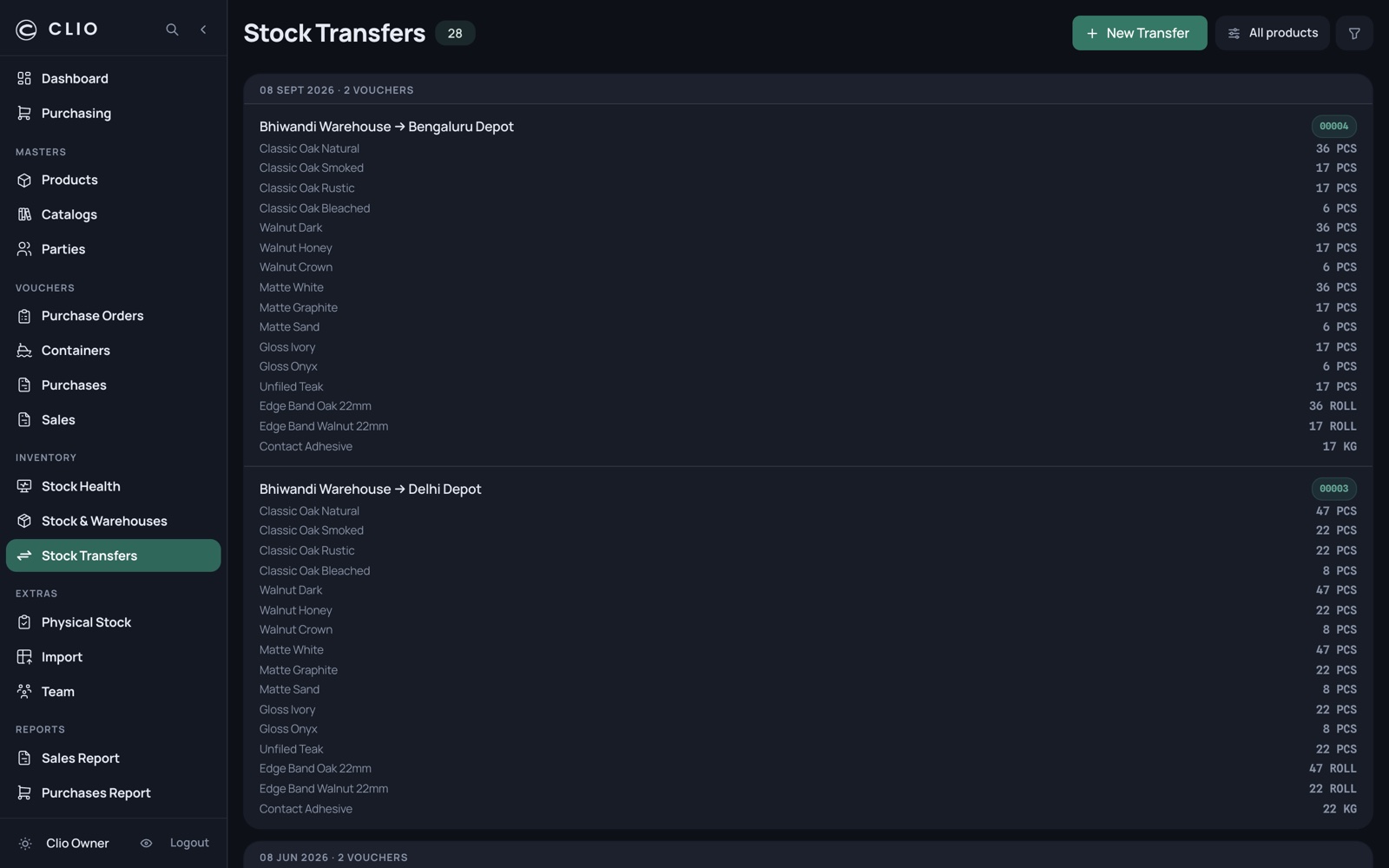
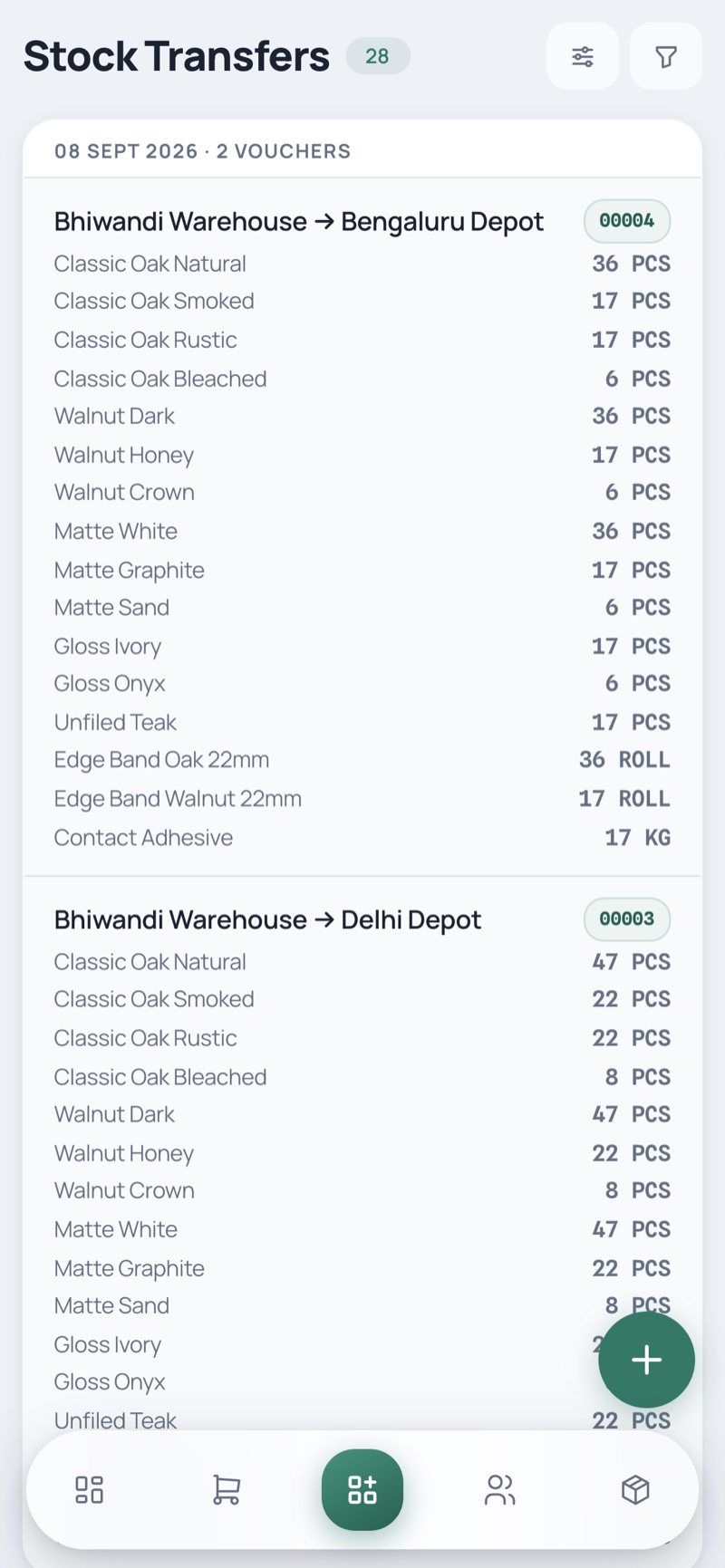
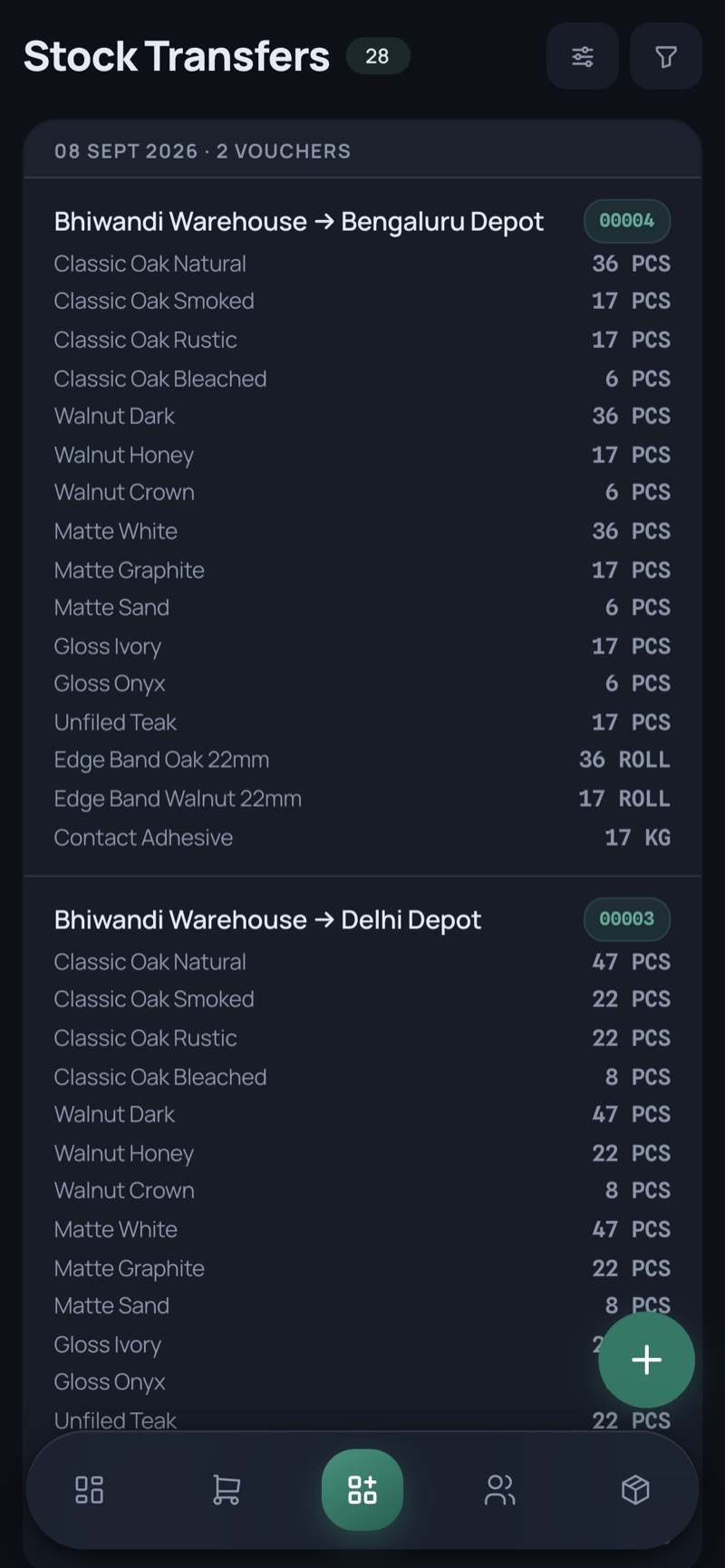
Stock Transfers

Movements between warehouses — why one depot is short while the business is not.

Stock Transfers — desktop, light Stock Transfers — desktop, dark
Stock Transfers — phone, light Stock Transfers — phone, dark
  • Filter by date and by lane, with a route summary when a filter is on
  • Filtered views go always-live rather than reading the cache
20

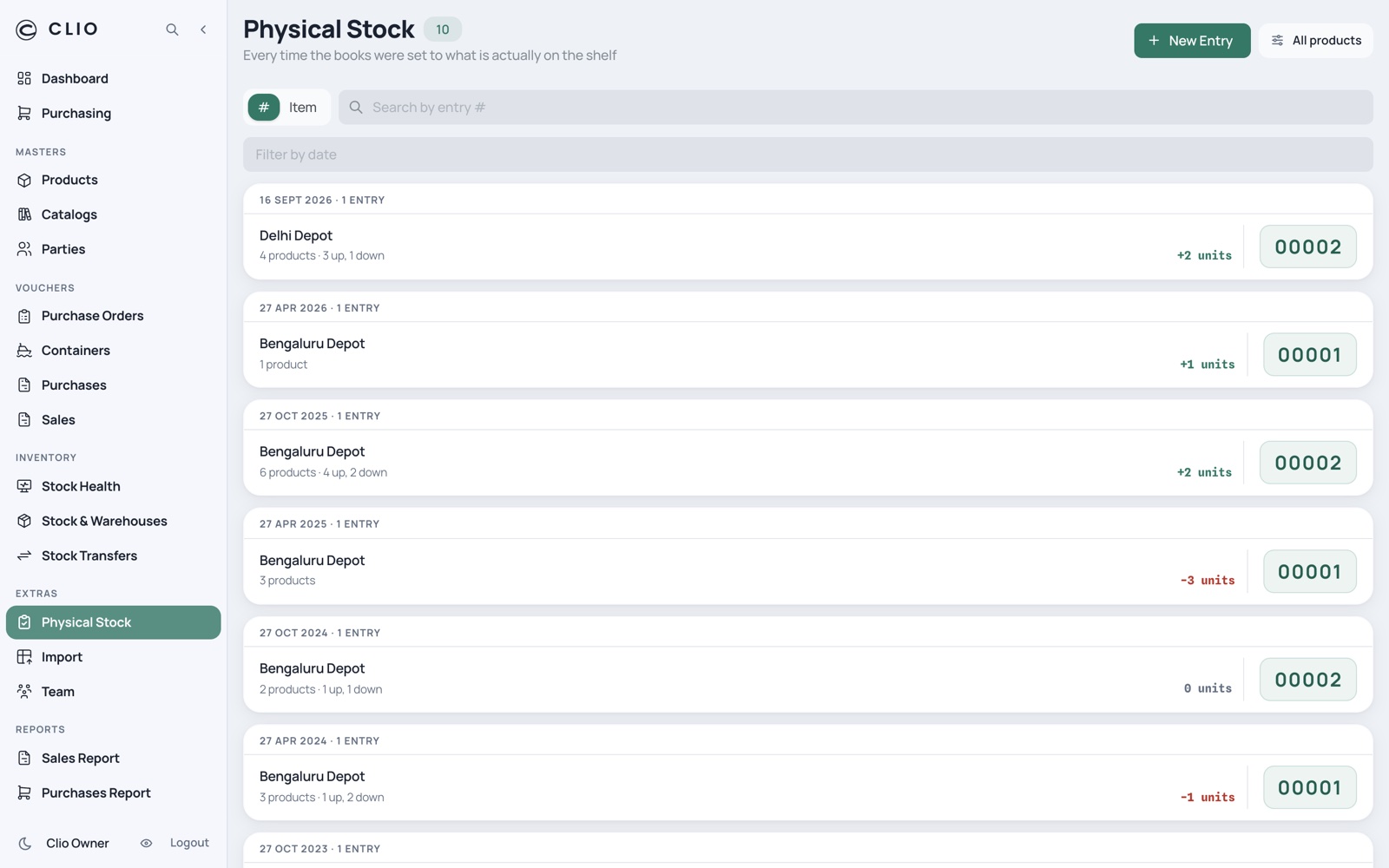
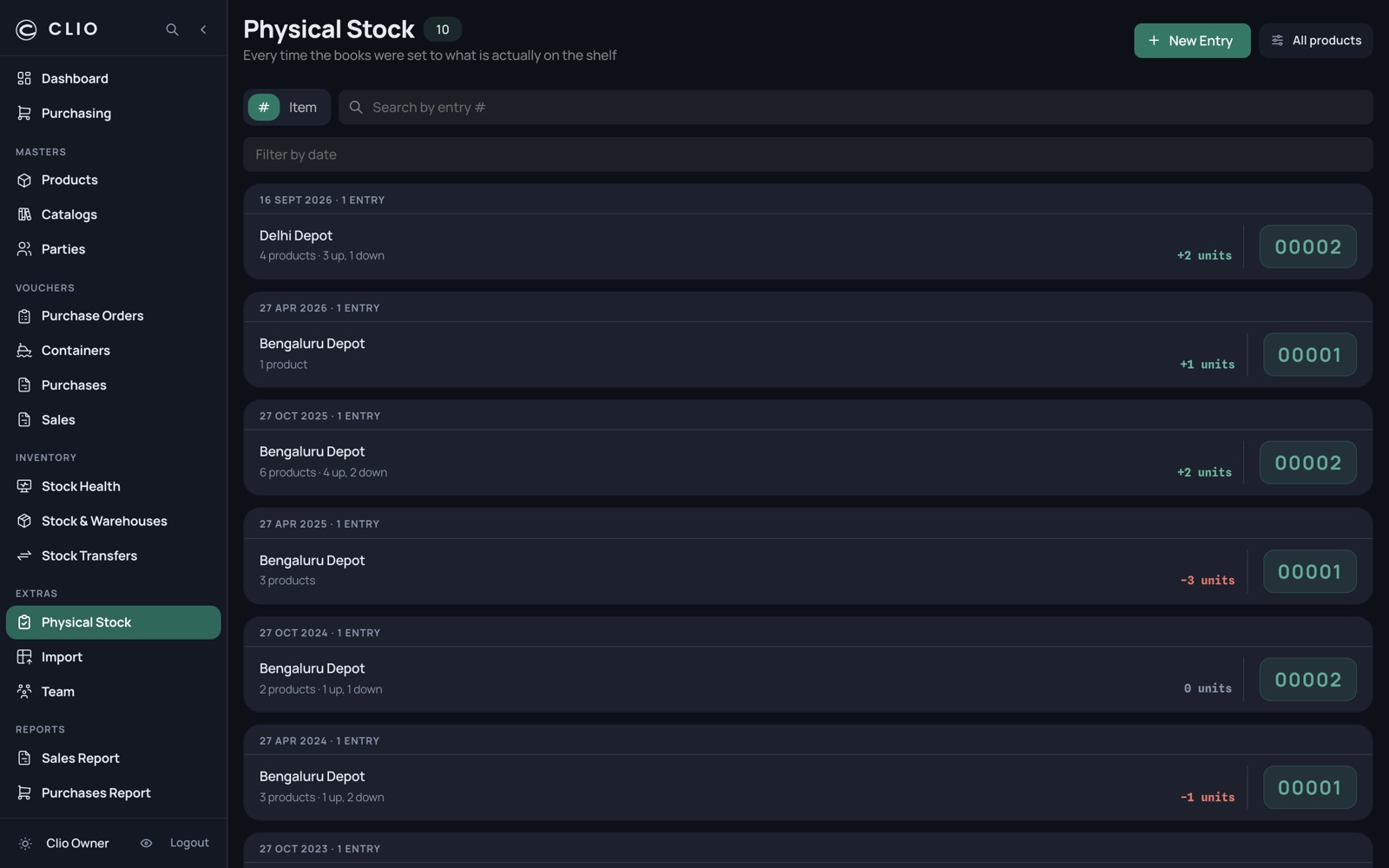
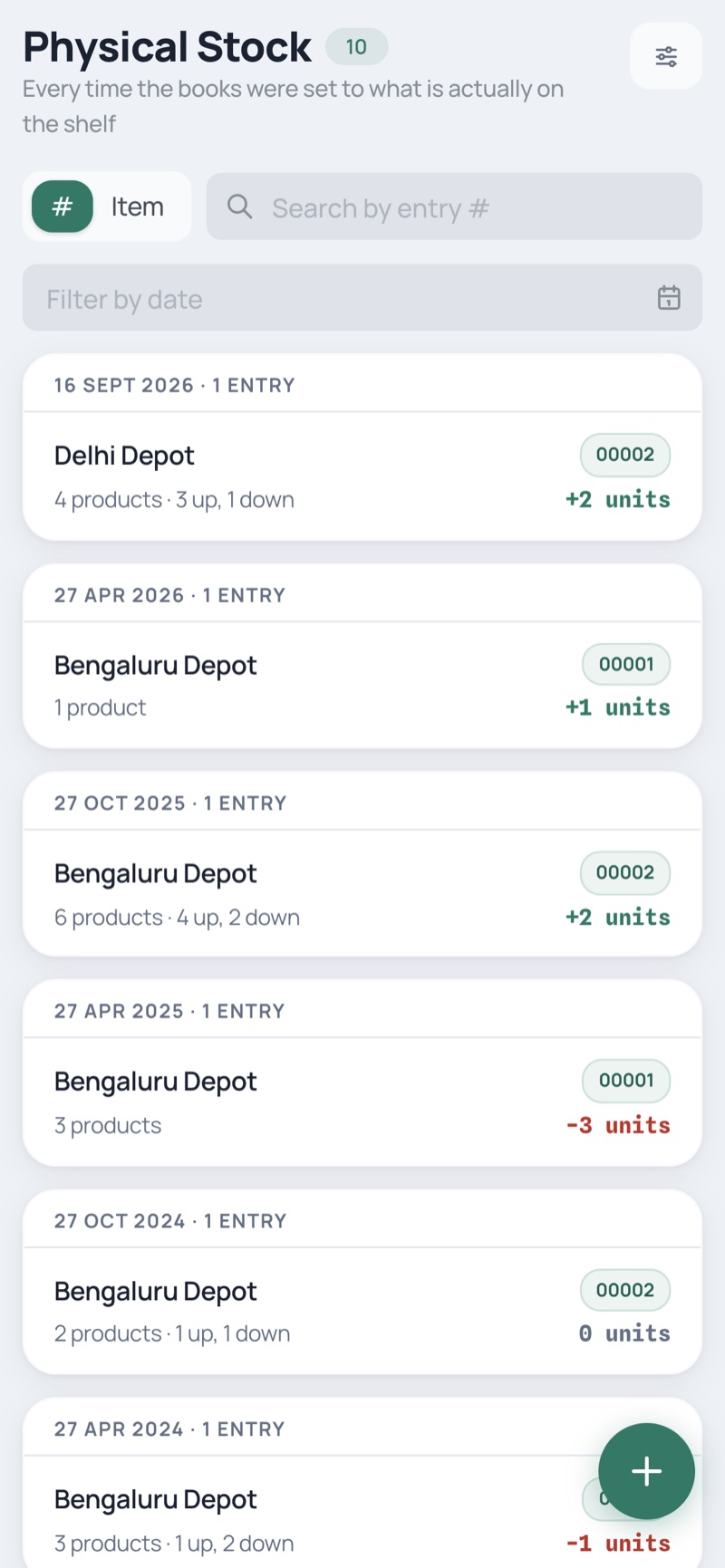
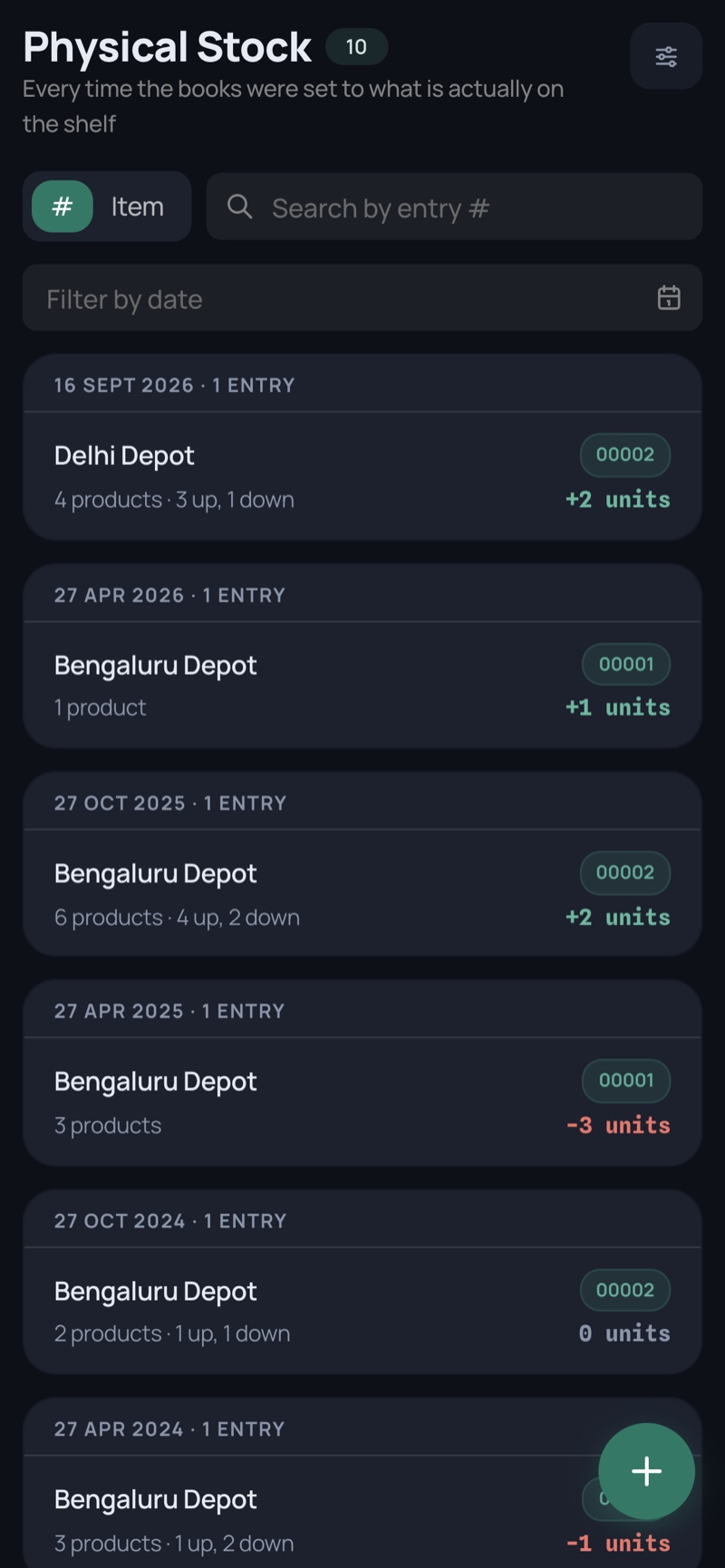
Physical Stock

Every time the books were corrected to what is actually on the shelf.

Physical Stock — desktop, light Physical Stock — desktop, dark
Physical Stock — phone, light Physical Stock — phone, dark
  • Each row leads with the net adjustment, up or down
  • Counts can be entered in packs or base units
  • This is what keeps net stock honest enough to divide by velocity

Reading the year

Demand history, seasonality and the lines that carry the business.

5 screens
23

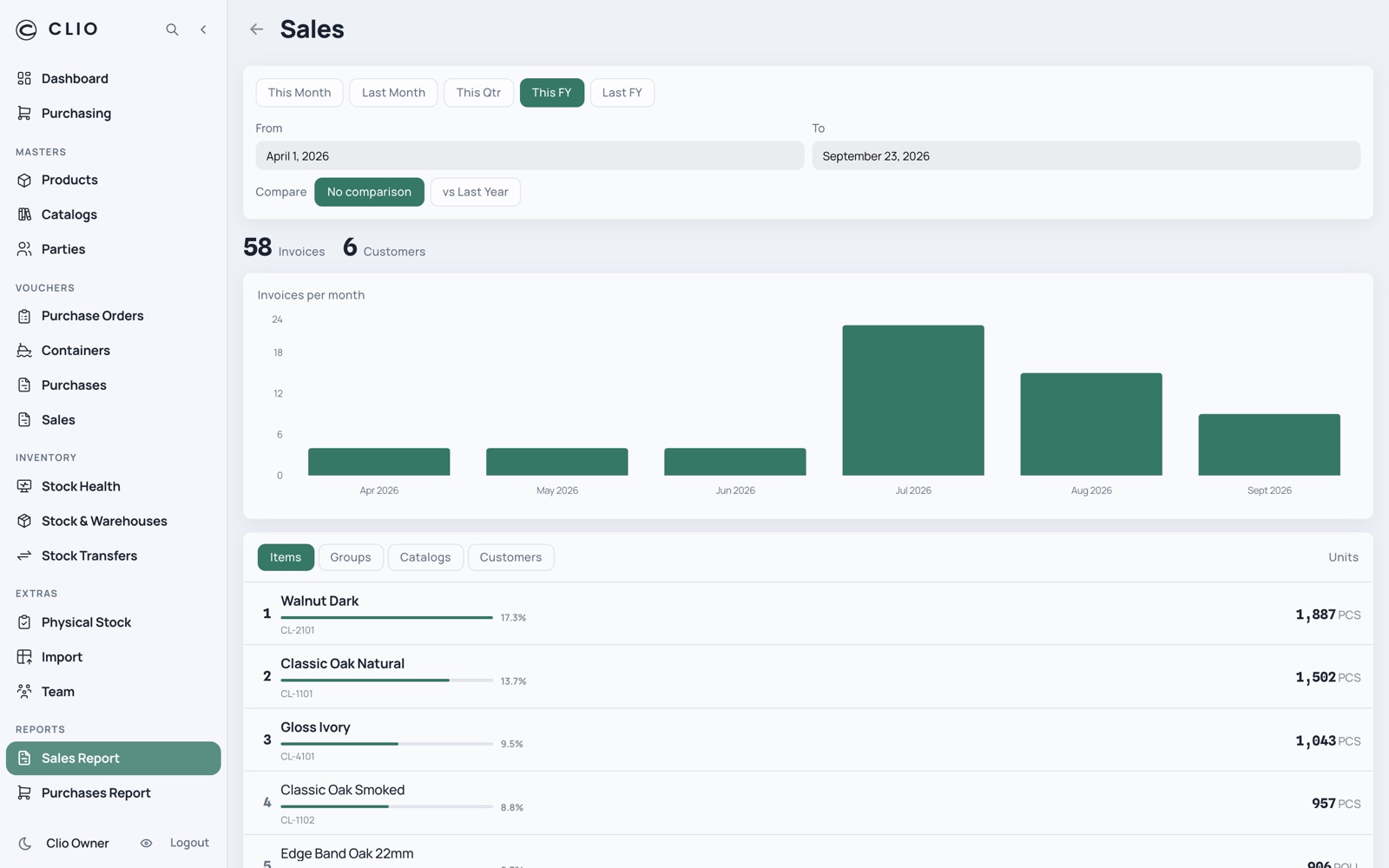
Sales Report

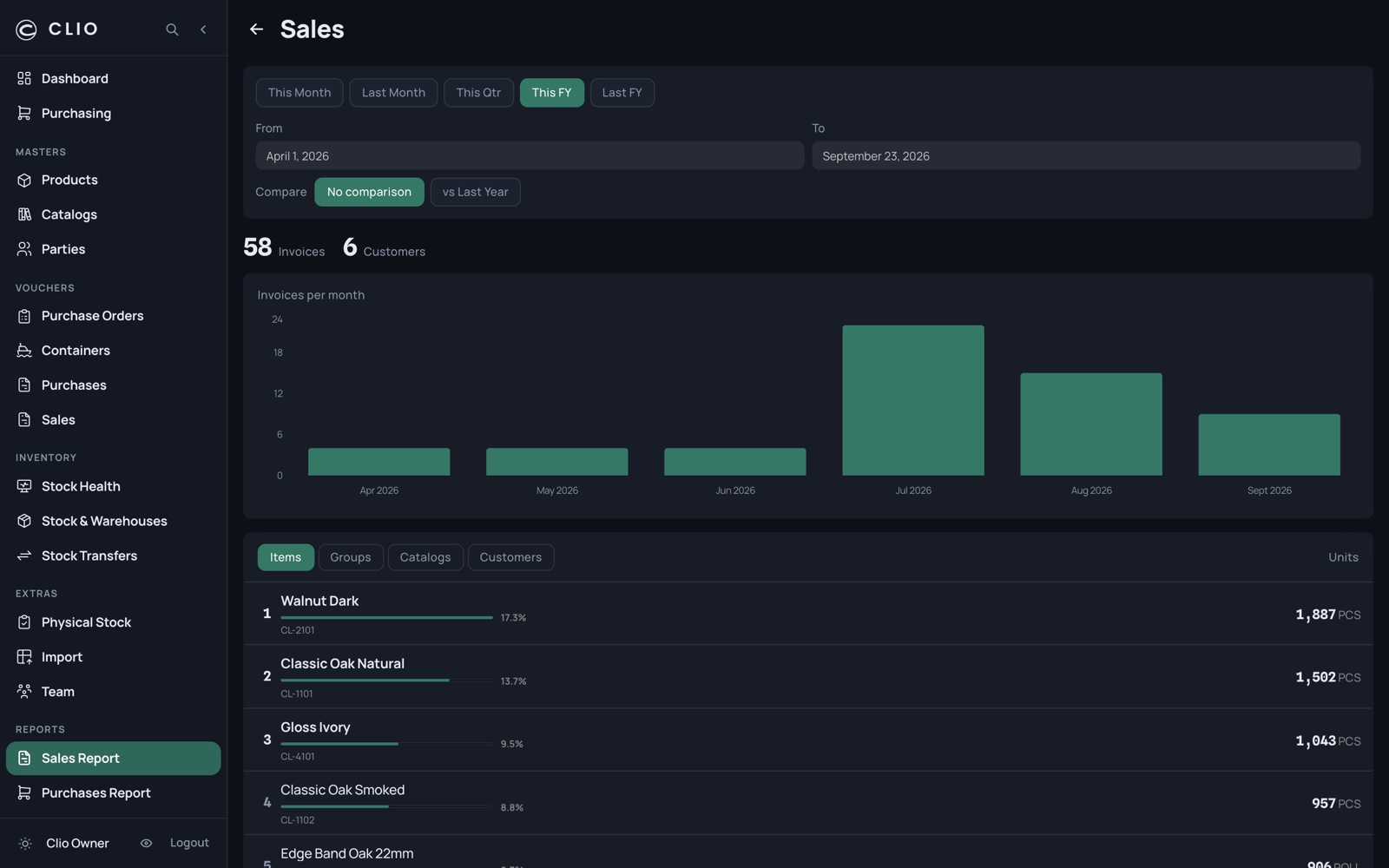
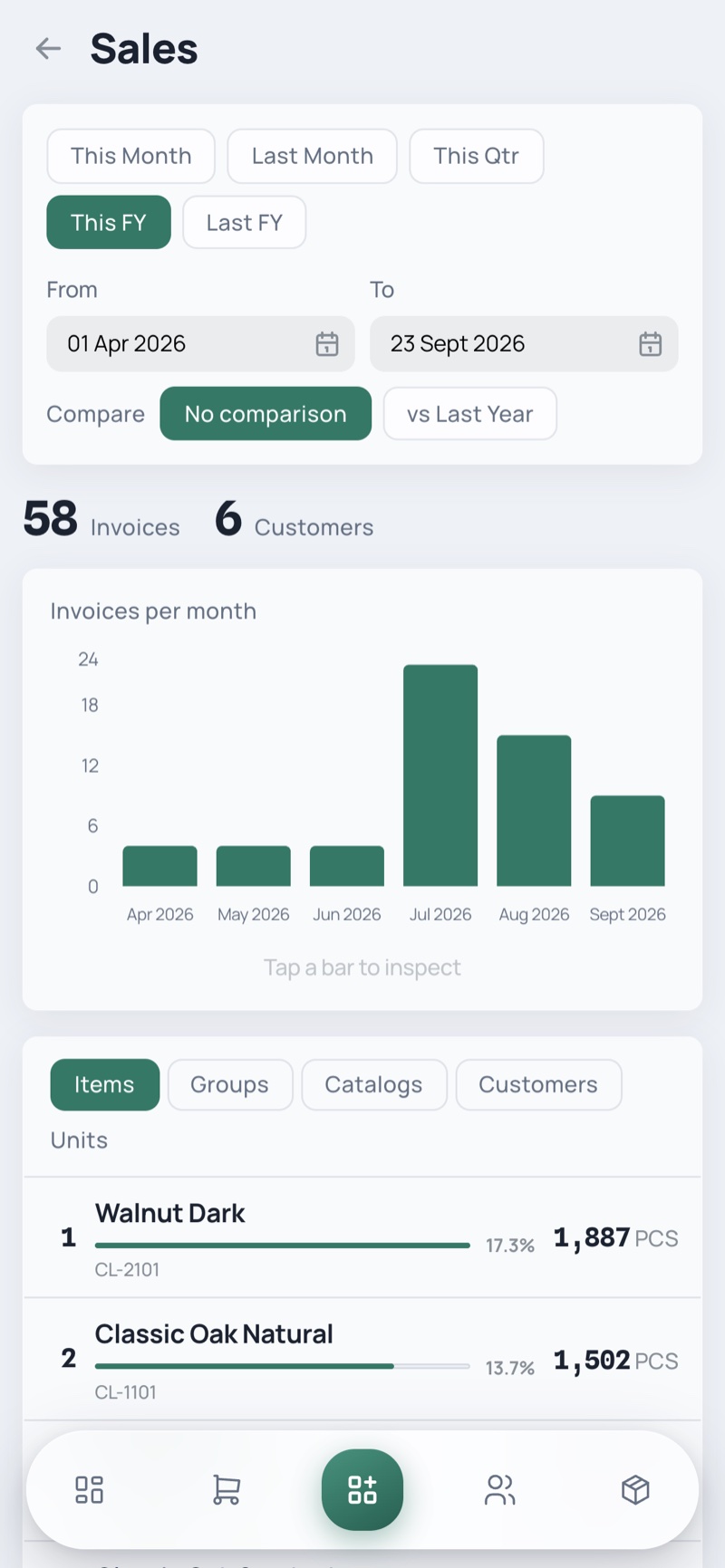
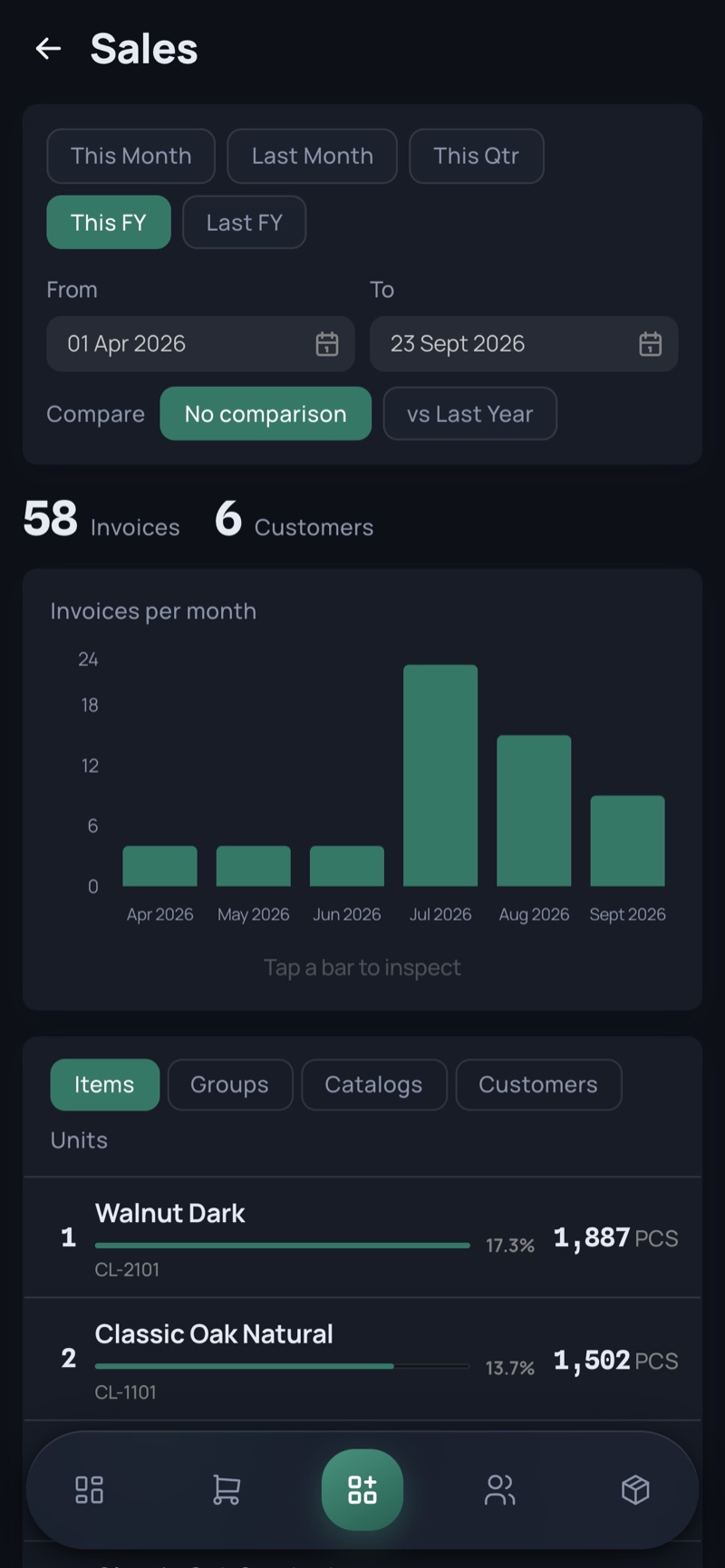
Where the units went: how many invoices, to whom, and which designs moved.

Sales Report — desktop, light Sales Report — desktop, dark
Sales Report — phone, light Sales Report — phone, dark
  • Indian financial-year presets, plus explicit date ranges
  • Compare against last year, with equal windows stated
  • Breakdown across items, groups, catalogs and customers, drillable by breadcrumb
24

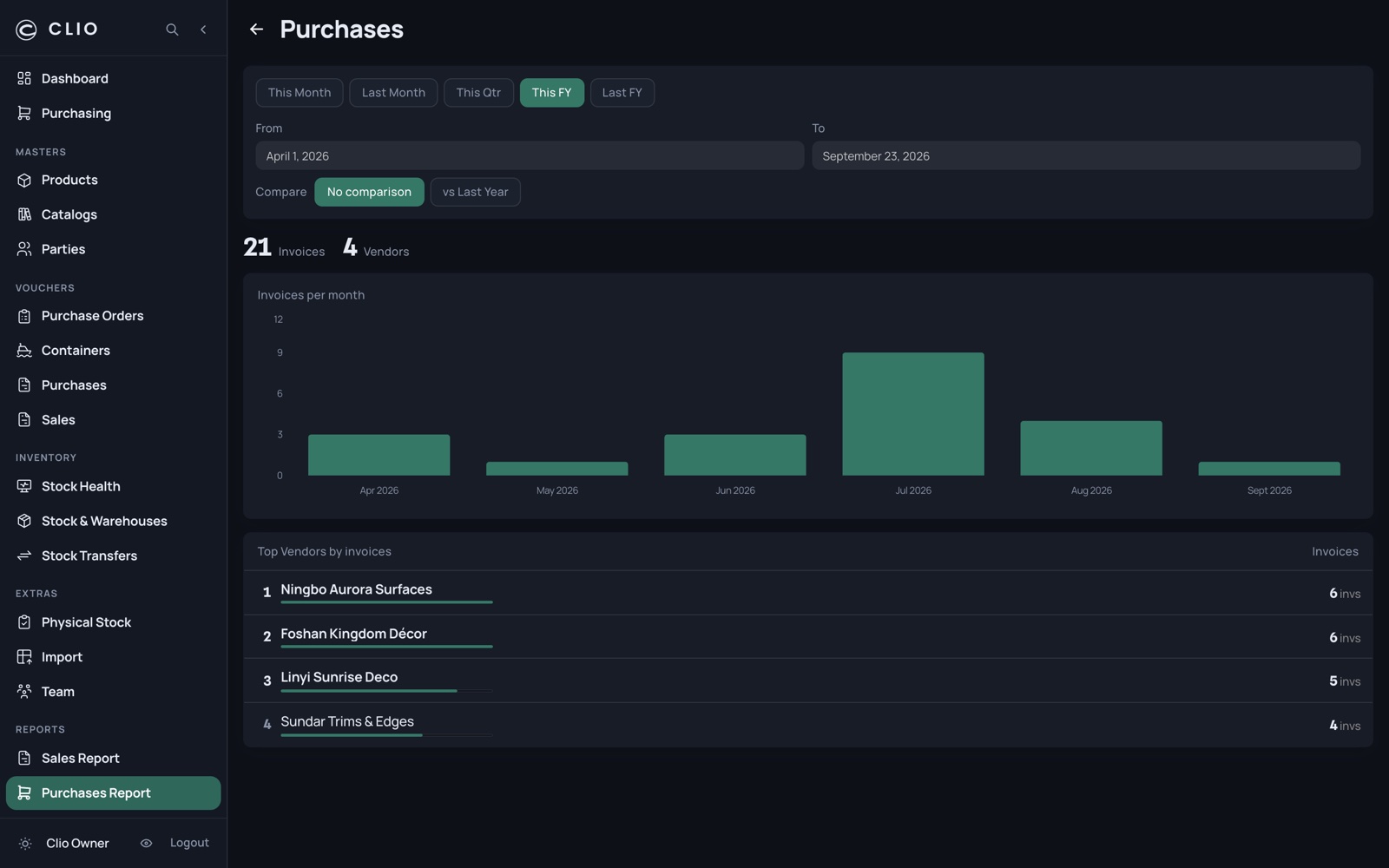
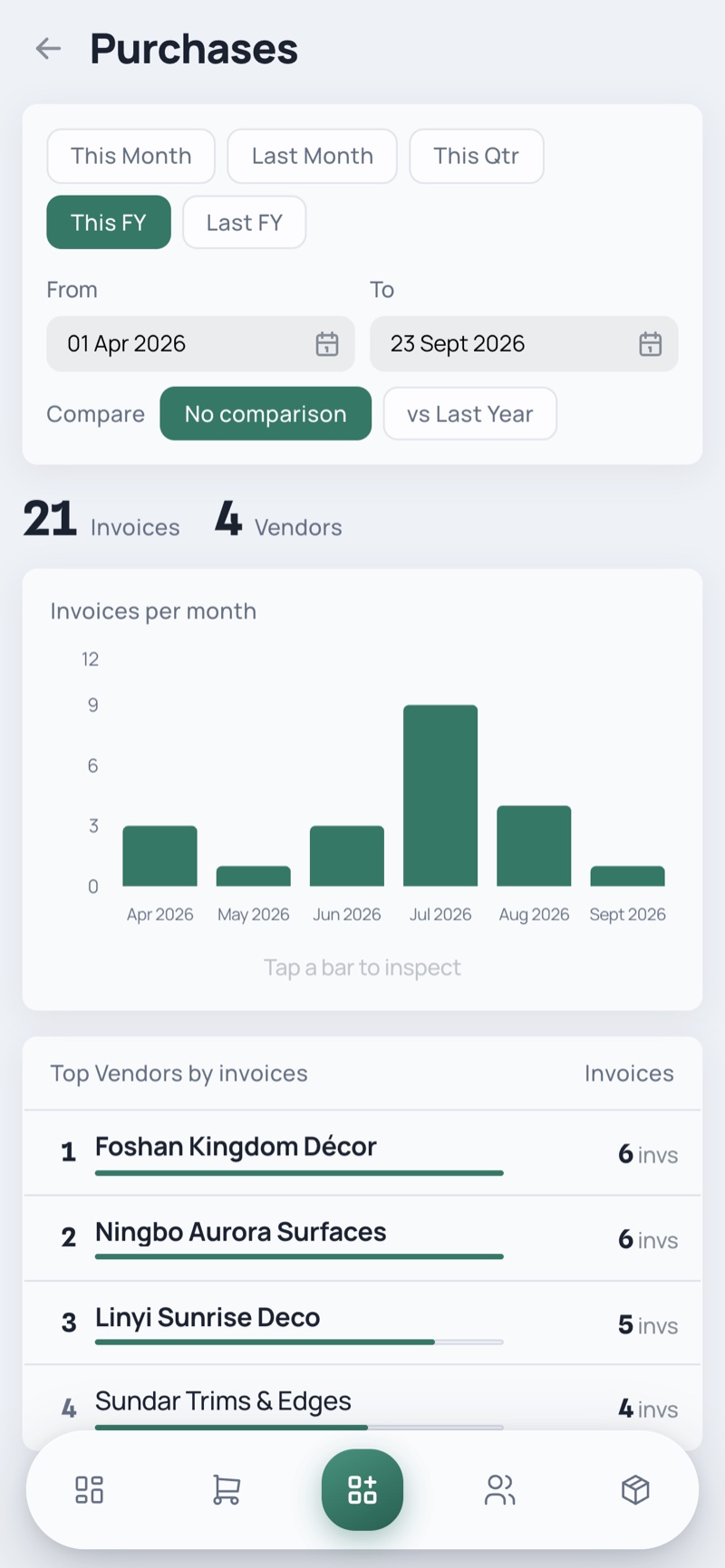
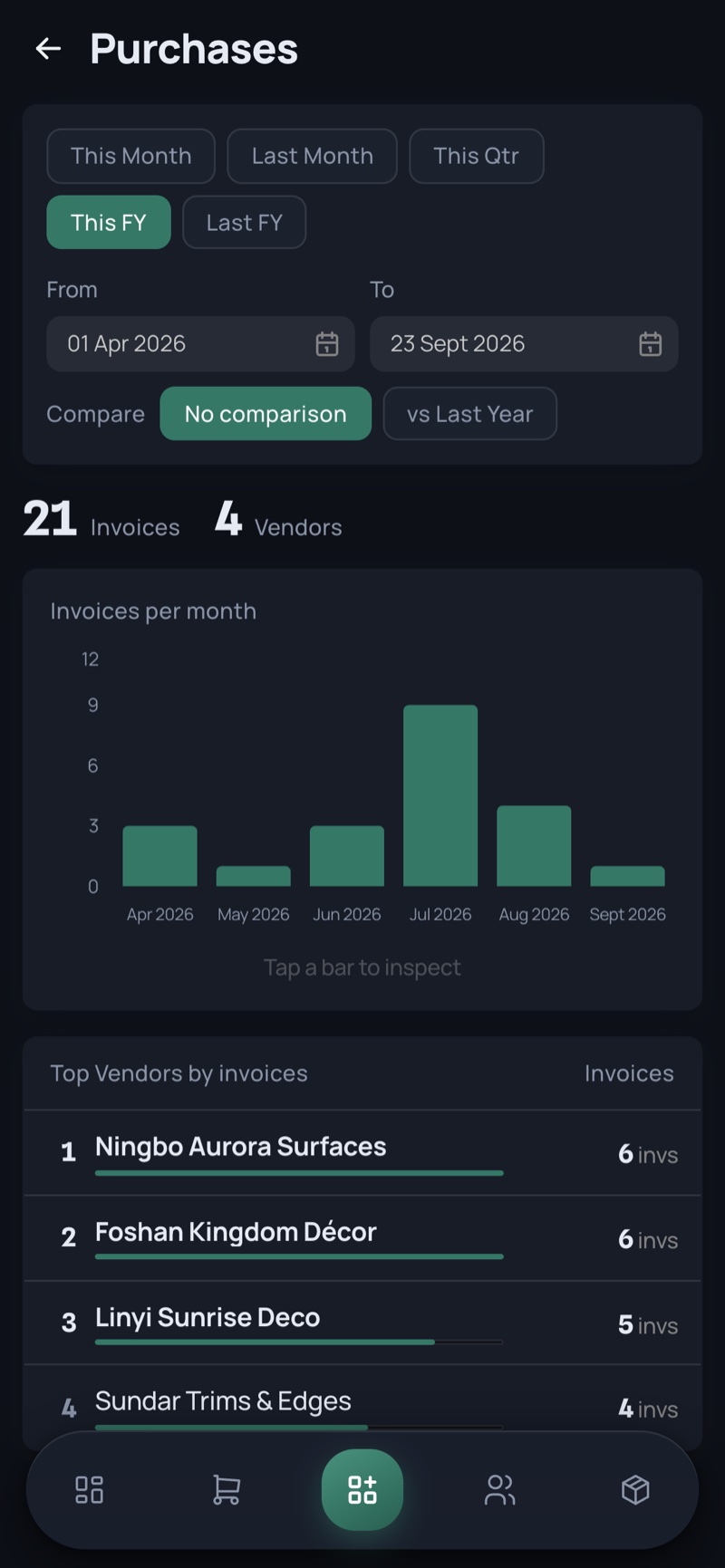
Purchases Report

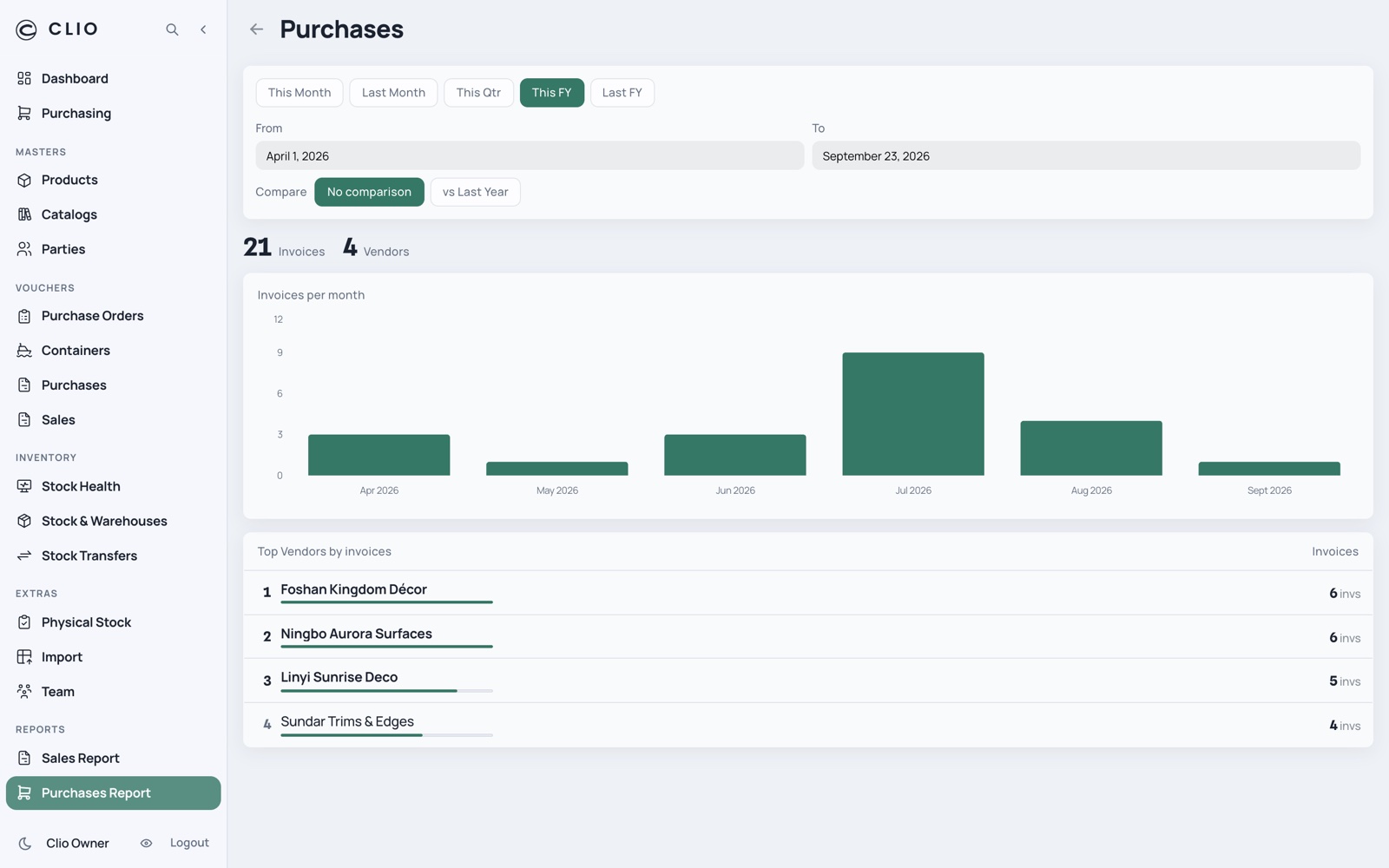
Real import cadence per factory, against the lead times Purchasing assumes.

Purchases Report — desktop, light Purchases Report — desktop, dark
Purchases Report — phone, light Purchases Report — phone, dark
  • Invoice and vendor counts with year-on-year deltas
  • Monthly bar chart
  • Top vendors by invoice count
25

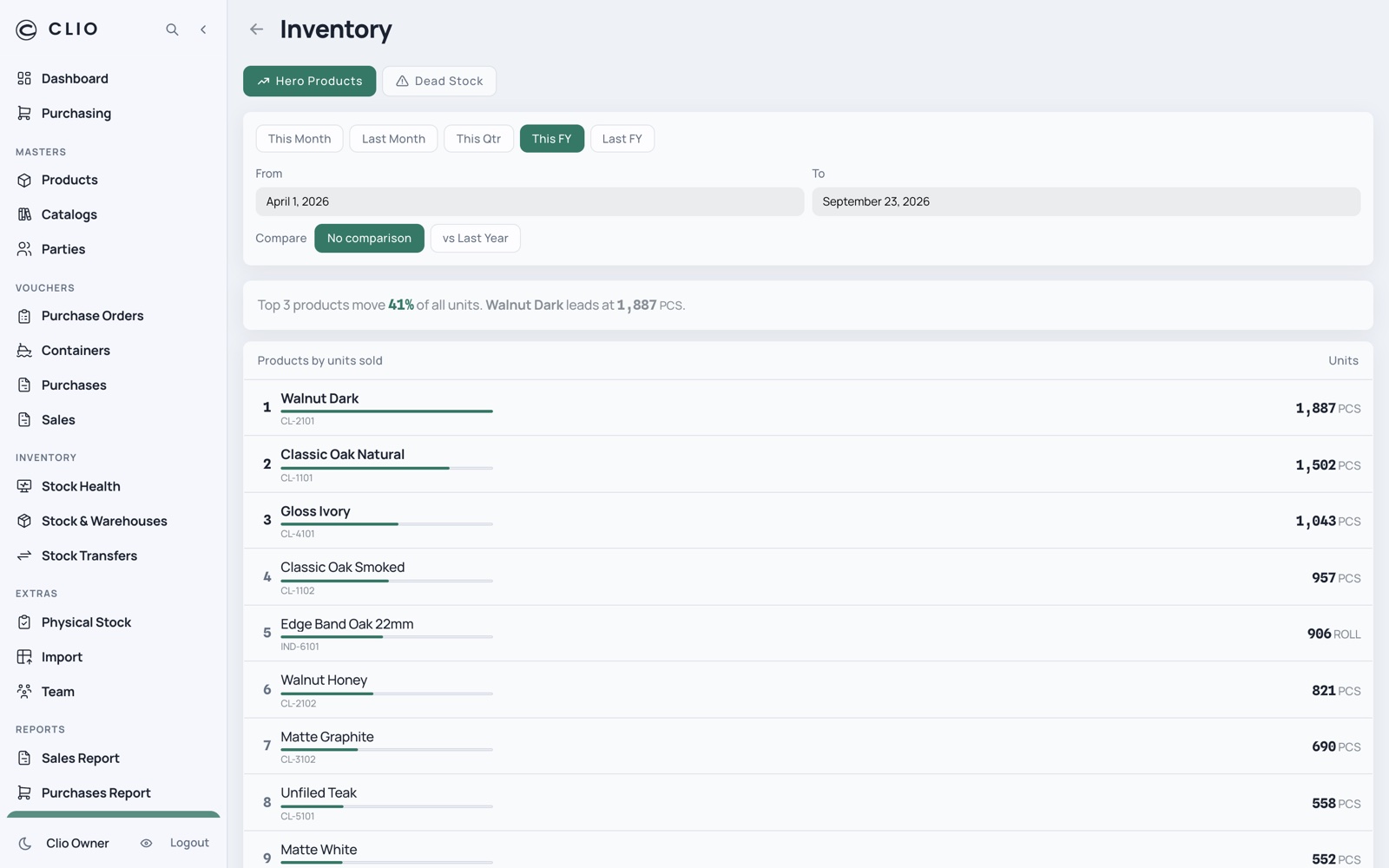
Inventory Report

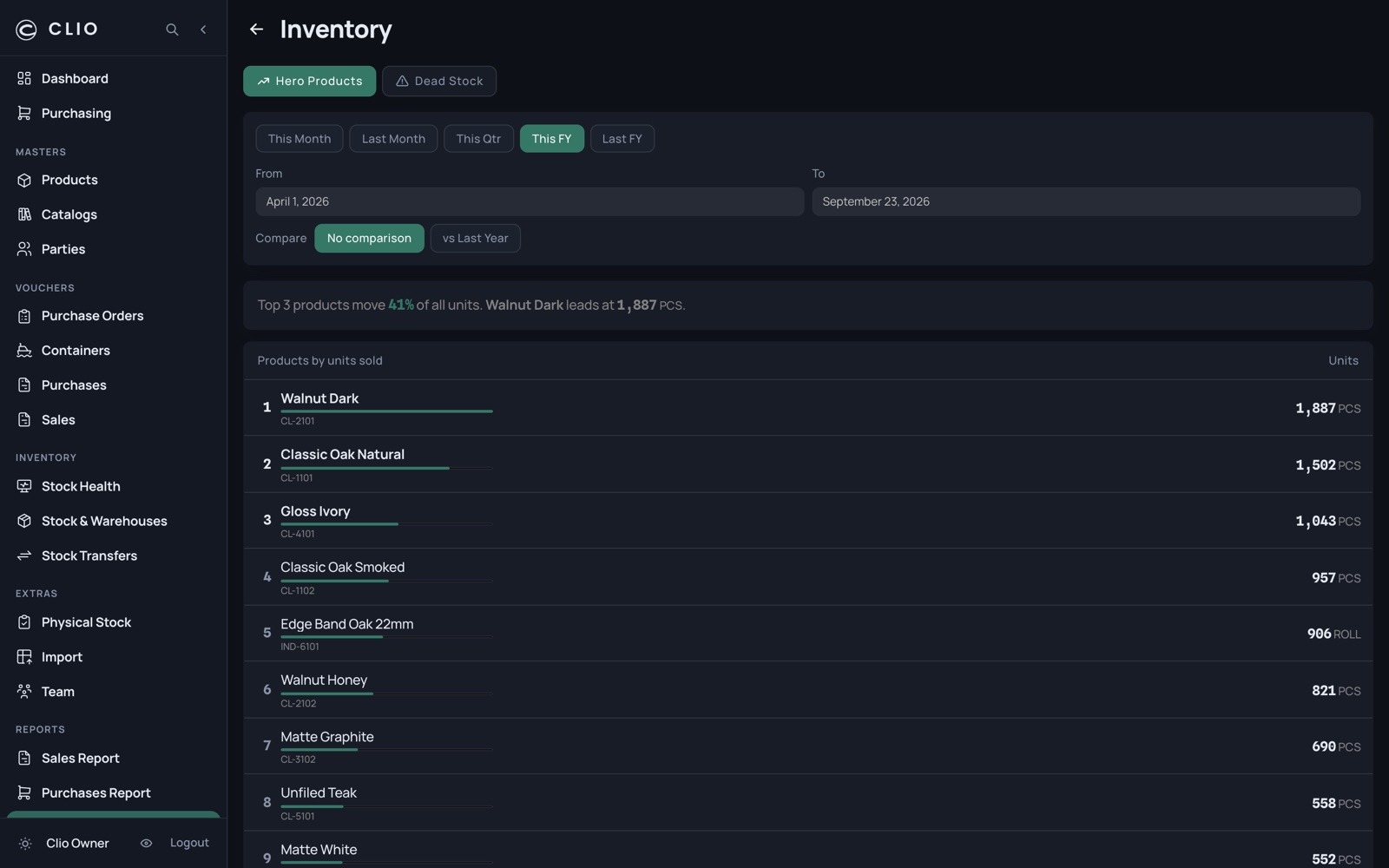
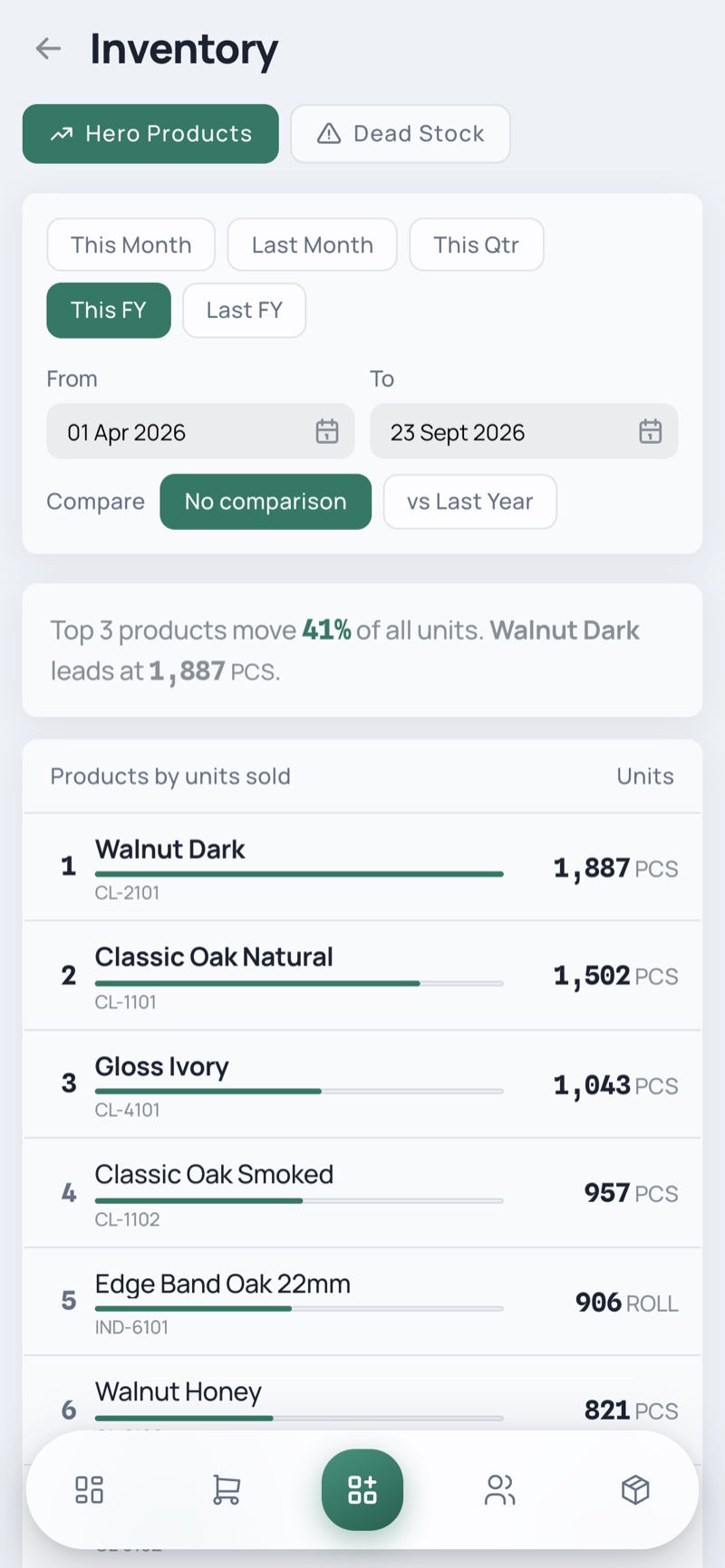
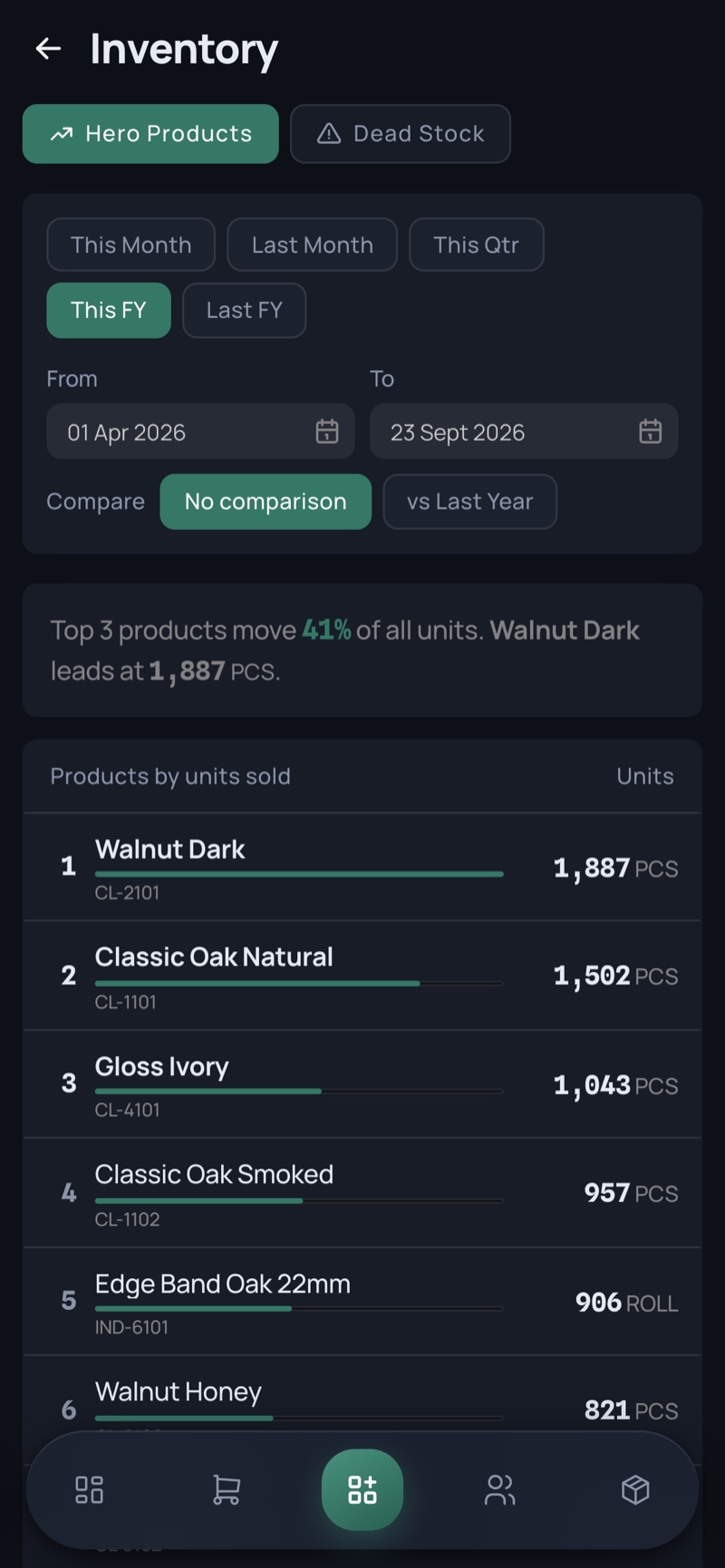
Which products carry the business, and which have quietly stopped.

Inventory Report — desktop, light Inventory Report — desktop, dark
Inventory Report — phone, light Inventory Report — phone, dark
  • Hero products by units sold, with year-on-year movement
  • Dead stock grouped by urgency — critical over 180 days idle, high 90–180, watch under 90
  • Each row shows quantity, last-moved date, and days idle
26

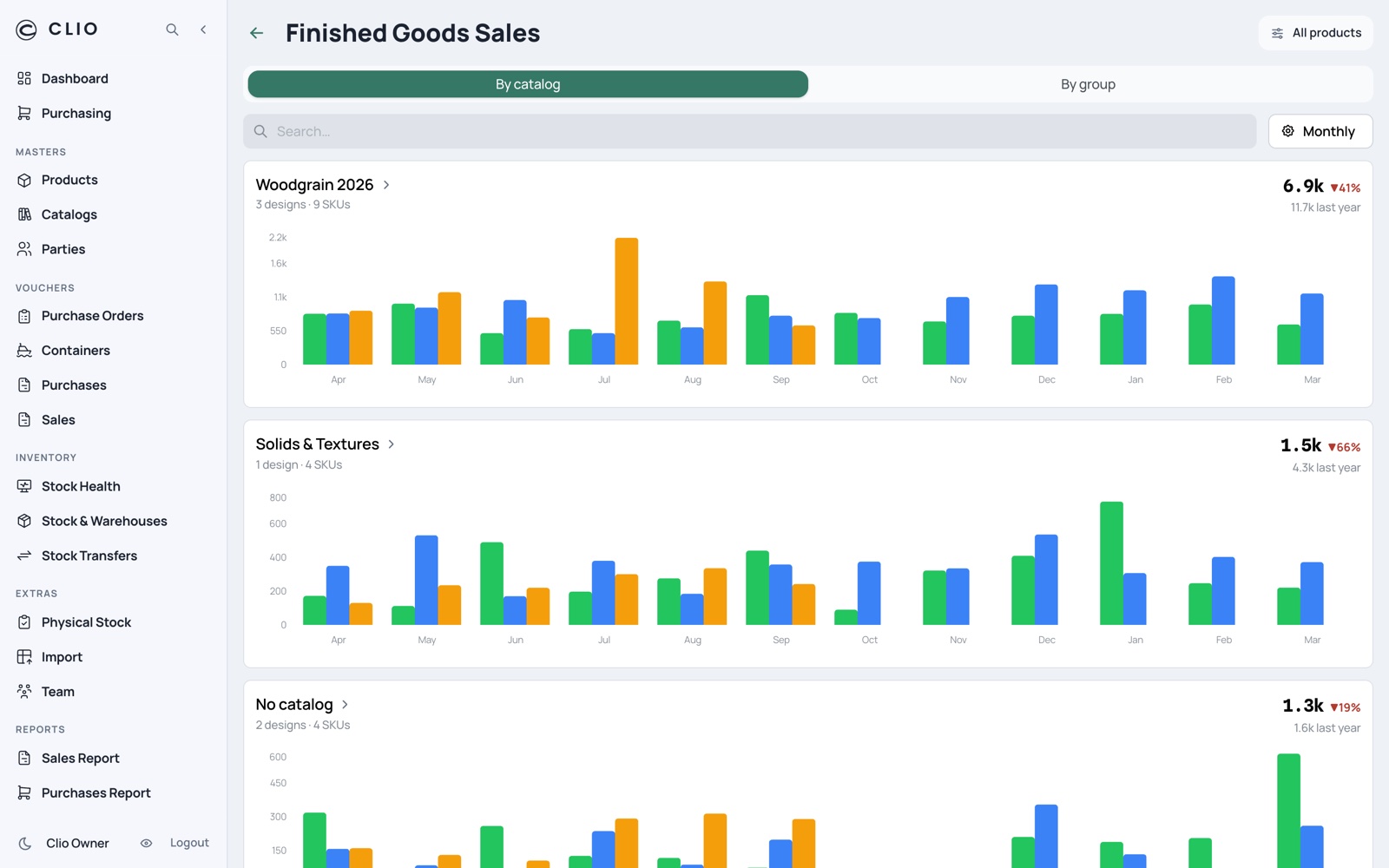
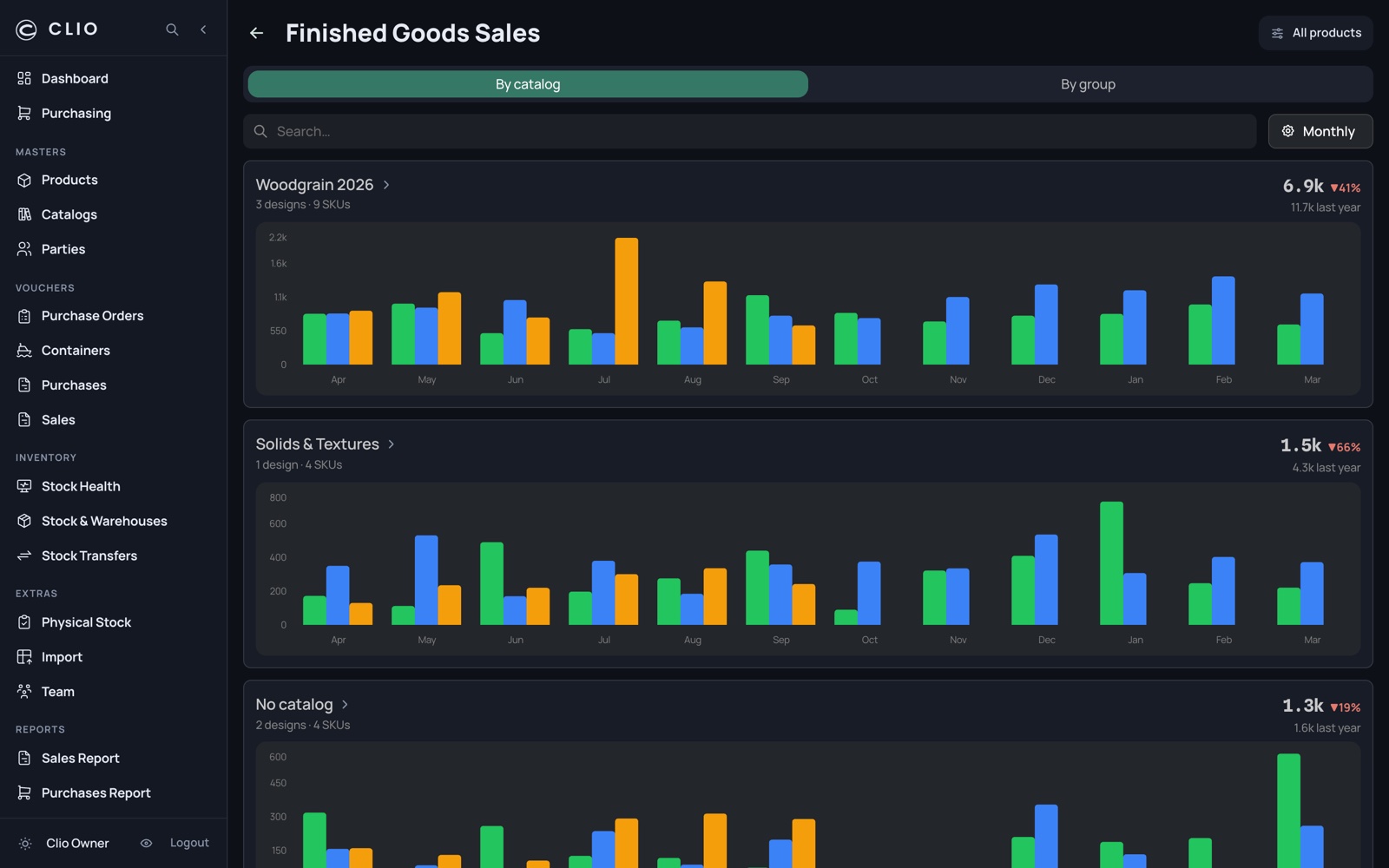
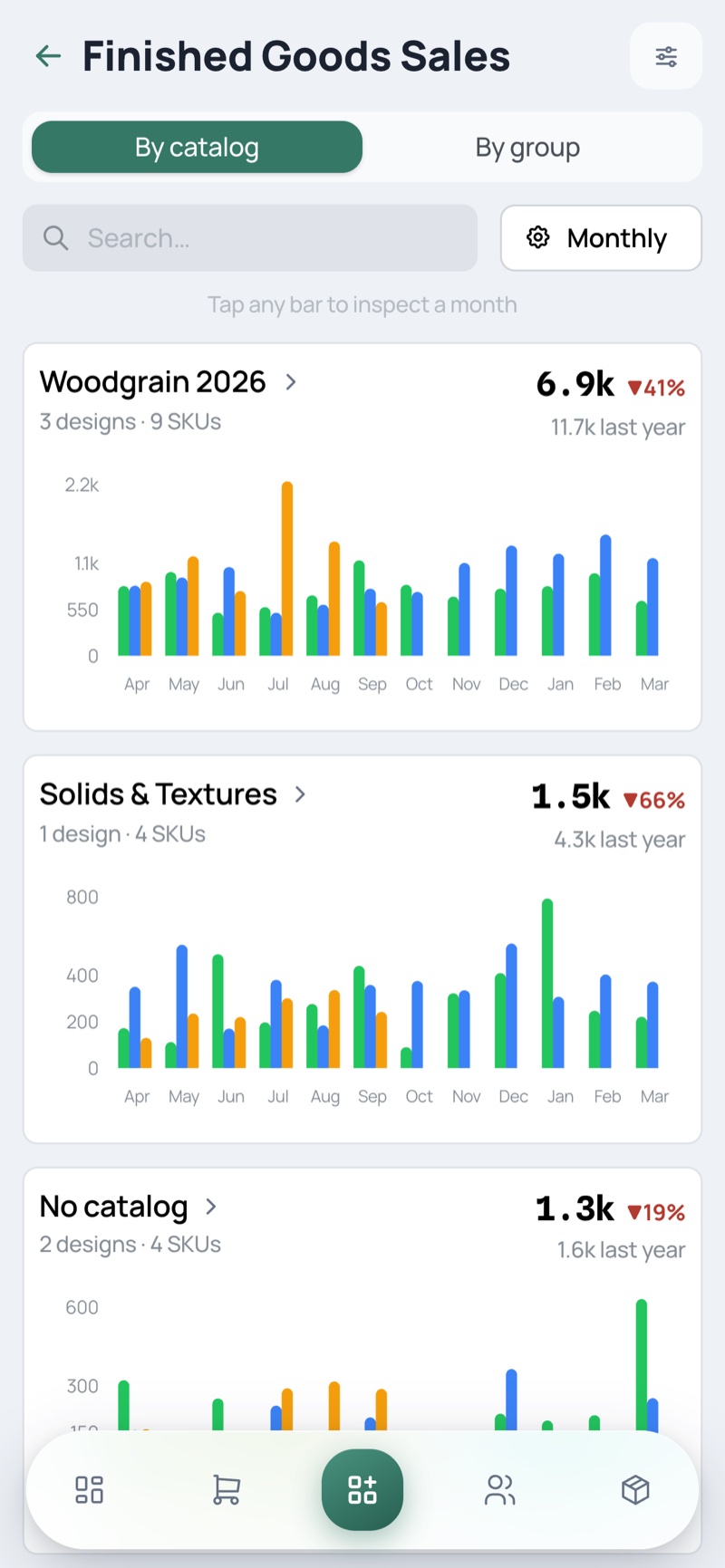
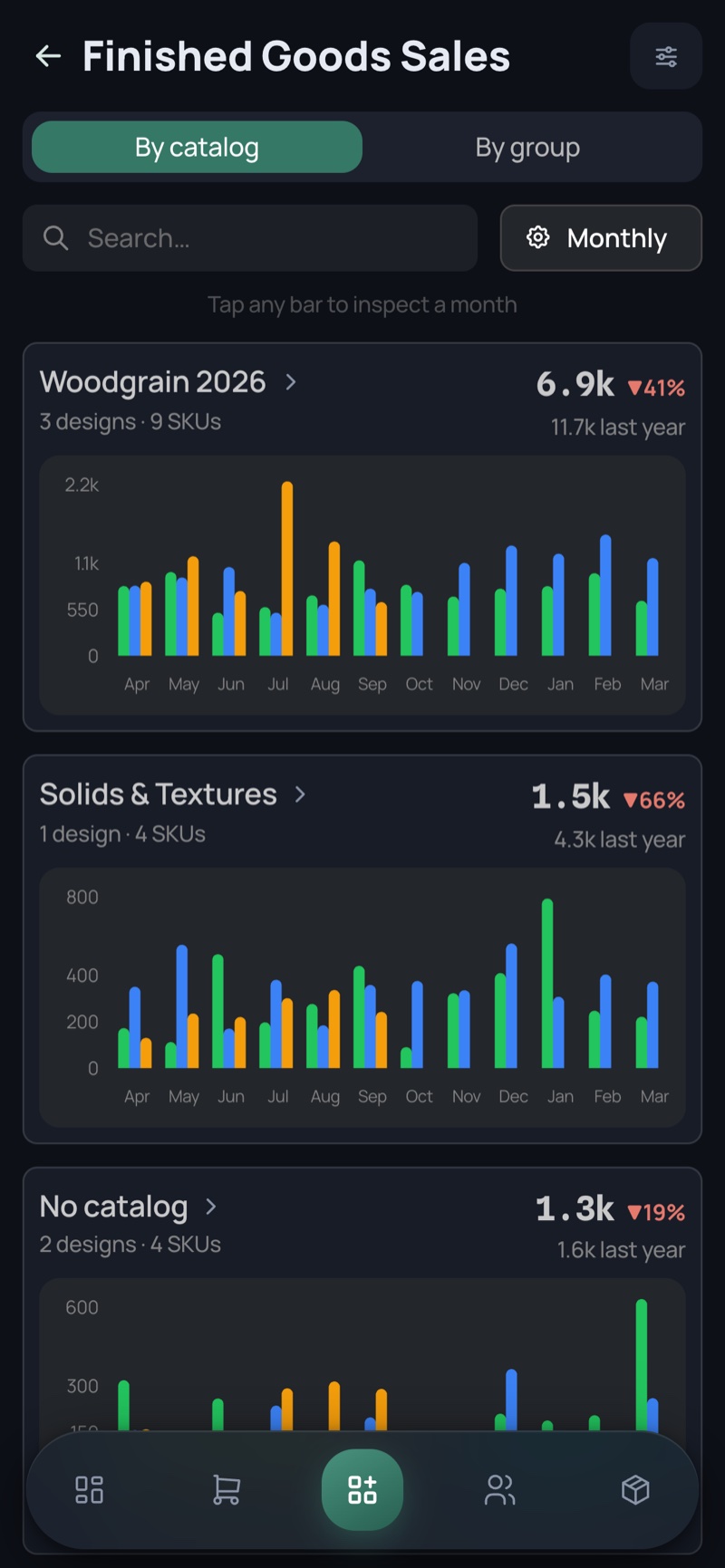
Finished Goods Sales

Three financial years side by side, by catalog or by design.

Finished Goods Sales — desktop, light Finished Goods Sales — desktop, dark
Finished Goods Sales — phone, light Finished Goods Sales — phone, dark
  • Each card leads with this year’s units and the year-on-year delta — every chart scales its own axis, so the number is what makes them comparable
  • Period, warehouse and which years to show sit behind one settings control
  • Tap any bar to inspect that month
27

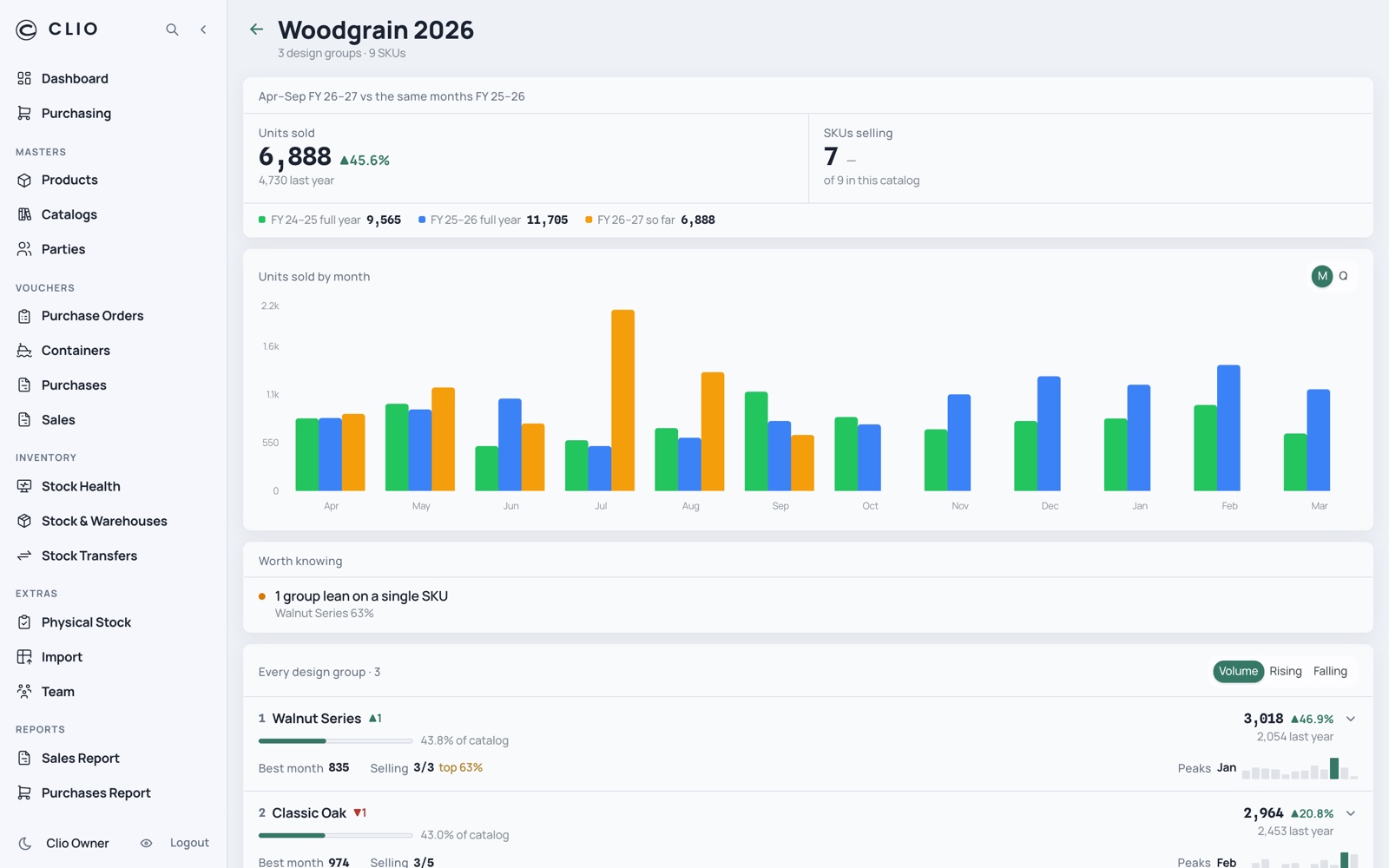
Inside a catalog

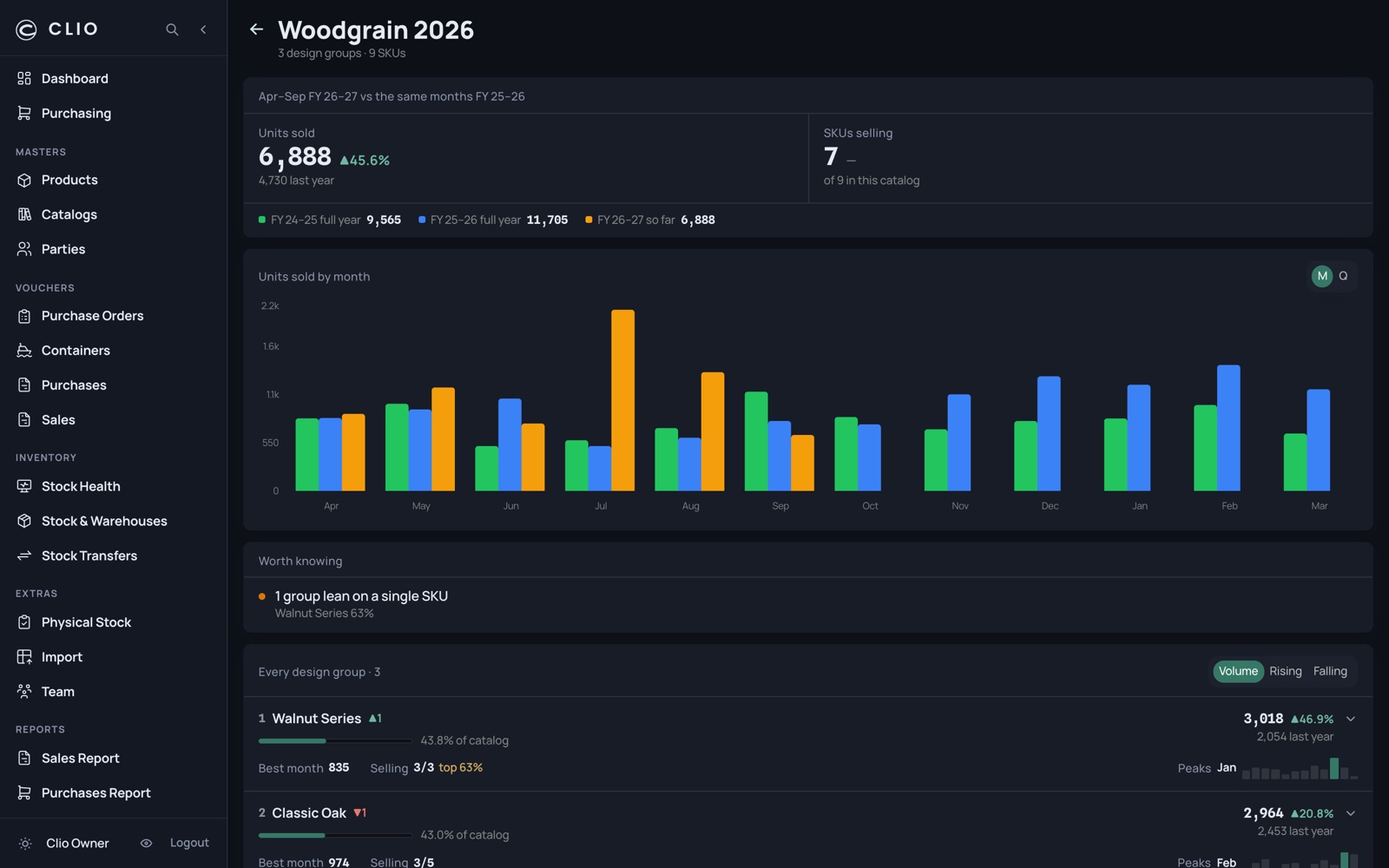
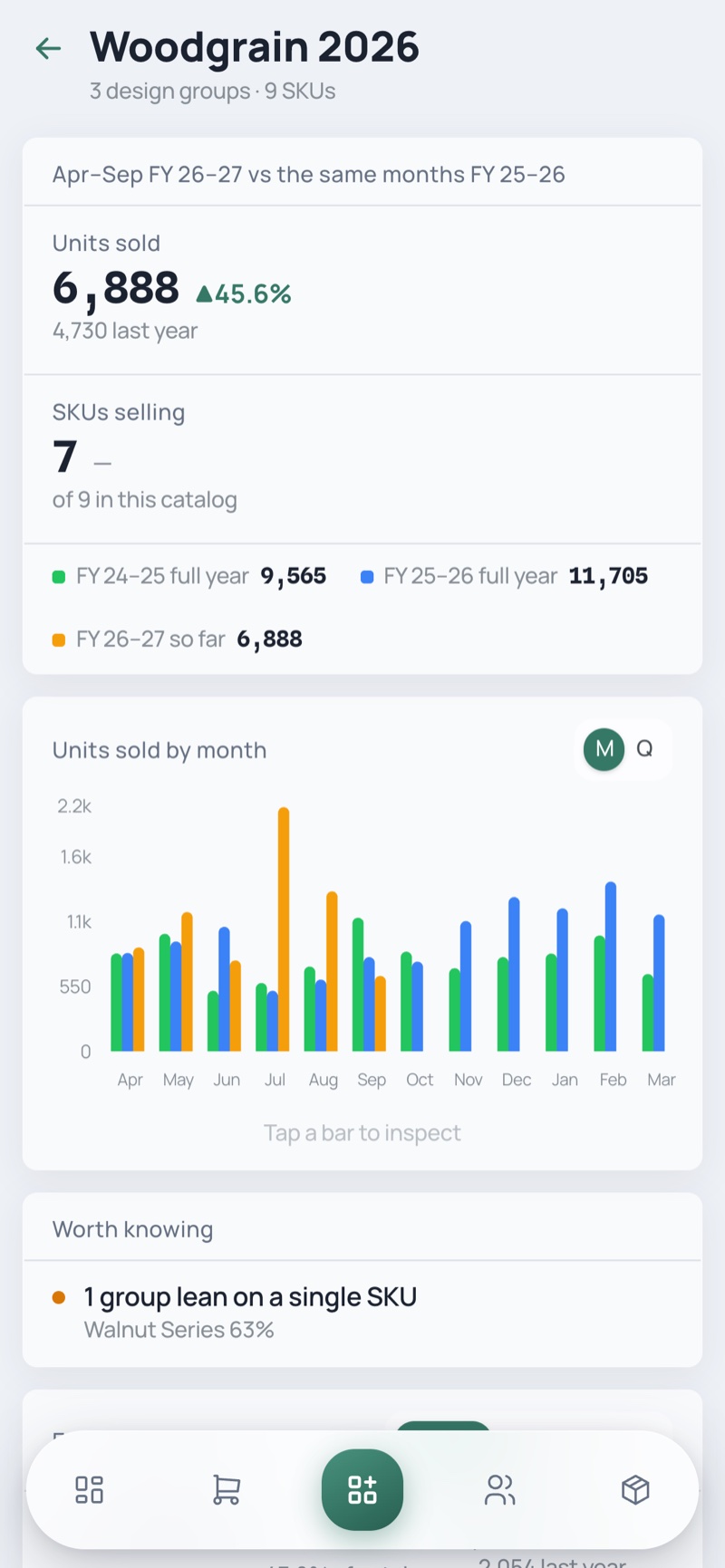
One catalog’s year, its designs ranked, and what the table will not tell you.

Inside a catalog — desktop, light Inside a catalog — desktop, dark
Inside a catalog — phone, light Inside a catalog — phone, dark
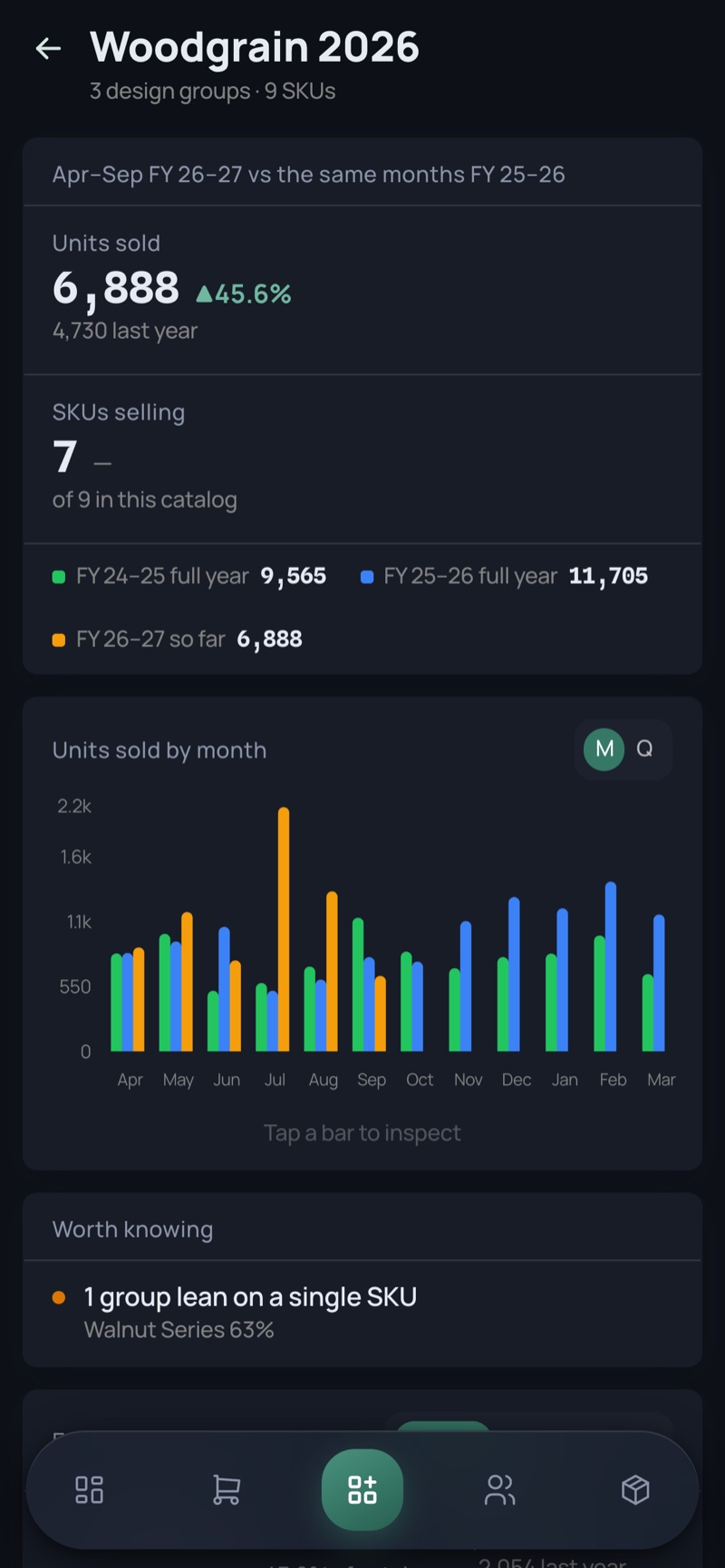
  • Tap a bar for a per-year readout of that month
  • “Worth knowing” surfaces concentration risk — a group leaning on a single SKU
  • Each design row carries best month, how many of its SKUs are selling, and its seasonal peak

Setup

Getting 1,500 SKUs in, and who is allowed to touch them.

3 screens
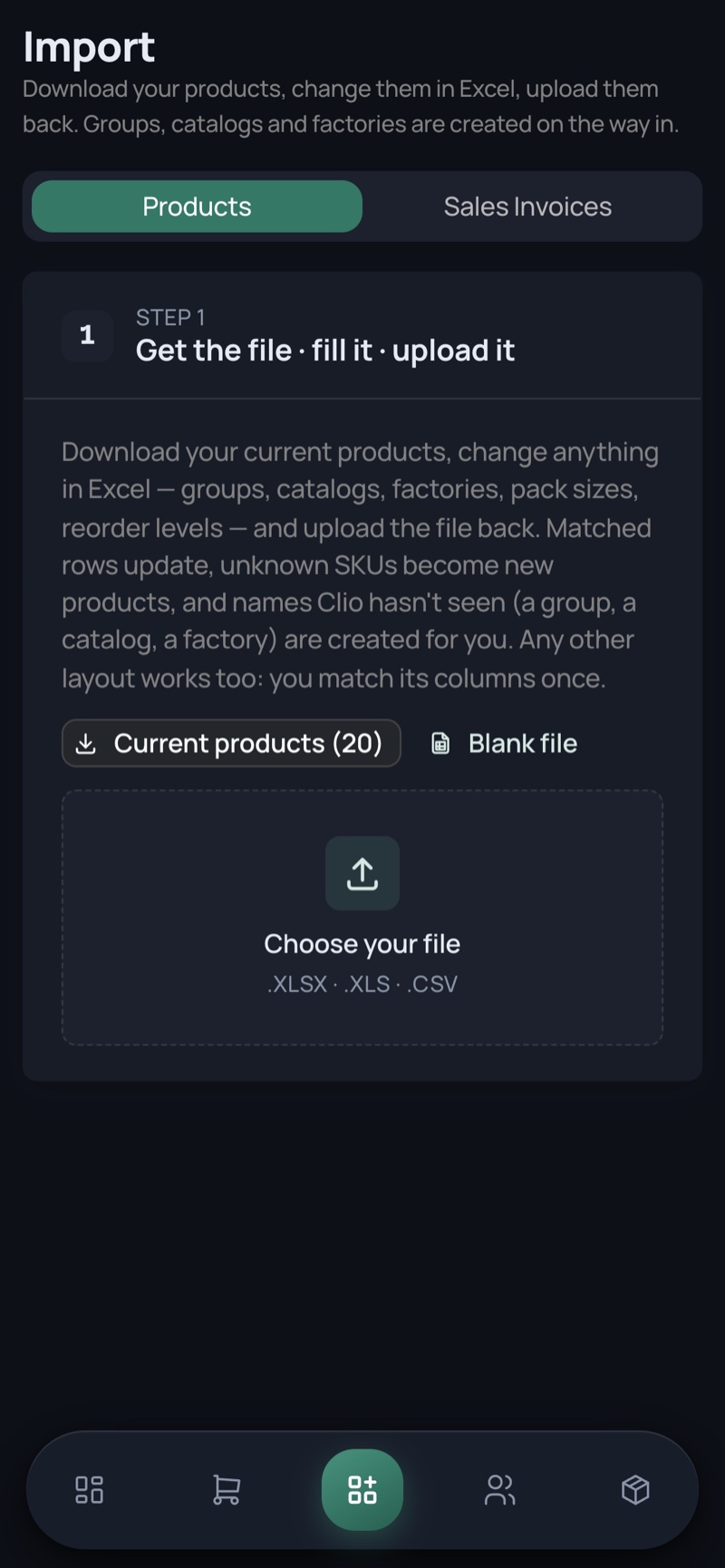
21

Import

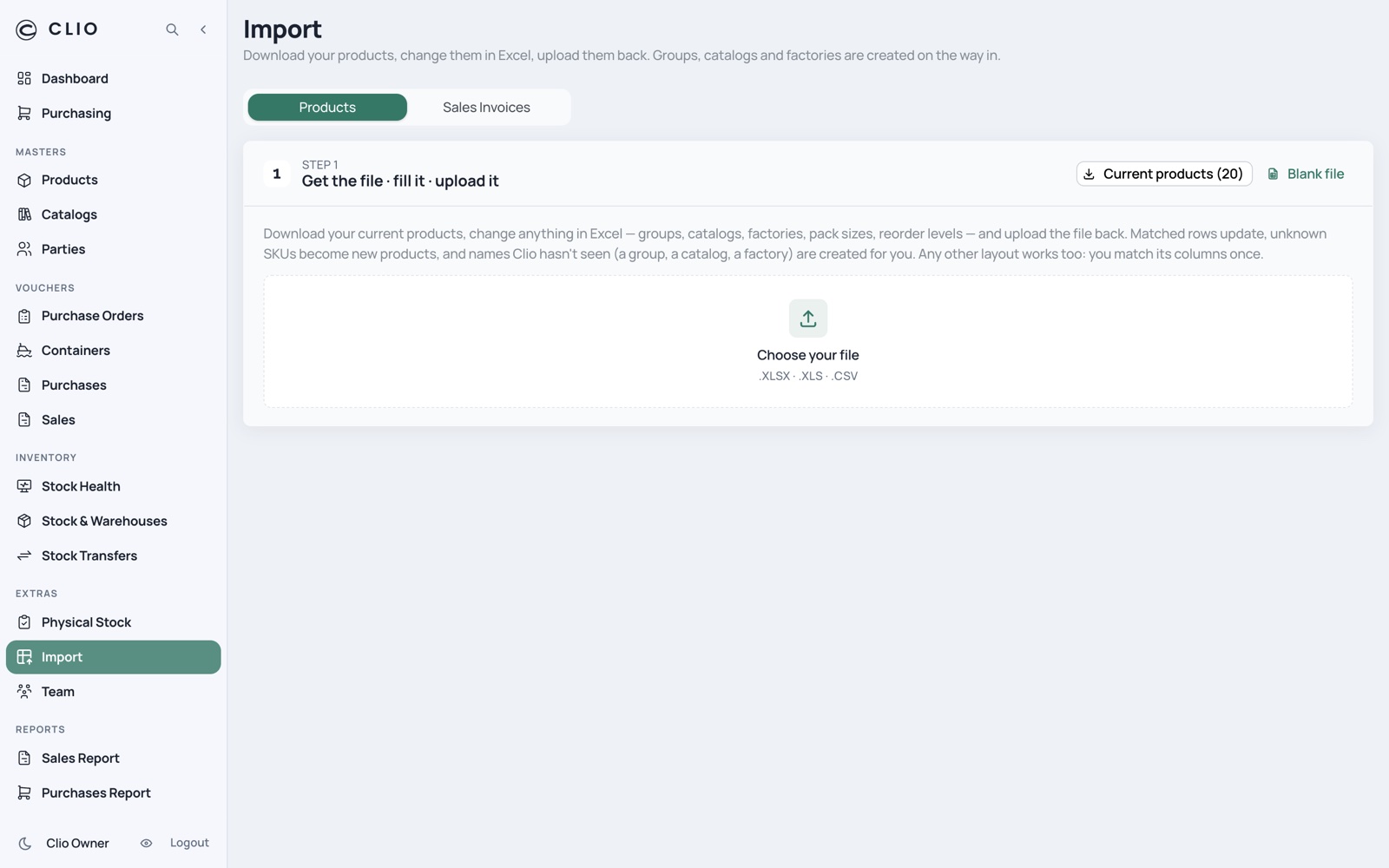
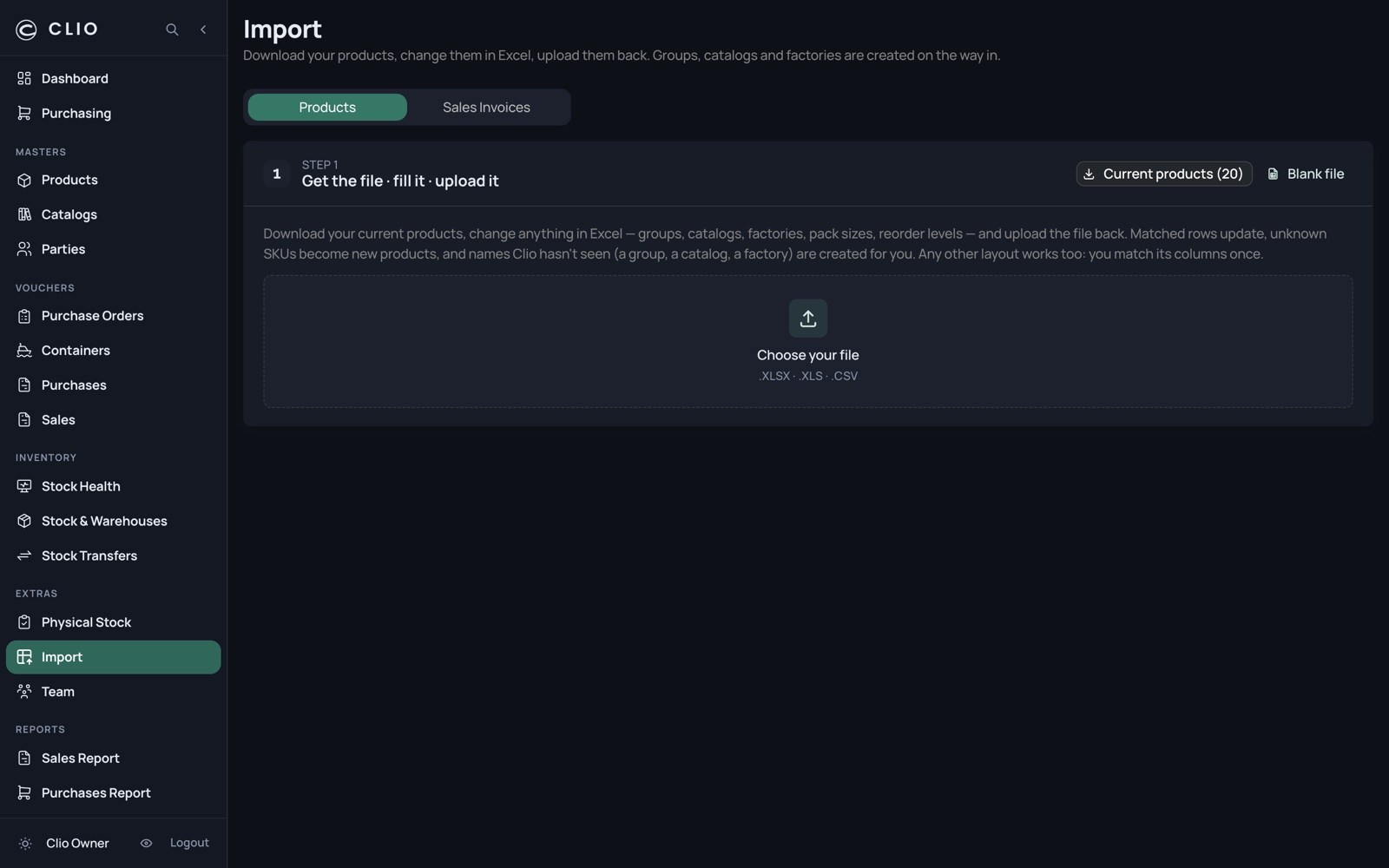
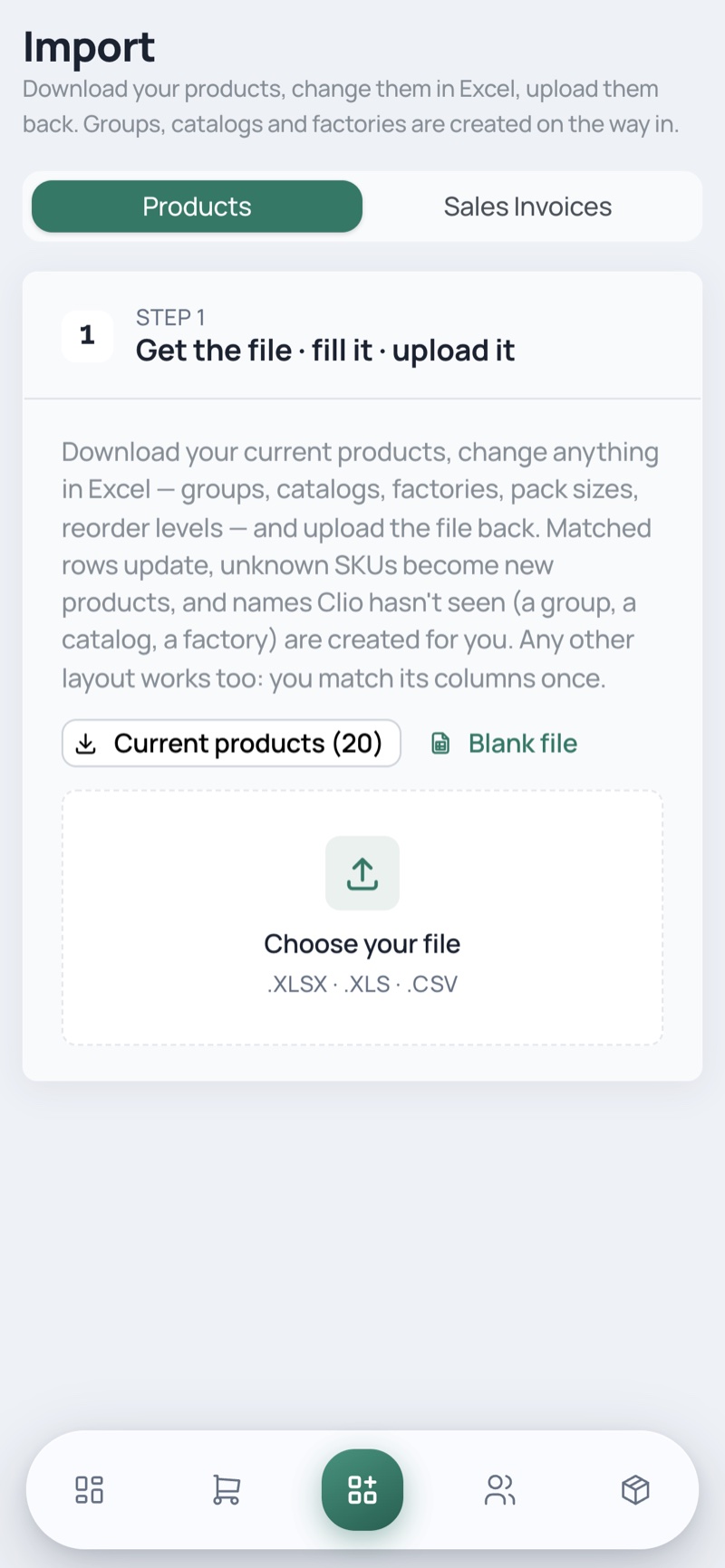
The Excel round-trip: pull the catalogue out, edit it, push it back.

Import — desktop, light Import — desktop, dark
Import — phone, light Import — phone, dark
  • Download current products, or start from a blank file
  • Map your own columns onto Clio’s ten fields; the mapping is remembered
  • Review resolves every row as create or update before a single write, then imports in chunks
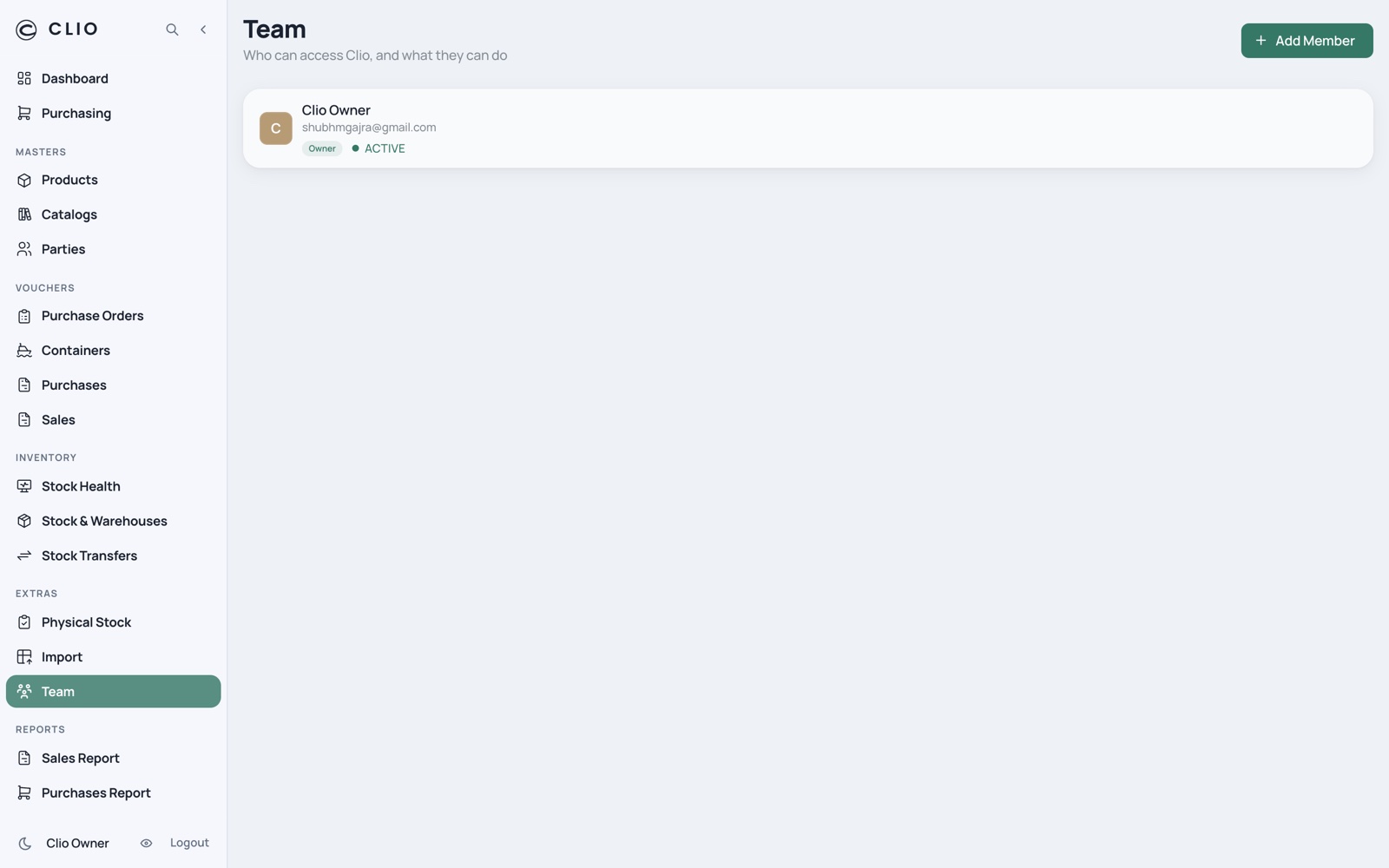
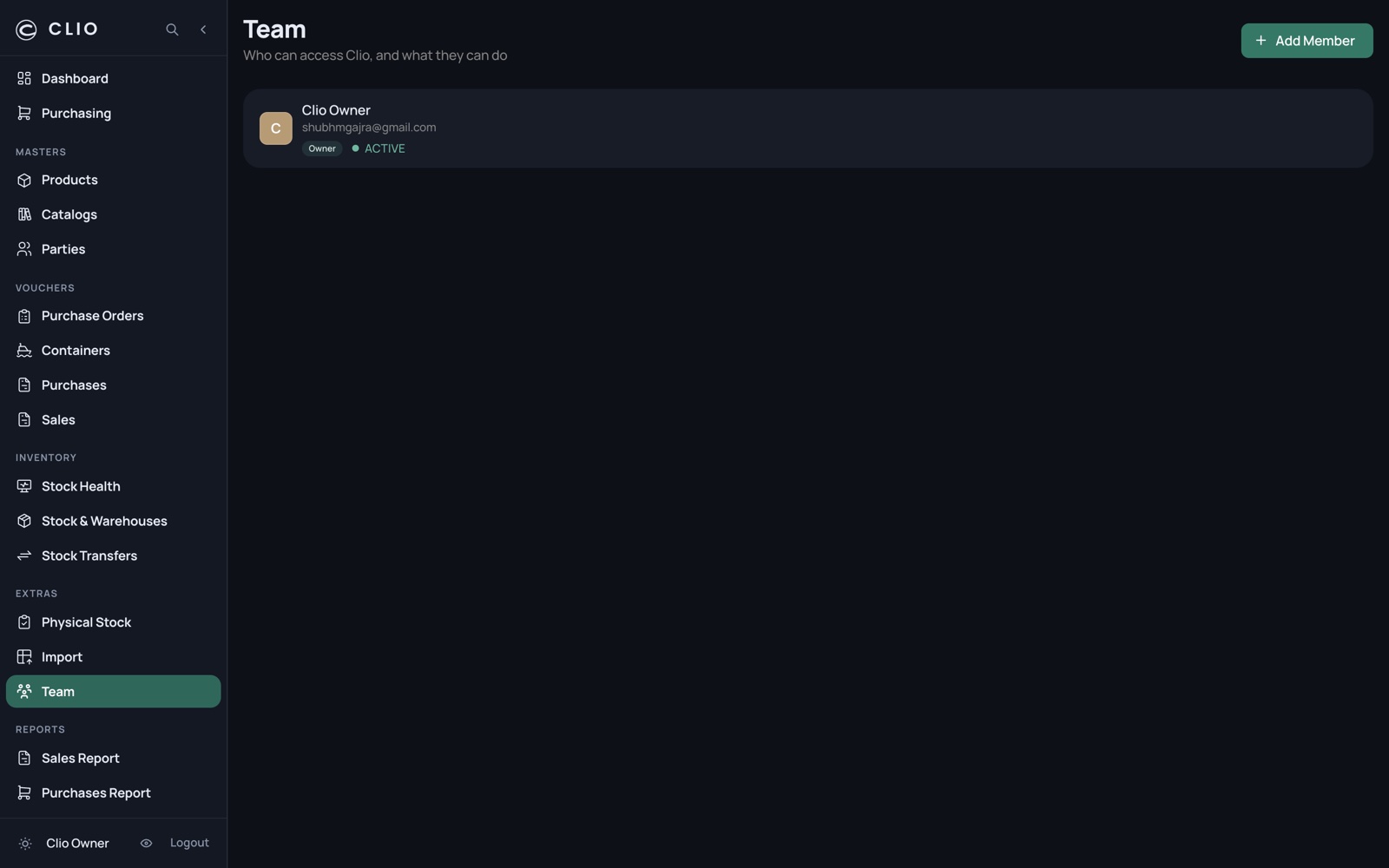
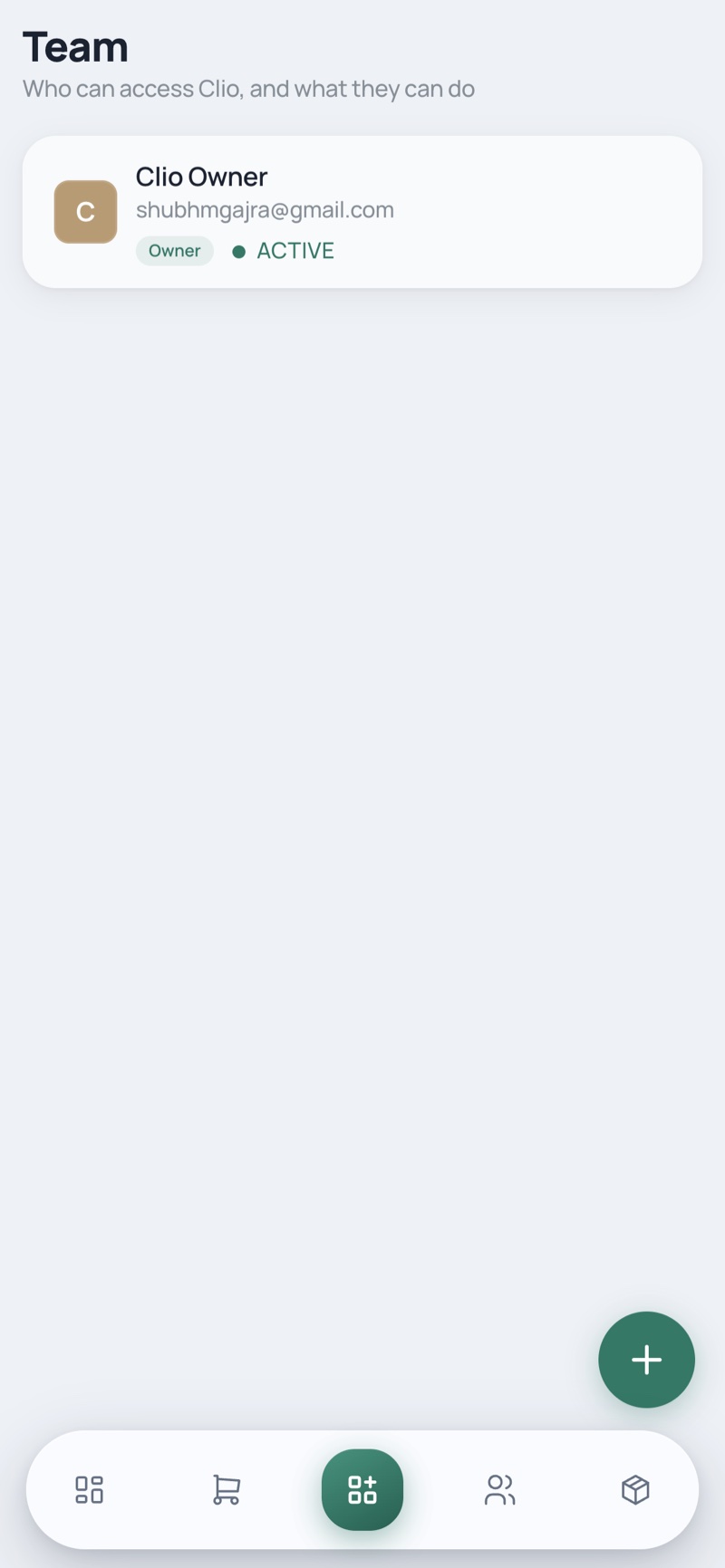
22

Team

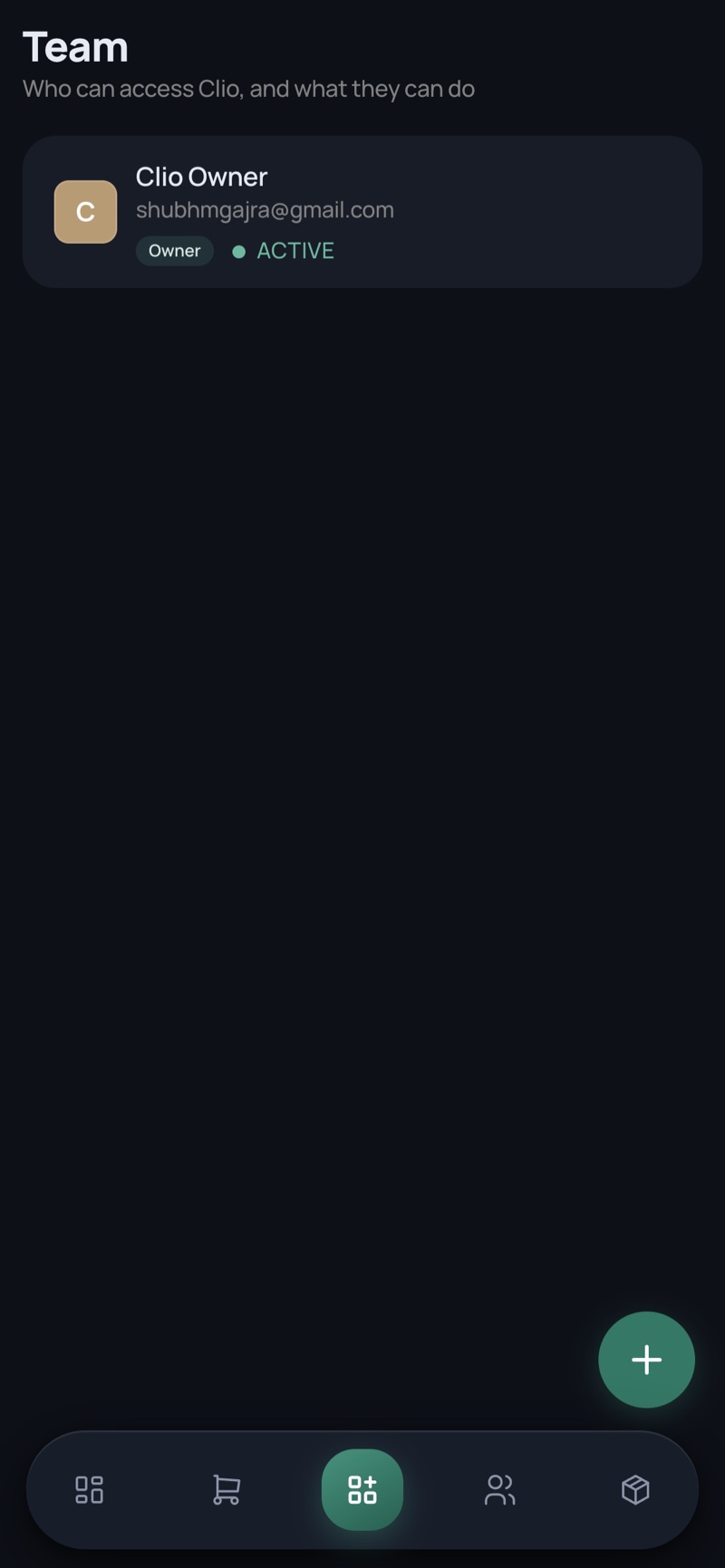
Who can open Clio and what they can do.

Team — desktop, light Team — desktop, dark
Team — phone, light Team — phone, dark
  • Owner, admin, manager, viewer — all money-free
  • Deactivate without removing
  • Per-module permissions behind the member form
28

Settings

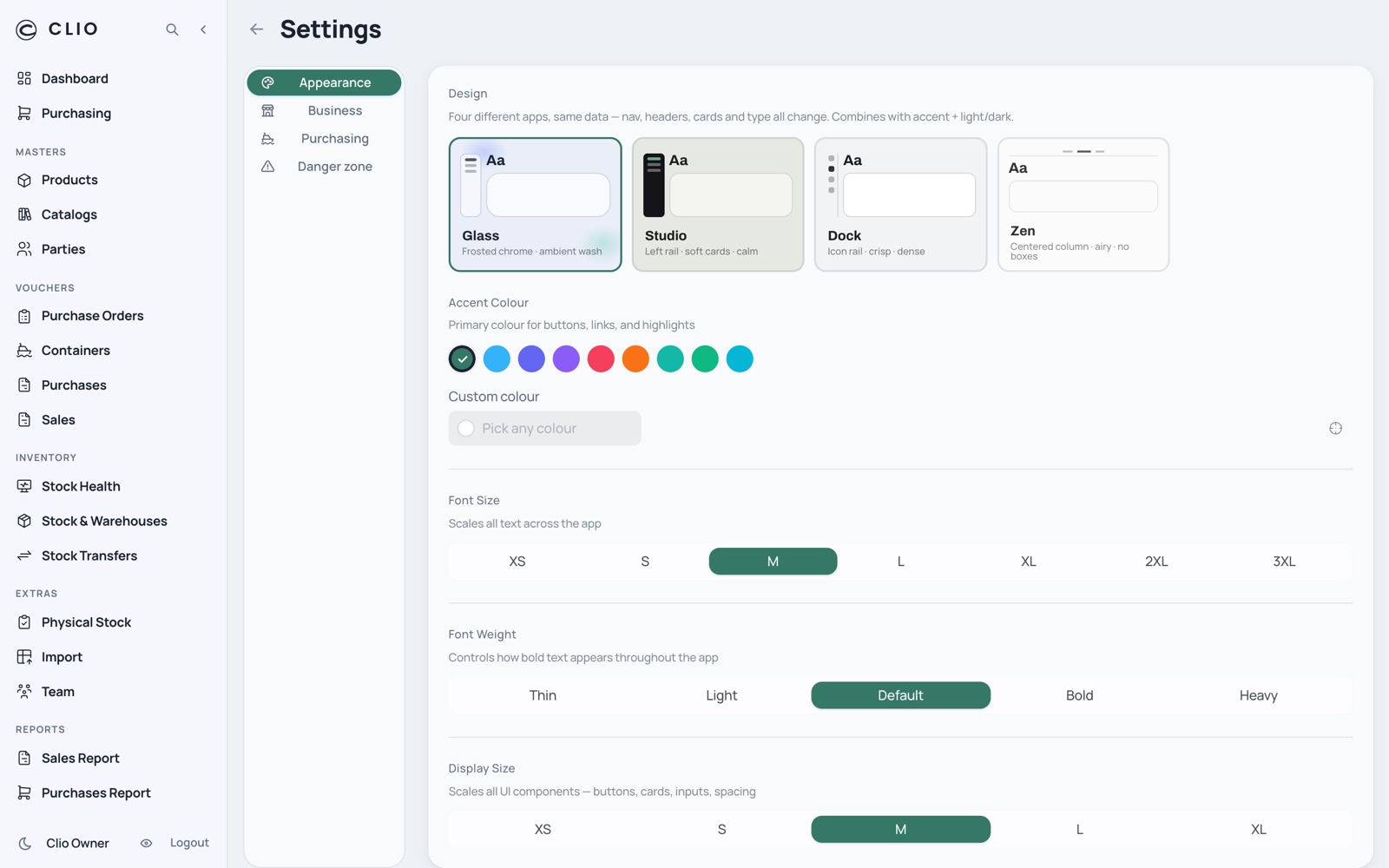
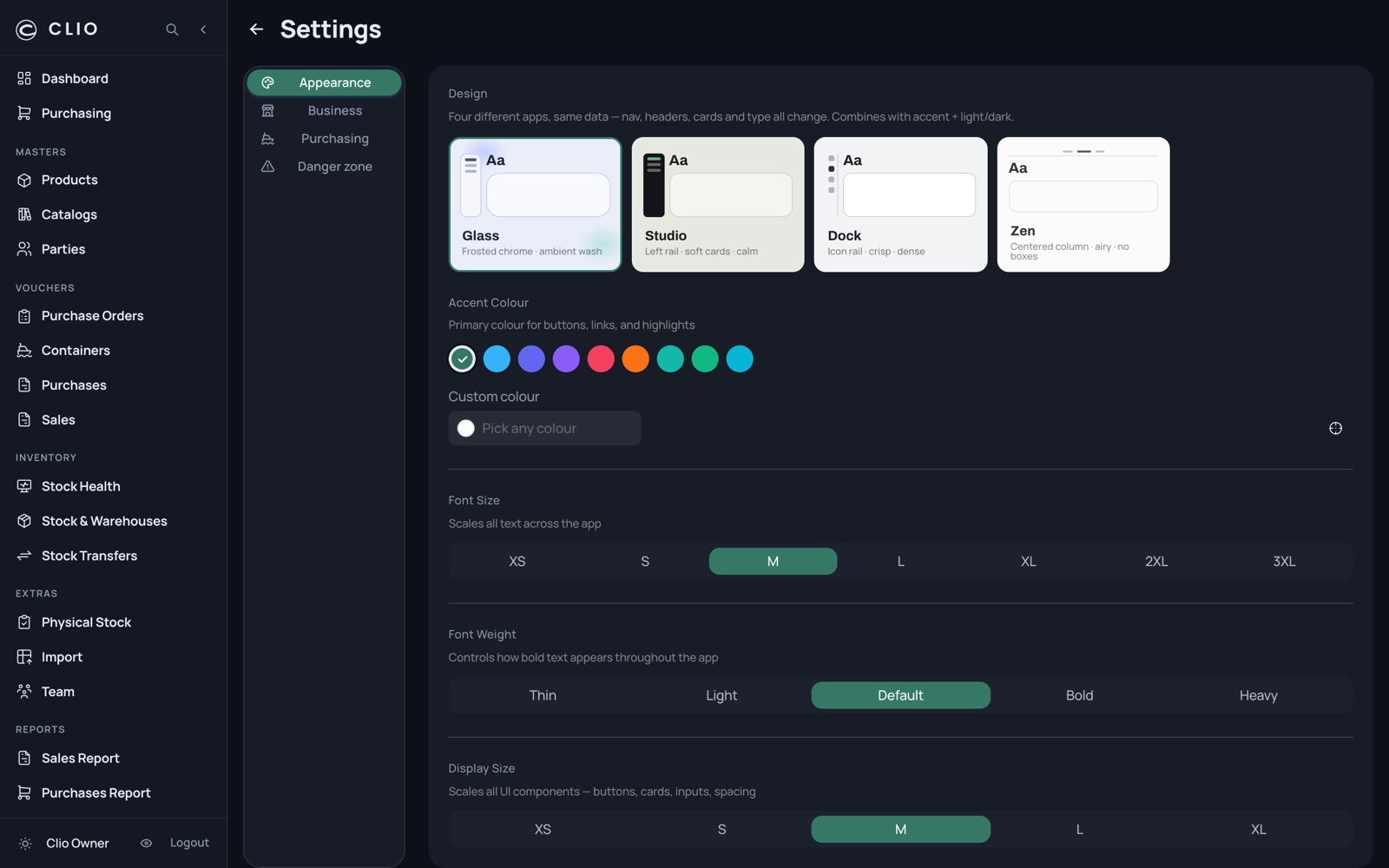
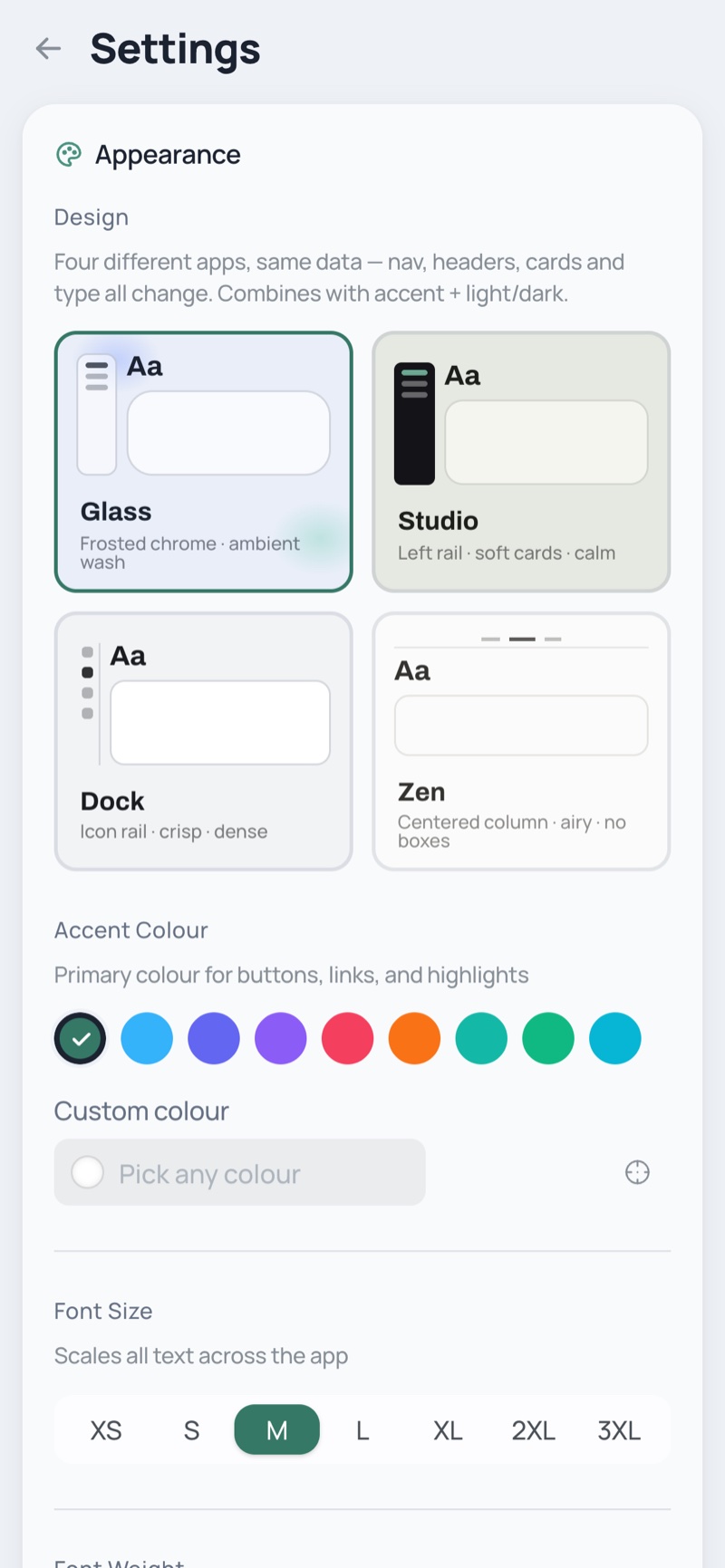
Appearance, the business record, and the one purchasing feature flag.

Settings — desktop, light Settings — desktop, dark
Settings — phone, light Settings — phone, dark
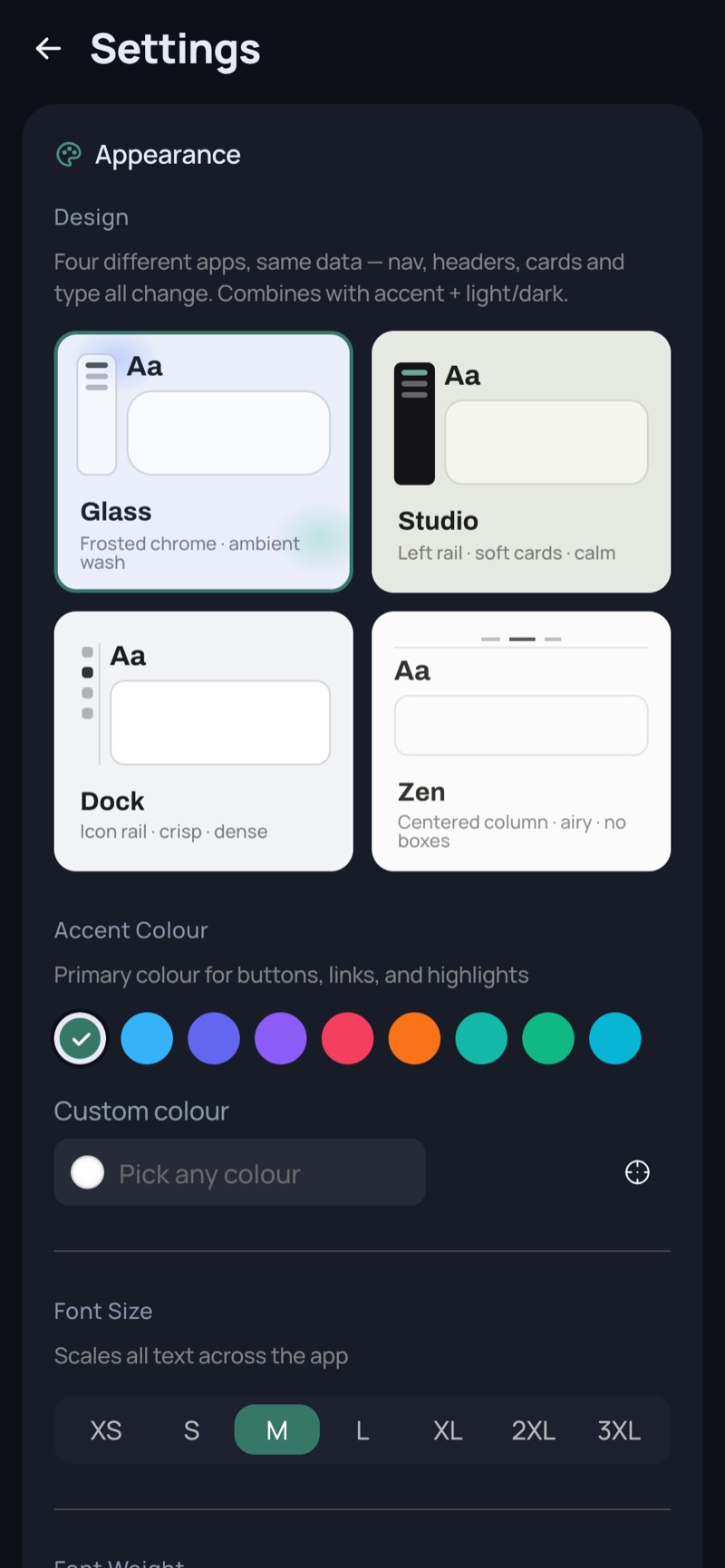
  • Design languages drawn as miniature app mocks — glass is the default
  • Accent colour, font and display sizing
  • Shipping containers on or off reshapes the whole order → container → arrival chain